
Key takeaways
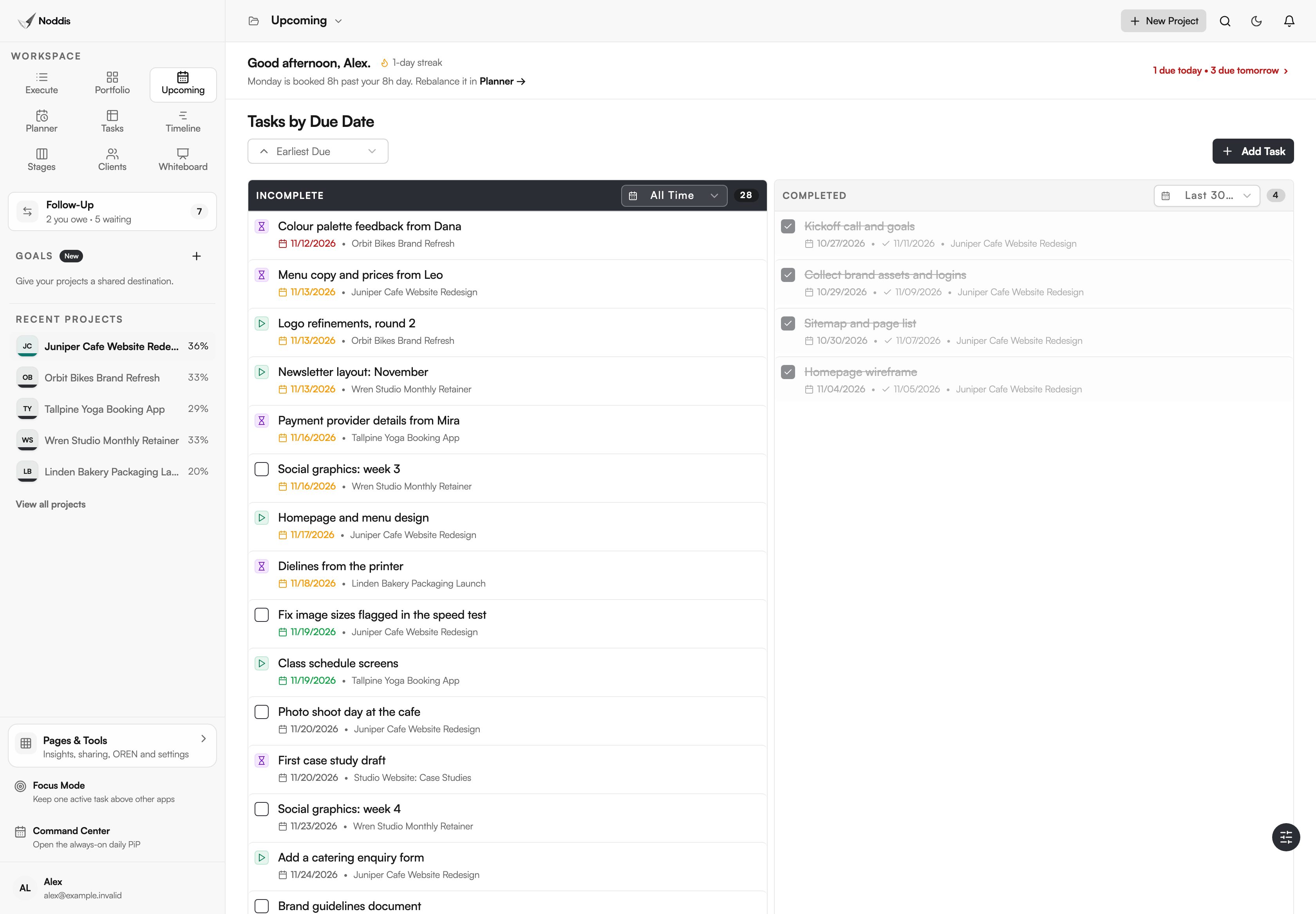
- Upcoming lists every dated task from every active project in one place, in date order.
- The open list can show This Week, Next 30 Days, This Year or All Time.
- A Completed column sits beside it with its own range, so finished work is visible for the same period.
- Upcoming is on the Free plan, which includes three active projects.
Why does Noddis have Upcoming?
Noddis has Upcoming because deadlines live inside projects, and reading them means opening every project. Upcoming is a project deadline tracker that gathers them: one list of what is due this week, in the next 30 days or this year, beside a second list of what was completed in the same time frame.
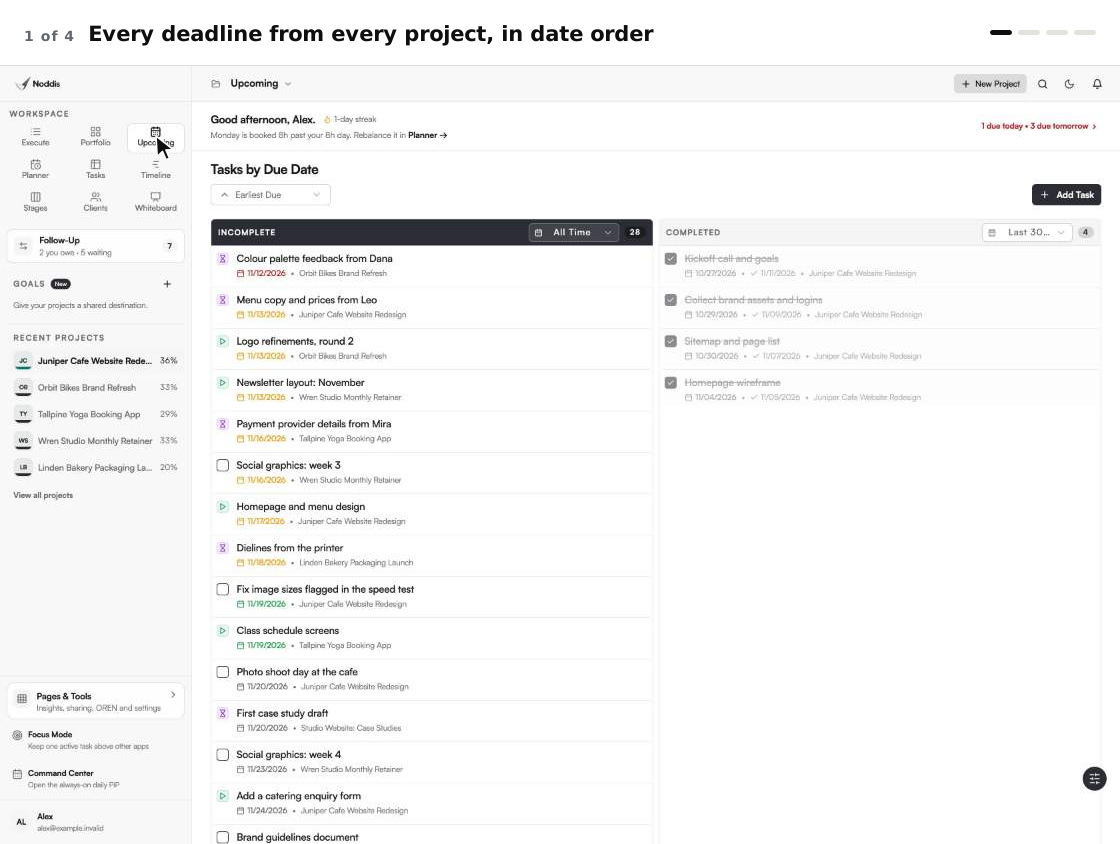
Noddis is a project management app that keeps tasks, follow-ups, and related project details connected. When we built Upcoming in Noddis, we put the deadlines from every project in one list, so nothing has to be opened to see what is due.
A schedule normally belongs to one project. The Association for Project Management, in its guide to scheduling, says: "A schedule is a timetable showing the forecast start and finish dates for activities or events within a project, programme or portfolio." Upcoming is the portfolio end of that sentence: the due dates from all your projects, read as one list. It is one of the ready-made Noddis workspaces, so there is no filter or report to build first.
How Upcoming works, step by step
Upcoming needs only tasks with due dates. Everything else on the screen is already arranged.
- Give tasks a due date as you add them, in any workspace.
- Open Upcoming in the sidebar. The page is titled "Tasks by Due Date".
- Read "Incomplete" on the left: every open dated task, earliest first, with its project.
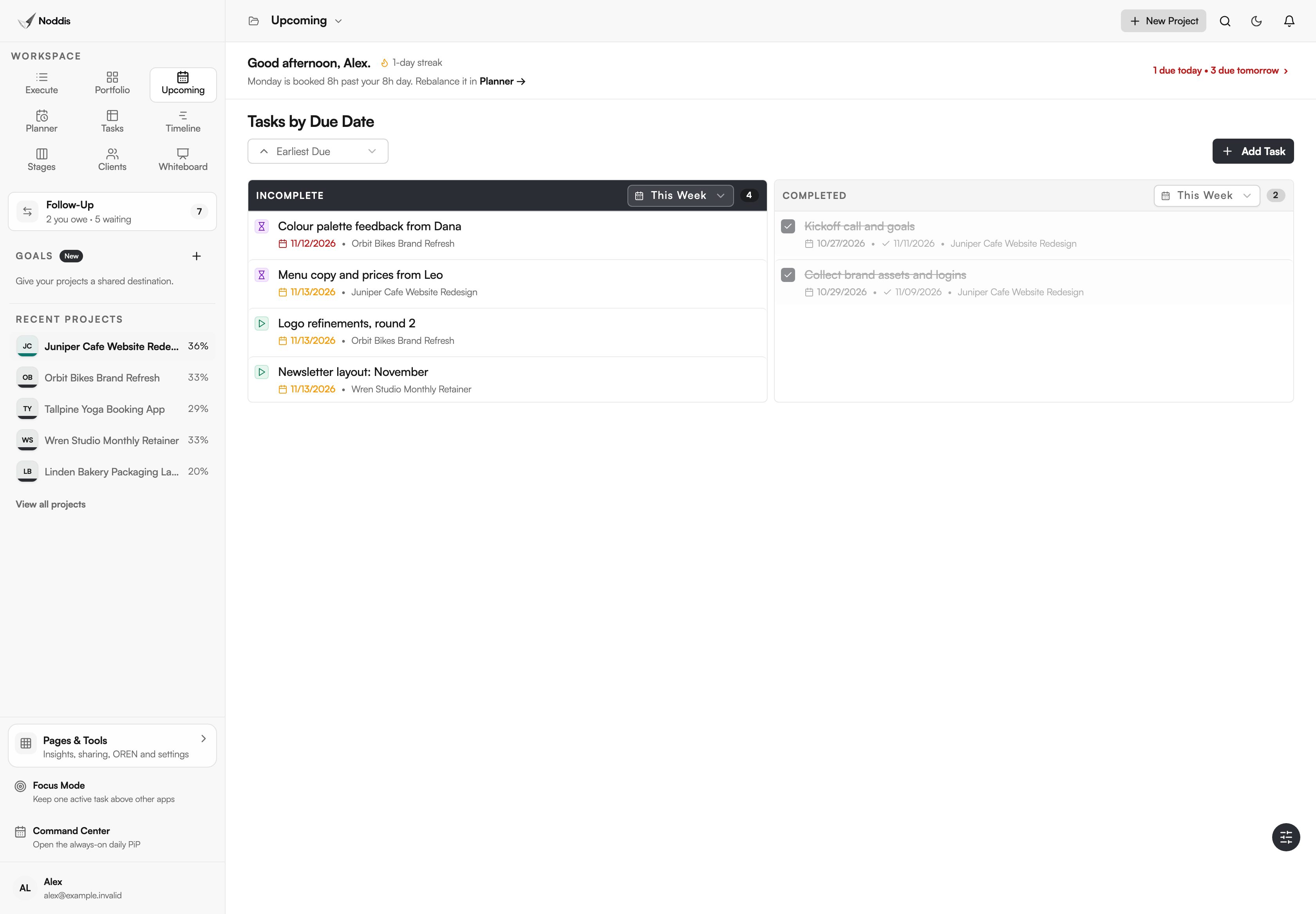
- Set the range above it: "This Week", "Next 30 Days", "This Year" or "All Time".
- Set the range on "Completed" to match: "This Week", "Last 30 Days", "This Year" or "All Time".
- Tick a task when it is finished. It moves to "Completed" and is done in every workspace.
What you stop doing
Upcoming removes the walk through every project. Take a studio with six projects on a Thursday: here is the difference, counted in steps.
| The chore | The usual way | In Upcoming |
|---|---|---|
| Finding what is due this week | Open six projects and read each list | One list: four tasks from three projects, none opened |
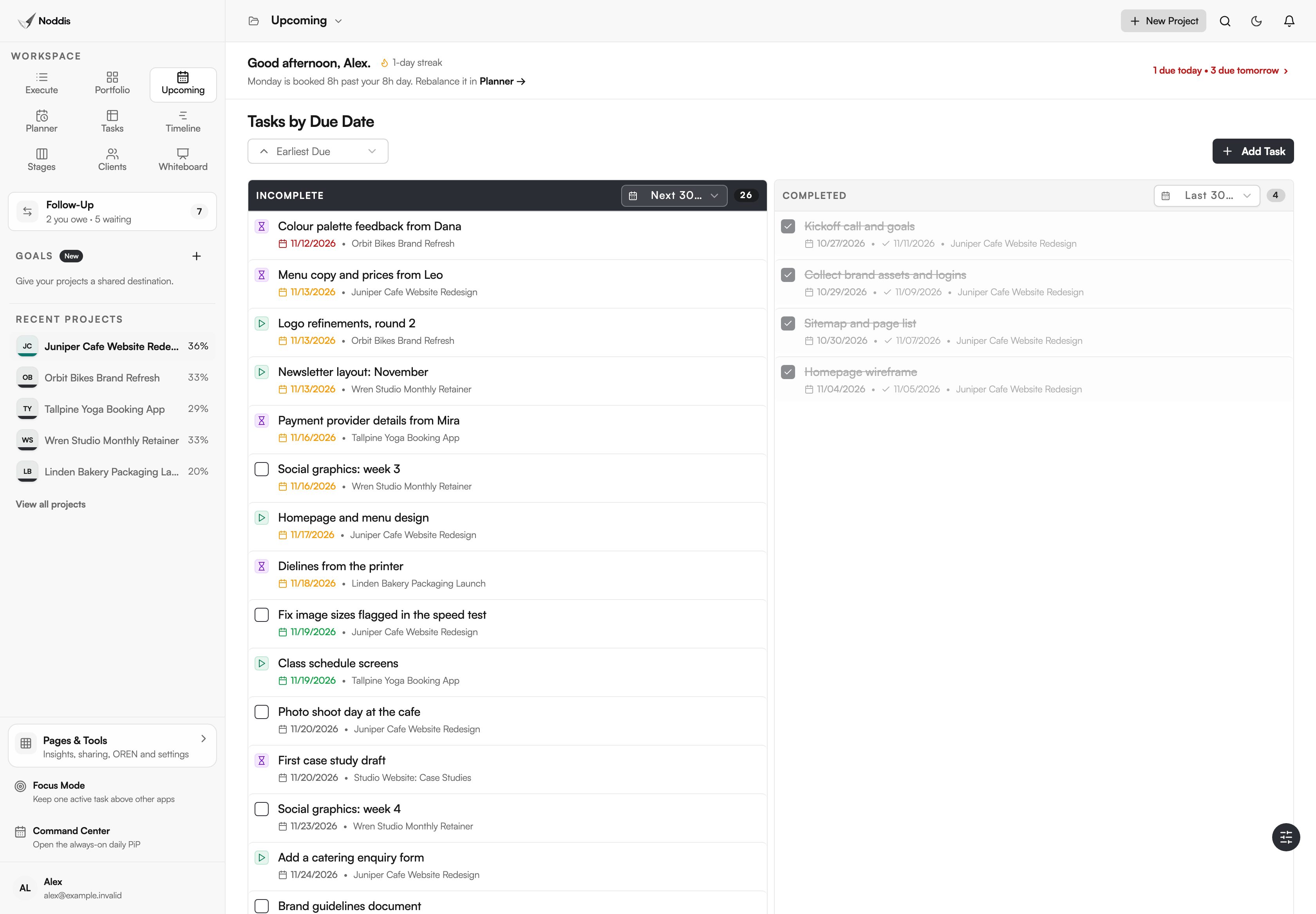
| Looking a month ahead | Build a filter or a calendar view | Set "Incomplete" to "Next 30 Days" |
| Showing what got done | Scroll back through each project | "Completed" sits beside it, over the matching range |
| Marking work finished | Go back to the project to tick it | Tick it in the list |
You still set the dates and decide what comes first. Noddis keeps the list, which is the point of project management without the management.
Which parts of Upcoming carry the benefit?
Two parts of the screen do the work: the pair of columns with their ranges, and the checkbox on every row. Together they show upcoming deadlines across projects, and what has been finished, without a report.
Two columns, each with its own range
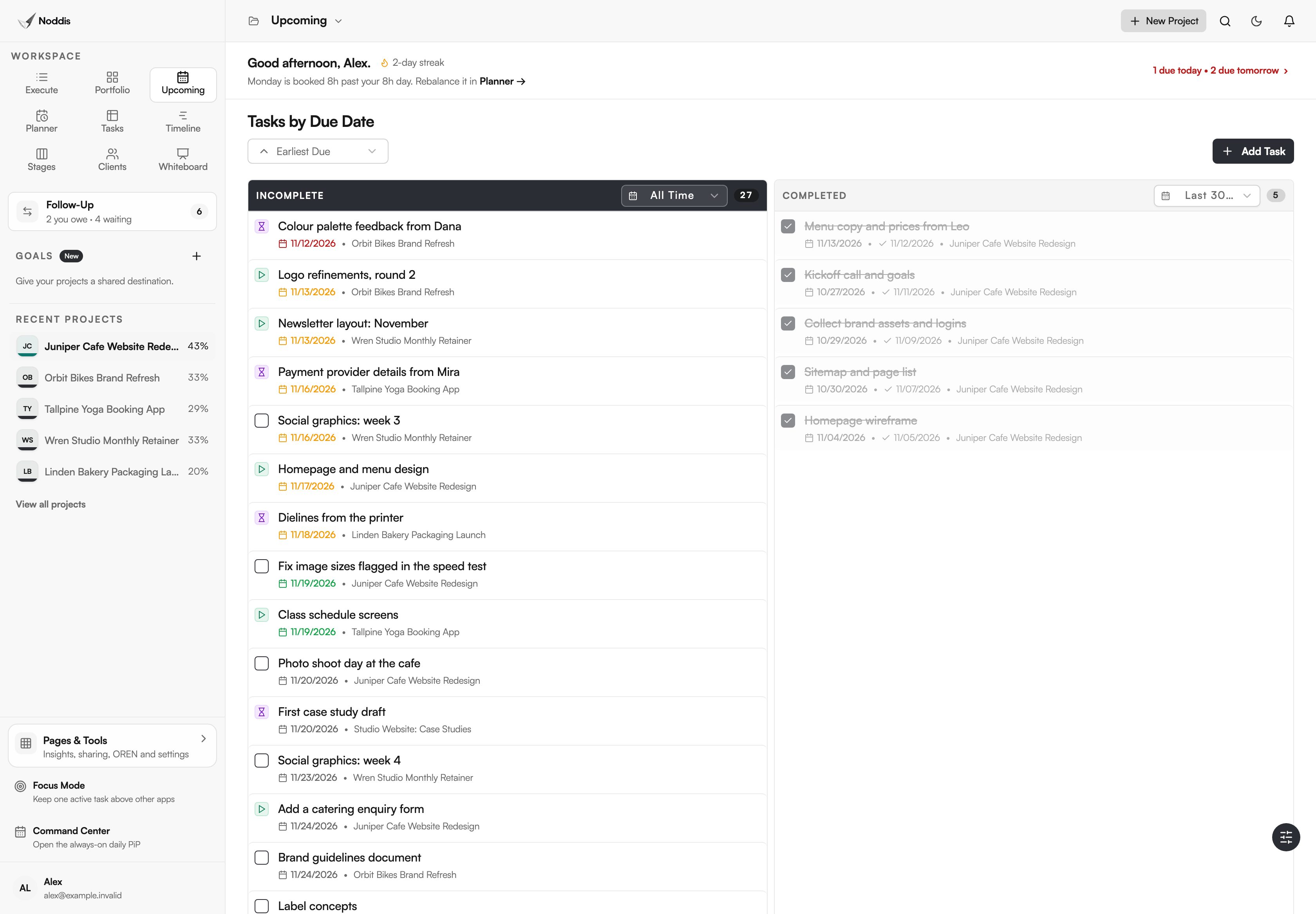
"Incomplete" and "Completed" sit side by side, and each has a count and a range. For open work the ranges are "This Week", which runs Monday to Sunday, "Next 30 Days", "This Year" and "All Time". For finished work they are "This Week", "Last 30 Days", "This Year", which covers the last 12 months, and "All Time". Set both to the same span and you see what is coming beside what is done. Each row shows its date coloured by urgency, the task and its project.
One tick, done everywhere
Every row has a checkbox. Tick a task in Upcoming and it is finished in its project, the project's percent is recounted, and the row moves to "Completed". To decide which of the week's tasks comes first, read the guide on what to work on next.
Which kinds of work suit a project deadline tracker?
Upcoming suits teams whose deadlines overlap across several projects, where a missed date is costly. Three kinds of work show it.
AEC proposal teams
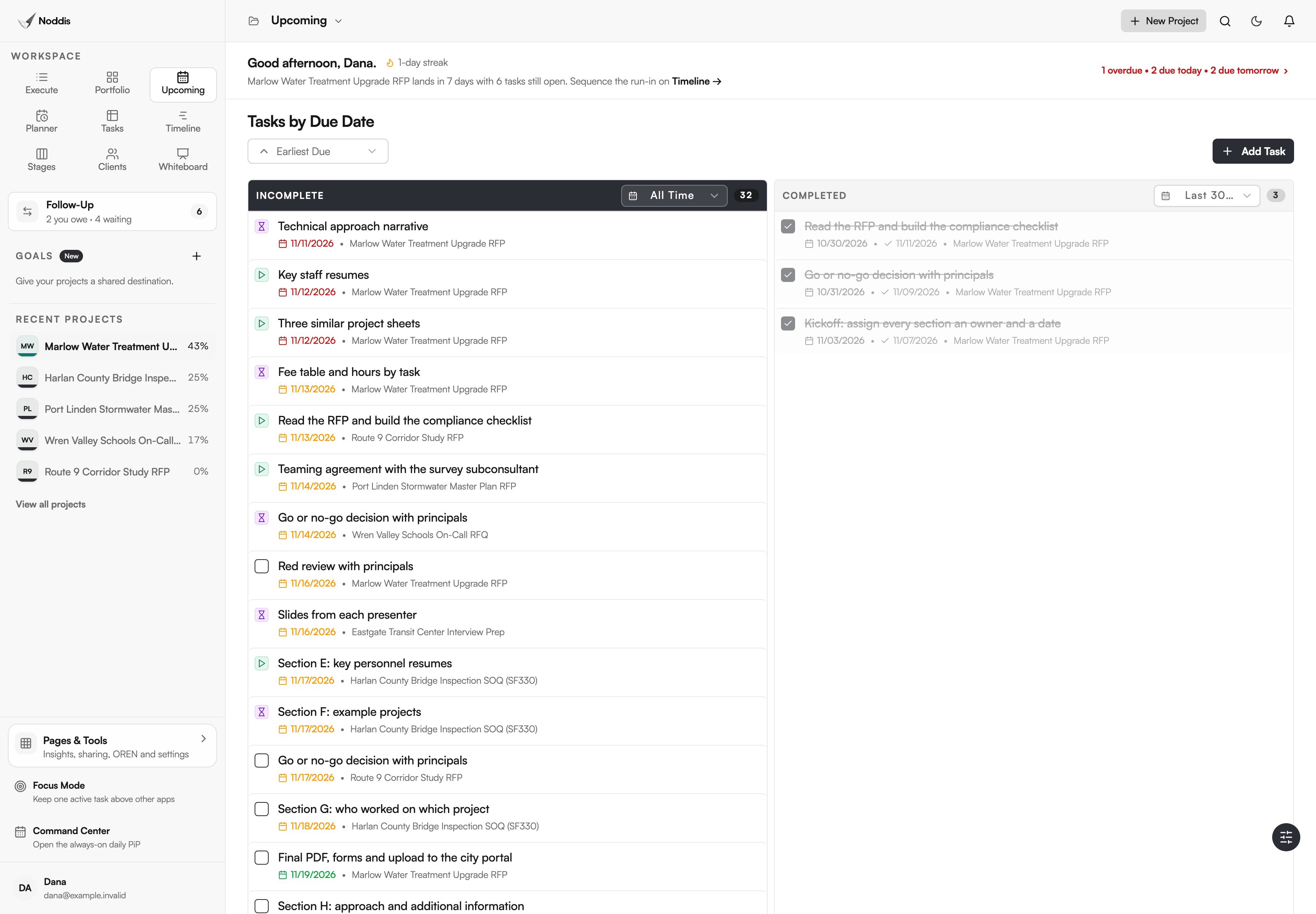
A proposal team works to submission dates that do not move, with several pursuits in flight. Upcoming shows every input and review by date, whichever proposal it belongs to. For the full routine, read how to manage multiple RFPs at once.
In-house marketing
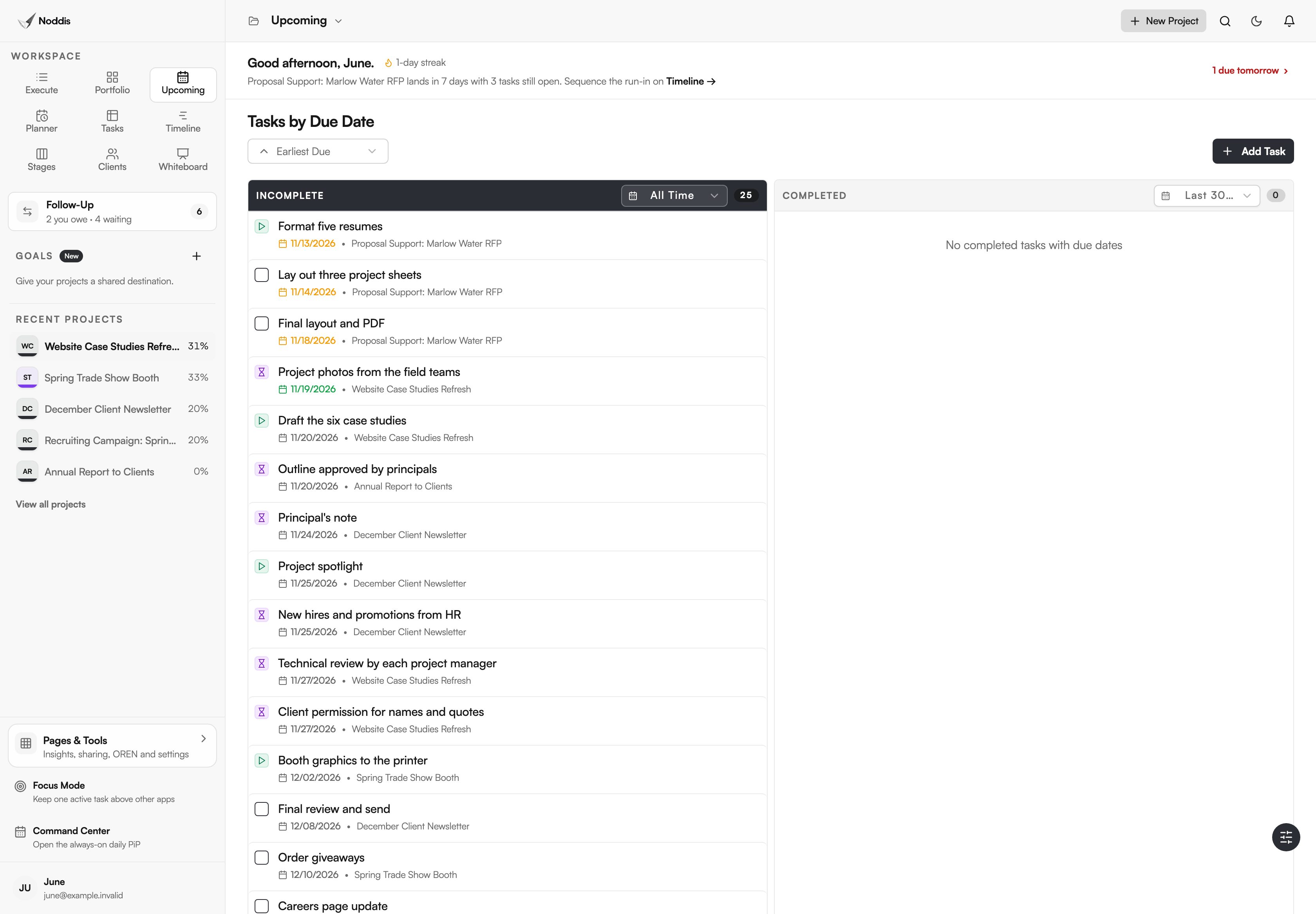
A marketing department serves many requesters at once. Upcoming puts the trade show, the newsletter and the proposal support on one list, so the week is planned from dates and not from whoever asked last.
Purchasing teams
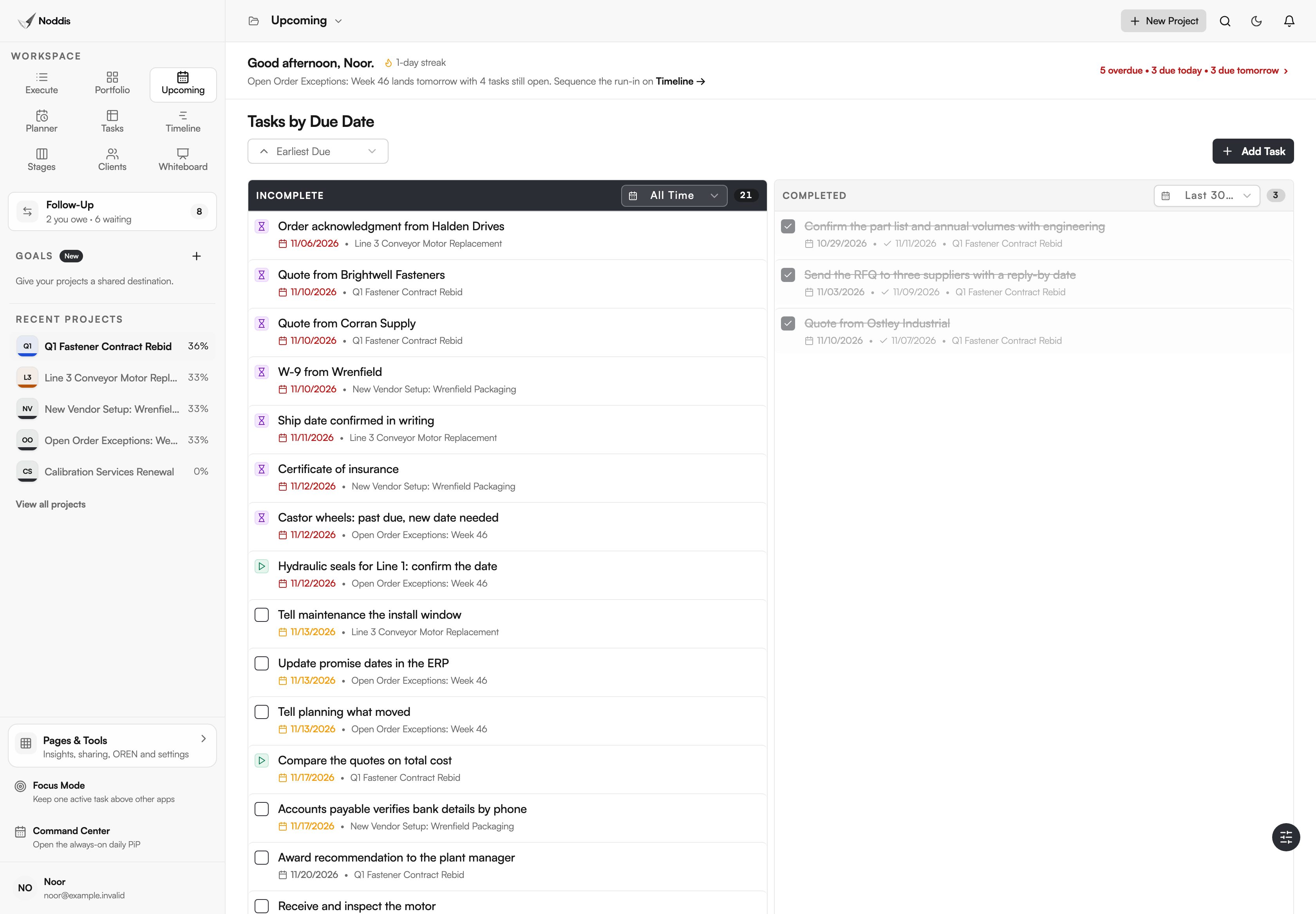
A buyer's deadlines are mostly other people's promises: a quote, an acknowledgment, a form. Upcoming lines them up by date across every sourcing project.
What Upcoming does not do
Upcoming is a list of dated tasks in two columns. It is not a calendar, and its ranges are fixed.
- No calendar grid. For days and hours, use Planner. For bars by date, Timeline is on Pro.
- No saved filters. Each column has four ranges, and you cannot add your own.
- No separate Overdue section. Late tasks stay in "Incomplete", in date order.
- No undated tasks. A task without a due date does not appear here.
- No custom fields. A row shows the date, the task and its project.
If you need critical-path scheduling or resource levelling, look at dedicated scheduling software.
What it costs
Upcoming is on the Free plan, with both columns and every range. The Free plan includes three active projects. Pro is $15 a month and adds unlimited projects, so the list can cover all of them. To try it with your own project, open the live demo. No account is needed. Check the current plans before you decide.
Frequently asked questions
Does the project deadline tracker include tasks from every project?
Yes. Upcoming lists every dated task from all your active projects, and each row names its project. Dated subtasks sit under their task. Tasks with no due date are left out, so give a task a date if you want it to appear in the list.
Where do overdue tasks go?
They stay in the "Incomplete" column. Upcoming has no separate Overdue section. Sorted by "Earliest Due" with the range on "All Time", the oldest missed date is the first row, and each date is coloured by urgency. A late task stays in view until you tick it.
Can I add a task with a deadline from Upcoming?
Yes. "Add Task" opens "Add Task with Due Date". You name the task, choose its project and set the due date. A start date and a time are optional. The task is saved to that project and takes its place in the list by date.
Is Upcoming a calendar?
No. Upcoming is a list in date order with two columns. For a calendar by day or week, use Planner, which is also on the Free plan and shows the same dates. On Pro, Timeline draws them as bars. All three read the same saved work.
Can I send these deadlines to my own calendar?
Yes, if you use Google Calendar. "Calendar Sync" can send project, task and subtask deadlines to Google Calendar, on Free and Pro. It works with Google Calendar only. Upcoming stays a list inside Noddis, and the sync puts the same dates beside your meetings.
Every deadline, in one list.
Add due dates to the tasks in two or three projects, then open Upcoming. What is due this week will be on one screen, with what you finished beside it.