
Key takeaways
- The embed is a live progress bar for one project that updates by itself when a task is finished.
- It shows only the project name, an optional caption, the percent, task counts and a Linear or Weighted label.
- It works where a page accepts an embed or an iframe, such as Notion or a website, and not inside an email.
- Turning off "Public embed" replaces the bar everywhere with "This project is no longer public."
Why does Noddis have a live progress embed?
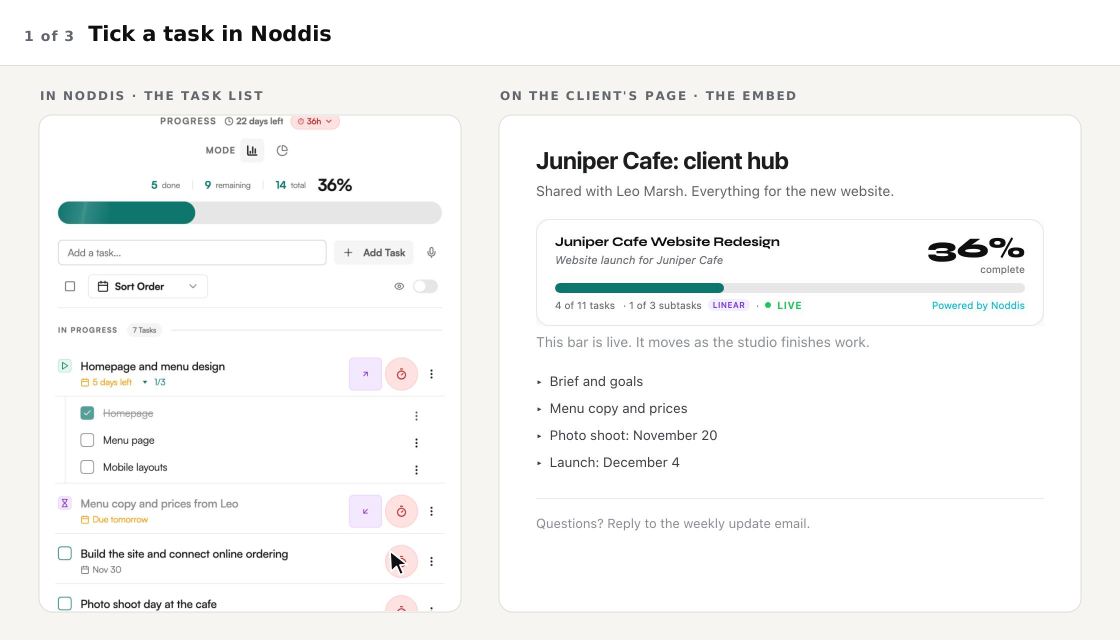
Noddis has the embed so a live project progress bar can sit on the page your audience already opens. Turn it on, then embed it in Notion, a website or a client hub. When you finish a task in Noddis the bar moves by itself, so nobody asks for a status and you never edit a widget.
When we built the progress embed in Noddis, we limited it to the project name, the percent and the counts, so it is safe to put on a public page. Noddis is a project management app that keeps tasks, follow-ups, and related project details connected. The embed carries one of those details, progress, from the workspaces to a page outside the app.
How to add the embed, step by step
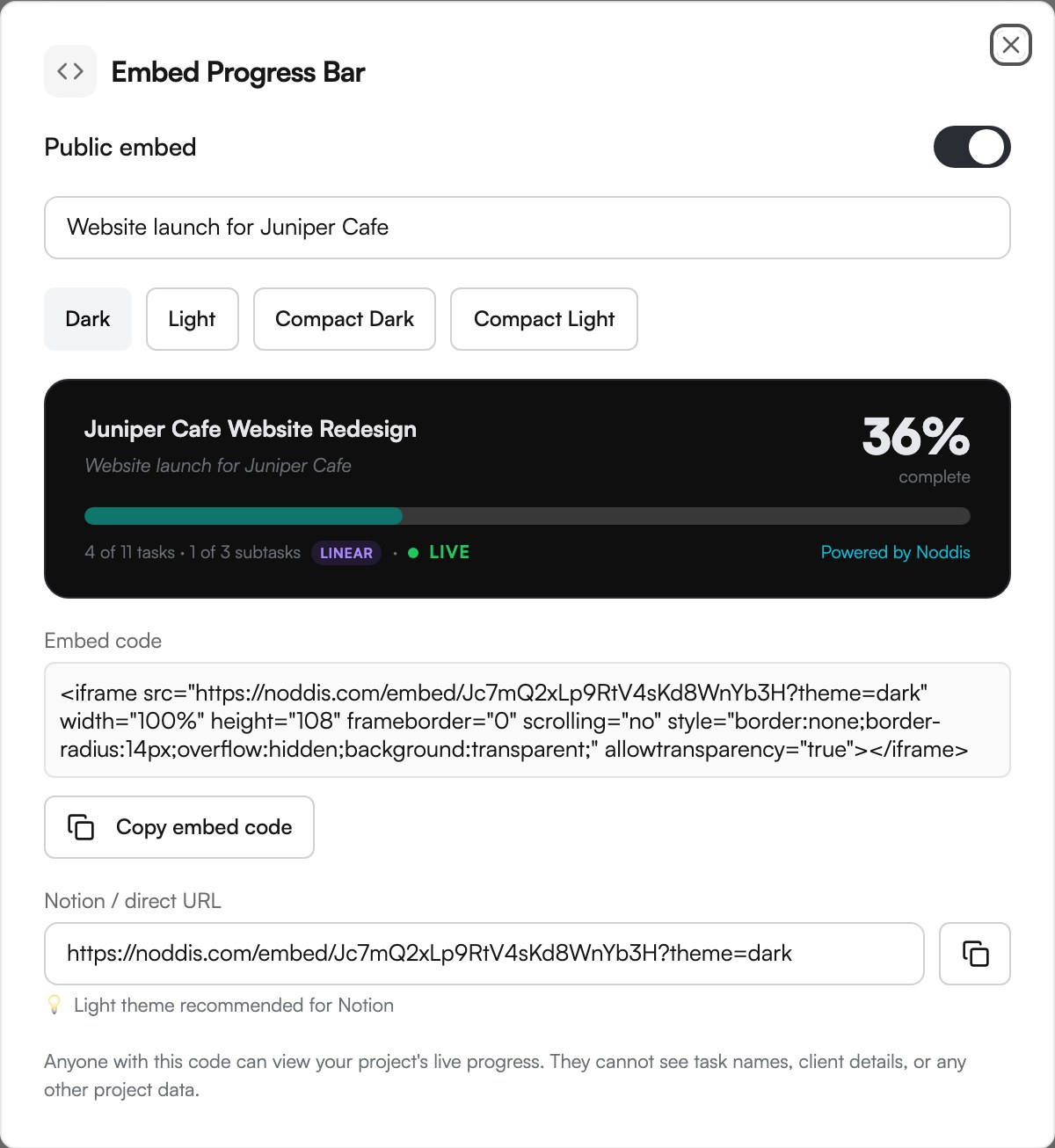
Adding the bar is a switch and a paste. The dialog gives you two things to copy: an embed code for websites and a direct link for Notion.
- Open the project's details and choose "Embed Progress Bar".
- Turn on "Public embed".
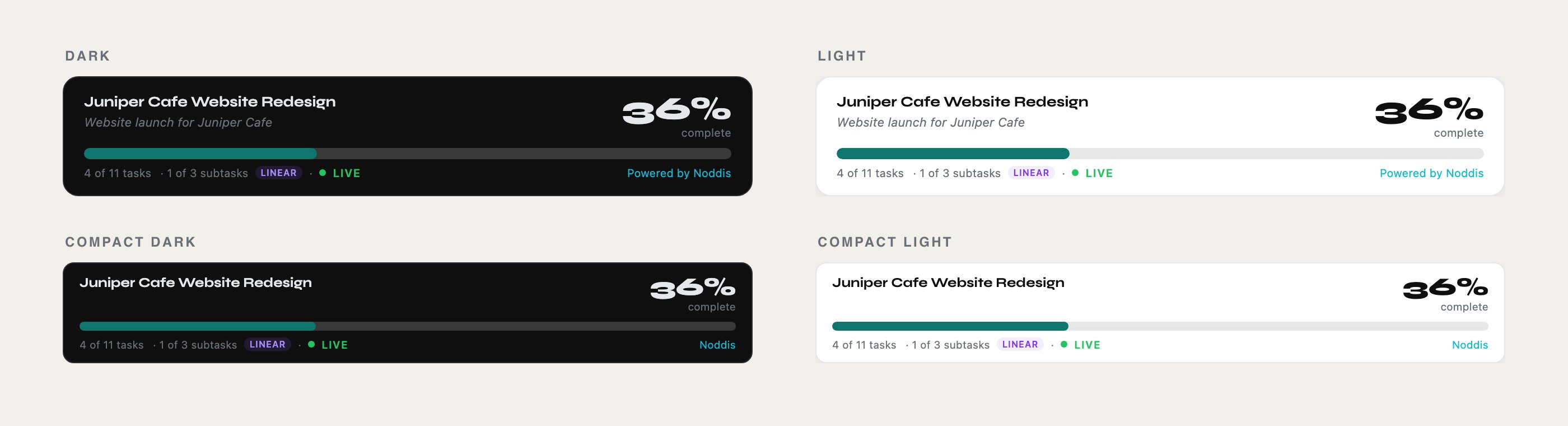
- Pick a look: Dark, Light, Compact Dark or Compact Light.
- Add a caption if you want one. It shows under the project name, except in the compact looks.
- Press "Copy embed code" for a website, or copy the "Notion / direct URL" for Notion.
- Paste it where the bar should appear.
What you stop doing
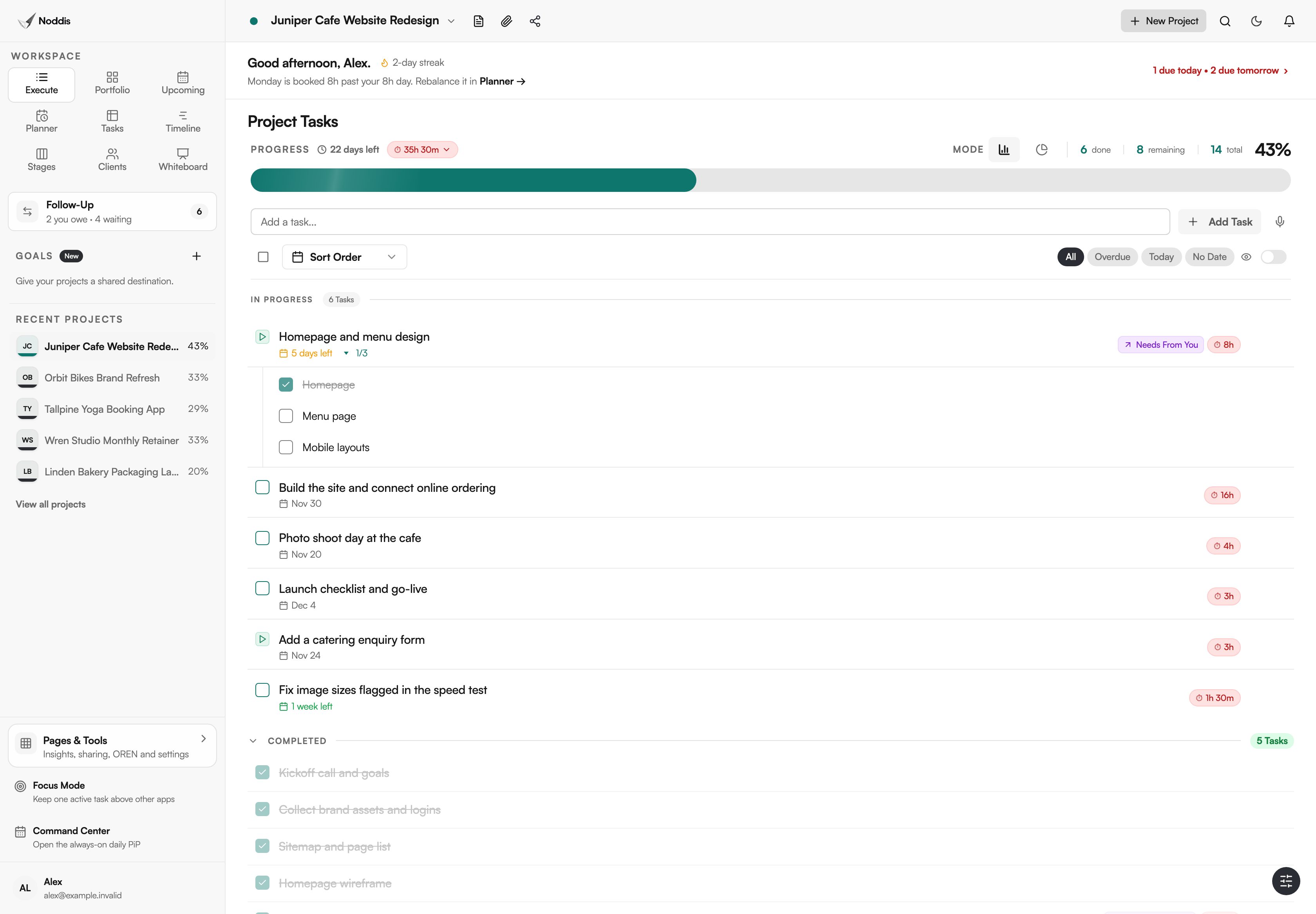
The embed removes the status widget you keep by hand. After the paste, the only step left is one you already take: ticking the task.
| The chore | The usual way | With the embed |
|---|---|---|
| Updating a progress bar on a Notion page | Open the page and retype the percent after each task | Tick the task in Noddis and the bar moves |
| Answering "how far along are we?" | Write a reply or a status email | The page they already open shows the percent |
| Deciding what is safe to show | Copy numbers onto a public page by hand | The embed shows the name, the percent and the counts only |
Where can you put the live progress bar?
The bar works anywhere that accepts an embeddable link or an embed code: Notion, websites, client hubs, course pages, wikis and a Noddis Whiteboard. An email is the one common place it cannot run live.
In Notion
Paste the "Notion / direct URL" into a Notion page and choose to embed it. Notion's help centre says: "In most cases, Notion will recognize an embeddable URL when you paste it into your page." If the menu does not appear, add an Embed block and paste the link there. The dialog recommends the Light look for Notion.
On a website or client hub
Paste the embed code where your site builder accepts HTML. The code is an iframe. MDN Web Docs explains: "The <iframe> HTML element represents a nested browsing context, embedding another document into the current one." In plain words, it is a small window onto a page that Noddis keeps current.
In a newsletter
Email apps do not run live embeds, so a bar inside an email cannot update. Link to the page that holds the bar instead. Or download the project's Share Card, a picture of the progress at that moment, and place it in the email.
What does the embed show, and what does it never show?
The embed shows the project name, your optional caption, the percent complete, the bar in the project's colour, the task and subtask counts, a LINEAR or WEIGHTED pill, a green LIVE dot and "Powered by Noddis". It shows nothing else.
The app says so in its own words: "Anyone with this code can view your project's live progress. They cannot see task names, client details, or any other project data."

Linear vs weighted project progress explains the two ways of counting.
Who uses a live project progress bar?
Anyone with an audience that asks about progress. Here are eight places the bar fits, and what it replaces in each.
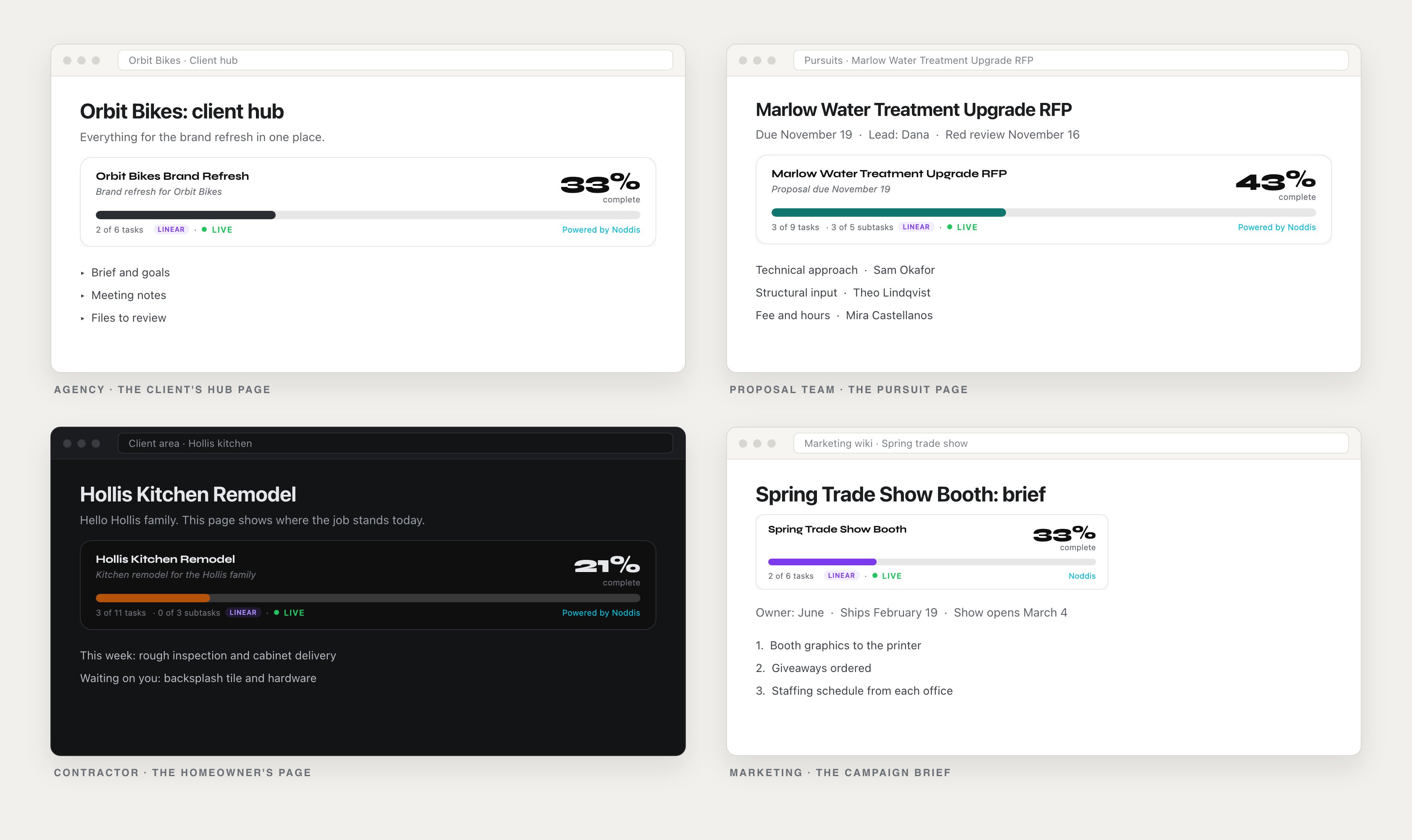
AEC proposal managers
Put the bar on the pursuit page everyone checks before the deadline. It replaces the "where are we" message in the last week.
Creative agencies
Place it on the client's hub, beside the brief and the files. It replaces the percent in a weekly status email.
Remodeling contractors
Add it to the homeowner's page for the job. It answers "how far along is the kitchen" without listing every task.
Marketing managers
Put it on the campaign brief the rest of the company reads. It replaces the status line you rewrite before each meeting.
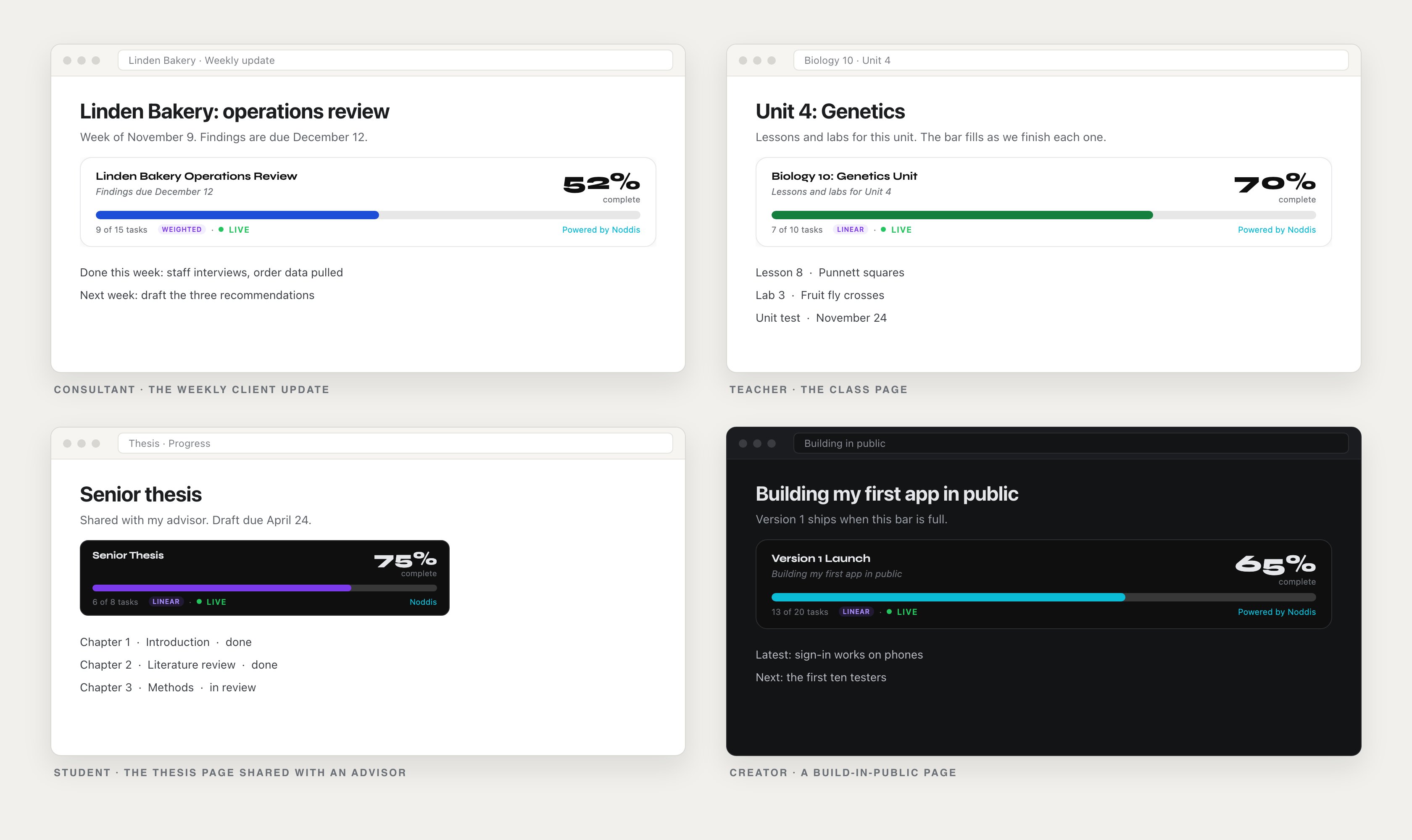
Consultants
Add it to the weekly client update page. Your written update can cover decisions and risks, because the percent is already there.
Teachers
Place it on the class page for a unit. The class sees how far through the unit they are, with no chart to redraw.
Students
Put it on a thesis page shared with an advisor. It replaces the "how is it going" email before a meeting.
Tech creators
Add it to a "building in public" page. Followers see the project move as you finish tasks, with no new screenshot to post.
What the embed does not do
The embed is a progress bar and nothing more. That is why it is safe on a public page, and it is also its limit.
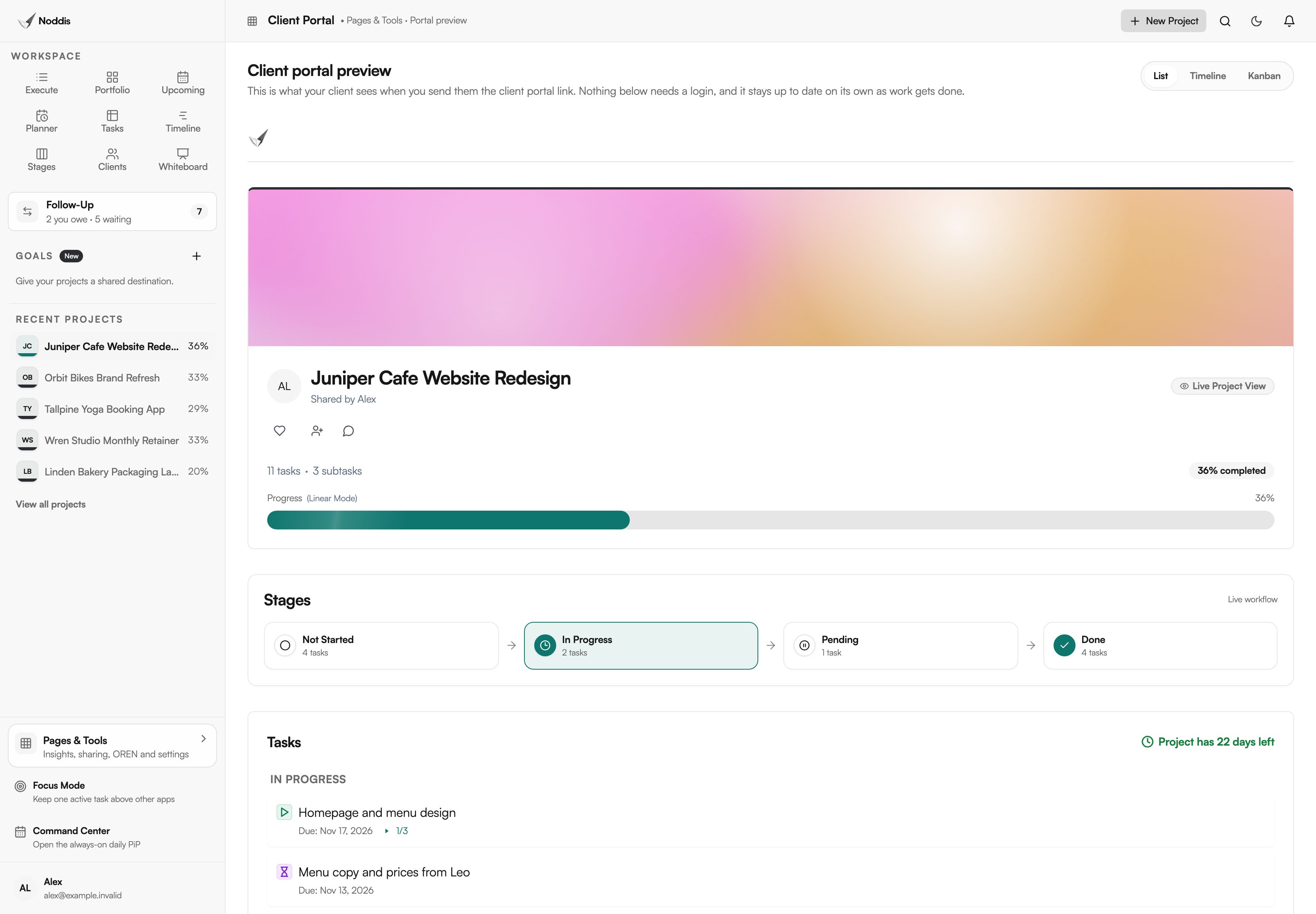
- It does not show the work. There are no tasks, dates, files or comments, and no custom fields to add. For a client who should see tasks too, share a client portal, which is on Pro.
- It is view-only. Nobody can tick, comment or edit through it.
- It does not run live in an email. Use a link or a Share Card there.
What it costs
You need a Noddis project to embed. The Free plan includes three active projects and both progress modes. Pro is $15 a month and adds Timeline, Stages, Clients, Whiteboard and client portals. Check the current plans for where the embed sits today.
You can look at Noddis before you sign up. To try it with your own project, open the live demo. No account is needed.
Frequently asked questions
How do I embed a live project progress bar in Notion?
Turn on "Public embed" for the project in Noddis and copy the "Notion / direct URL". Paste it into your Notion page and choose to embed it. The bar shows the project's name, percent and counts, and it moves when you finish a task in Noddis.
How often does the embedded bar update?
It updates when a task is finished in Noddis, with no refresh. It also re-checks every 30 seconds and whenever the browser tab comes back into view. The person looking at your page does nothing: the percent, the bar and the counts change in place.
Can I turn the embed off after I have shared it?
Yes. Turn "Public embed" off in the same dialog. Every place that holds the bar then reads "This project is no longer public." You do not have to find and remove each copy first, which matters when the same bar sits on several pages.
Does the embed work with Weighted progress?
Yes. The embed shows whichever mode the project uses and labels it with a LINEAR or WEIGHTED pill, so readers know how the number is counted. The same website project reads 36% in Linear and 23% in Weighted, because Weighted counts the shares you gave each task.
Does someone need a Noddis account to see the bar?
No. Anyone who has the embed code or the direct link can view the bar, with no account and no sign-in. Treat it as public. That is why the embed is limited to the project name, the percent and the counts.
Paste it once. Let the tasks move it.
Turn on the embed for one real project and paste it on the page your audience already opens. The next task you finish will move the bar.