
Key takeaways
- Execute is one project's task list, with subtasks and the project's progress in the same view.
- Ticking a task is the only status update: the percent, the Portfolio card and the client portal all follow.
- Progress can be Linear, where every task counts the same, or Weighted, where bigger tasks count for more.
- Execute is on the Free plan, which includes three active projects.
Why does Noddis have Execute?
Noddis has Execute because keeping a task list and reporting progress are usually two jobs. Execute is a project task list with subtasks that counts as you go: tick a task and the percent, the Portfolio card and, on Pro, the client's page all move. No percentage is ever typed.
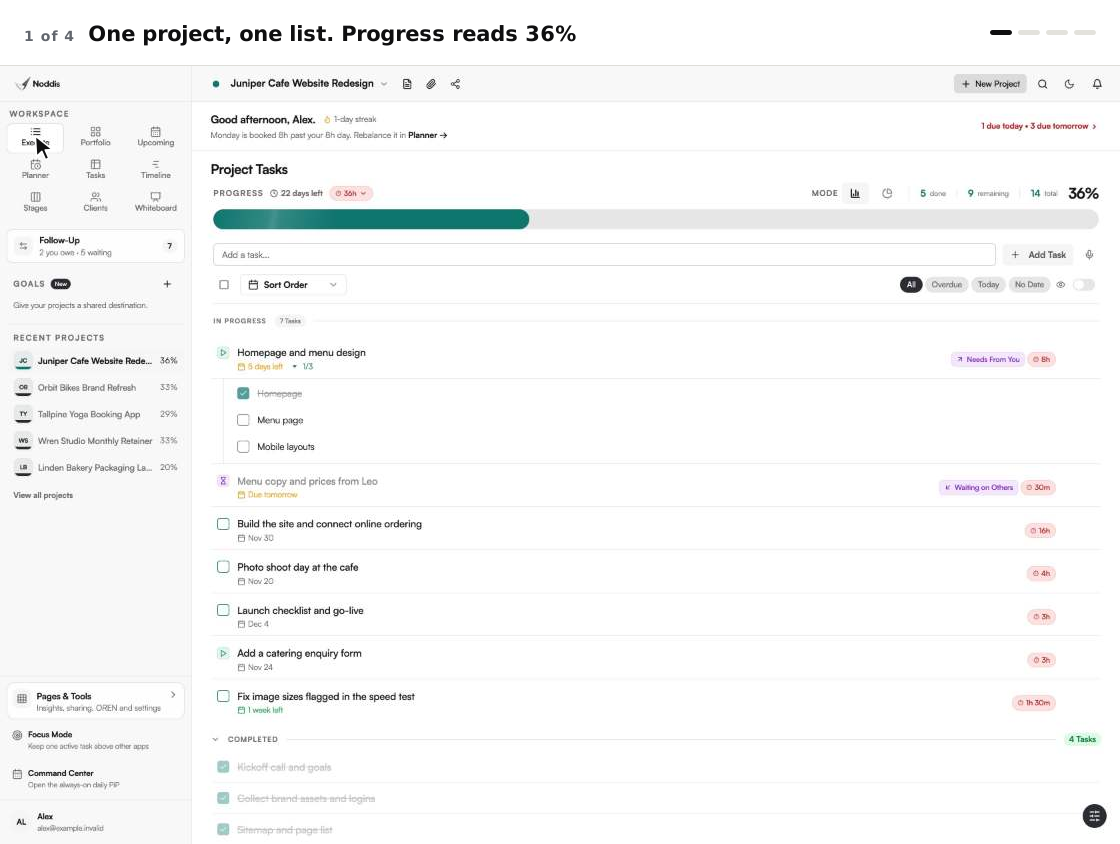
Noddis is a project management app that keeps tasks, follow-ups, and related project details connected. When we built Execute in Noddis, we kept one project's tasks, subtasks and progress in a single list, so finishing a task is the only status update you make.
A task list is a checklist, and a checklist has one plain job. The Agency for Healthcare Research and Quality, in its patient safety primer on checklists, says: "A checklist is an algorithmic listing of actions to be performed in a given clinical setting, the goal being to ensure that no step will be forgotten." That was written for hospitals, and it holds for a website or a kitchen remodel too. Execute adds what paper cannot: every tick is counted. It is one of the ready-made Noddis workspaces.
How Execute works, step by step
Execute needs a project and its tasks, and nothing else.
- Choose a project and open Execute in the sidebar. The list is headed "Project Tasks".
- Type each task into "Add a task...".
- Break a big task down: open its menu and choose "Add Subtask", or drag a task to the right onto another one.
- Tick the checkbox when a task is finished. That is the whole update.
- If a task is stuck, use the checkbox menu to mark it Blocked, Pending or Paused.
- Read the "Progress" section: done, remaining, total and the percent change with every tick.
What you stop doing
Execute removes the reporting that follows the work. One tick updates the list, the Portfolio card, the client portal and the progress embed.
| The chore | The usual way | In Execute |
|---|---|---|
| Updating percent complete | Count what is done, then type a number | Tick the task. The percent moves with it |
| Updating the overview | Change the status sheet as well | The Portfolio card reads the same tick |
| Telling the client | Write a status email | The client portal, on Pro, shows the new percent |
| Weighting the big tasks | A weighted average in a spreadsheet | Weighted mode: you set the shares, Noddis does the maths |
You still add the work and decide the order. The reporting follows, which is the point of project management without the management.
What happens when you tick a task?
One tick moves the task to "Completed", recounts the project's percent and updates every other view of that project. Two parts of the screen carry that benefit.
The checkbox and the Progress section
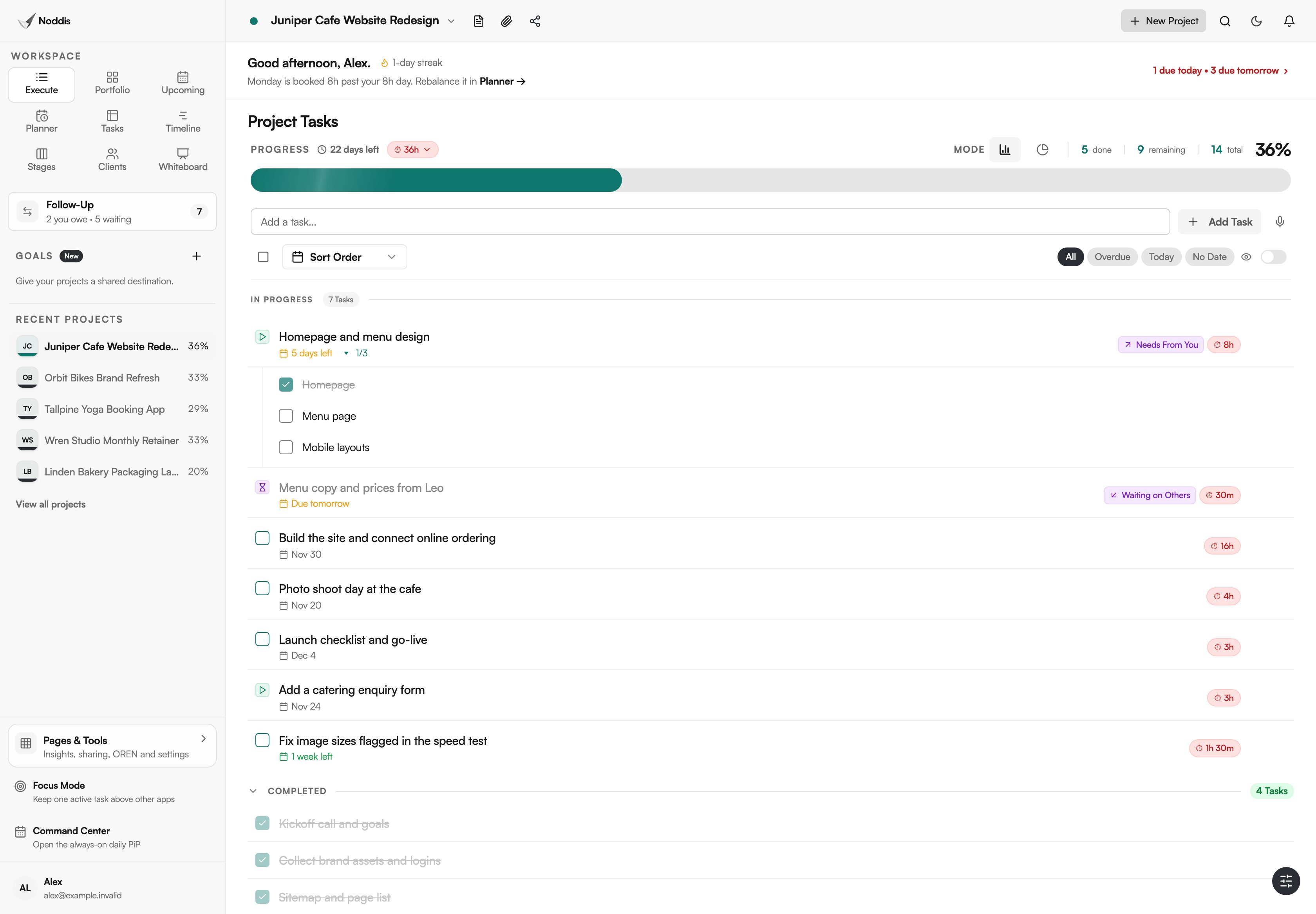
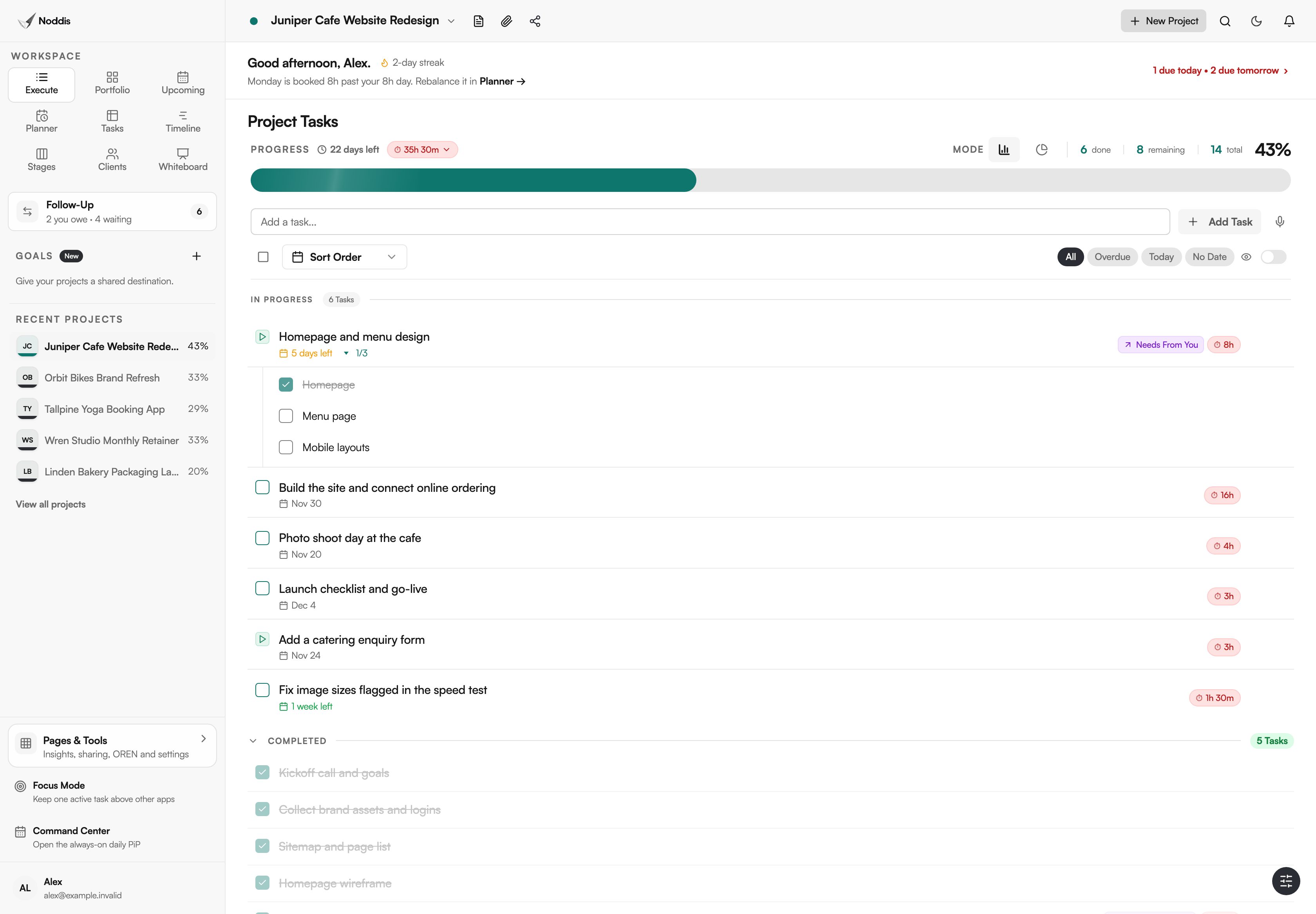
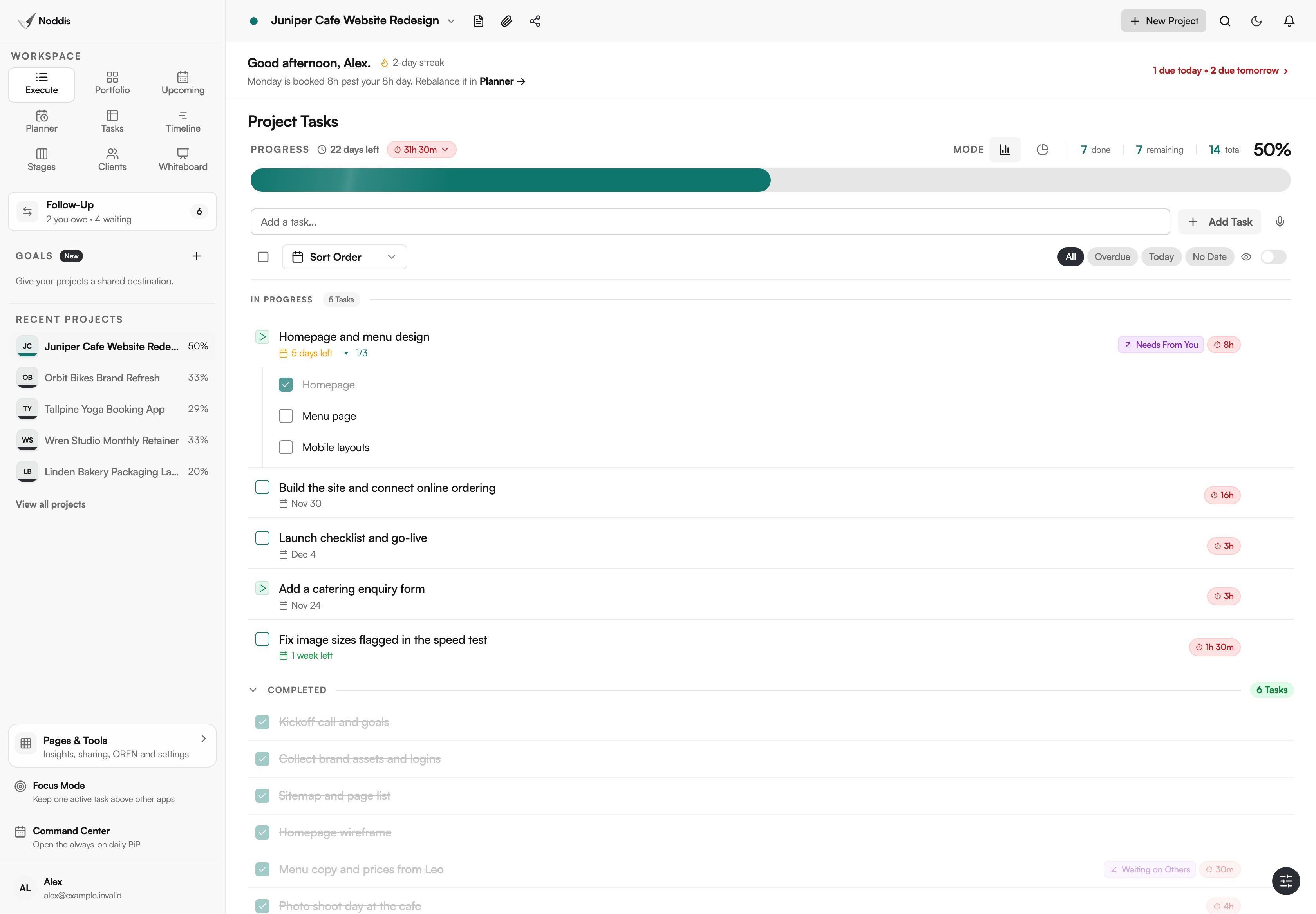
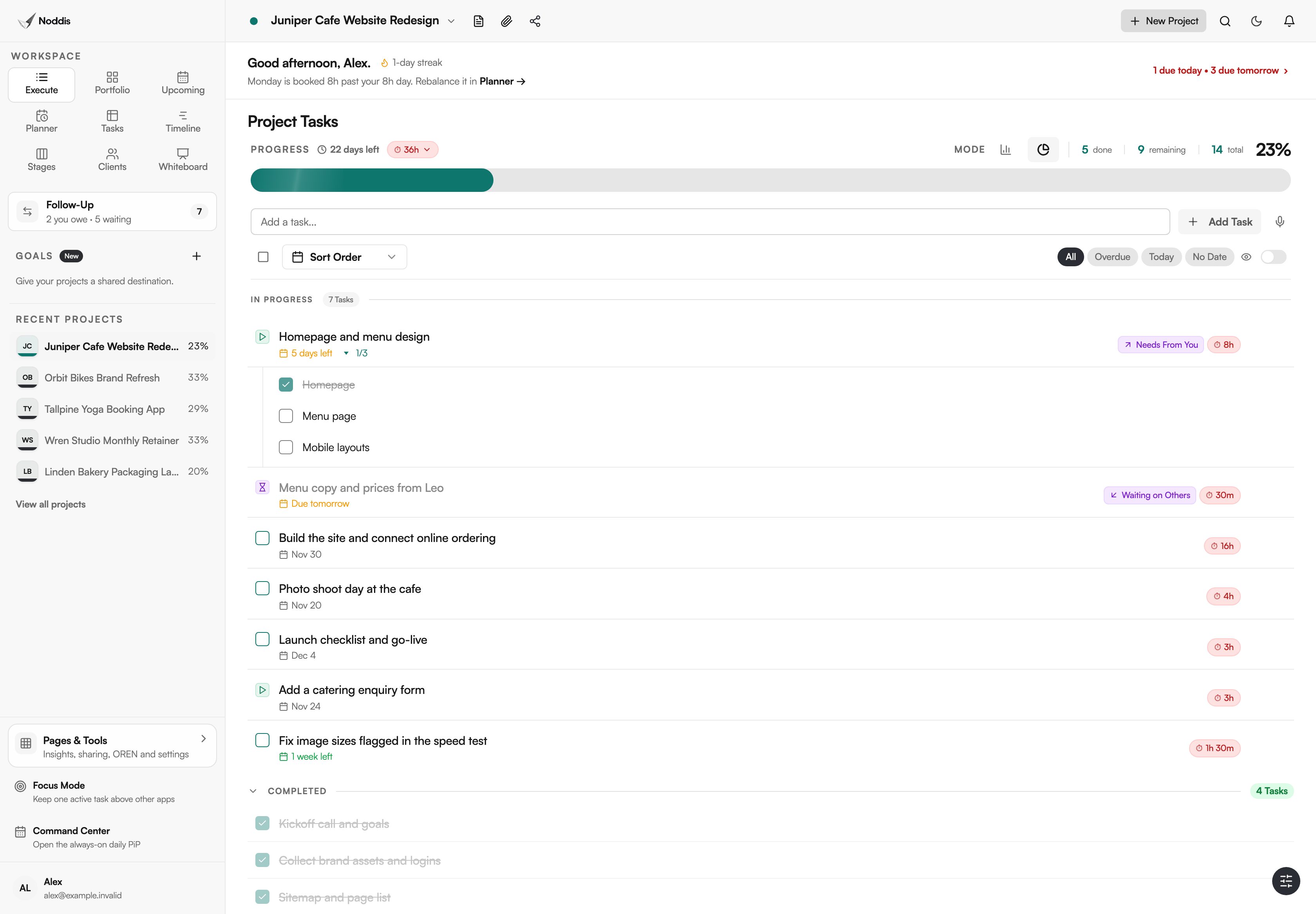
Take a studio's cafe website. It starts at 36 percent, with five of fourteen items finished. Tick "Menu copy and prices from Leo" and the "Progress" section reads 43. Tick "Photo shoot day at the cafe" and it reads 50. The same number is on the Portfolio card, in the client portal on Pro, and in a live progress embed if you have switched one on.
Linear or Weighted, from one switch
The Mode switch offers two ways to count, both on the Free plan. Linear counts every task and subtask the same. Weighted is for projects where a few tasks are most of the job. In "Assign Task Weights" you give each top-level task a share, or press "Suggest weights with AI" and review what it proposes. Noddis brings the shares to 100 percent, splits each task's share among its subtasks and counts only finished work.
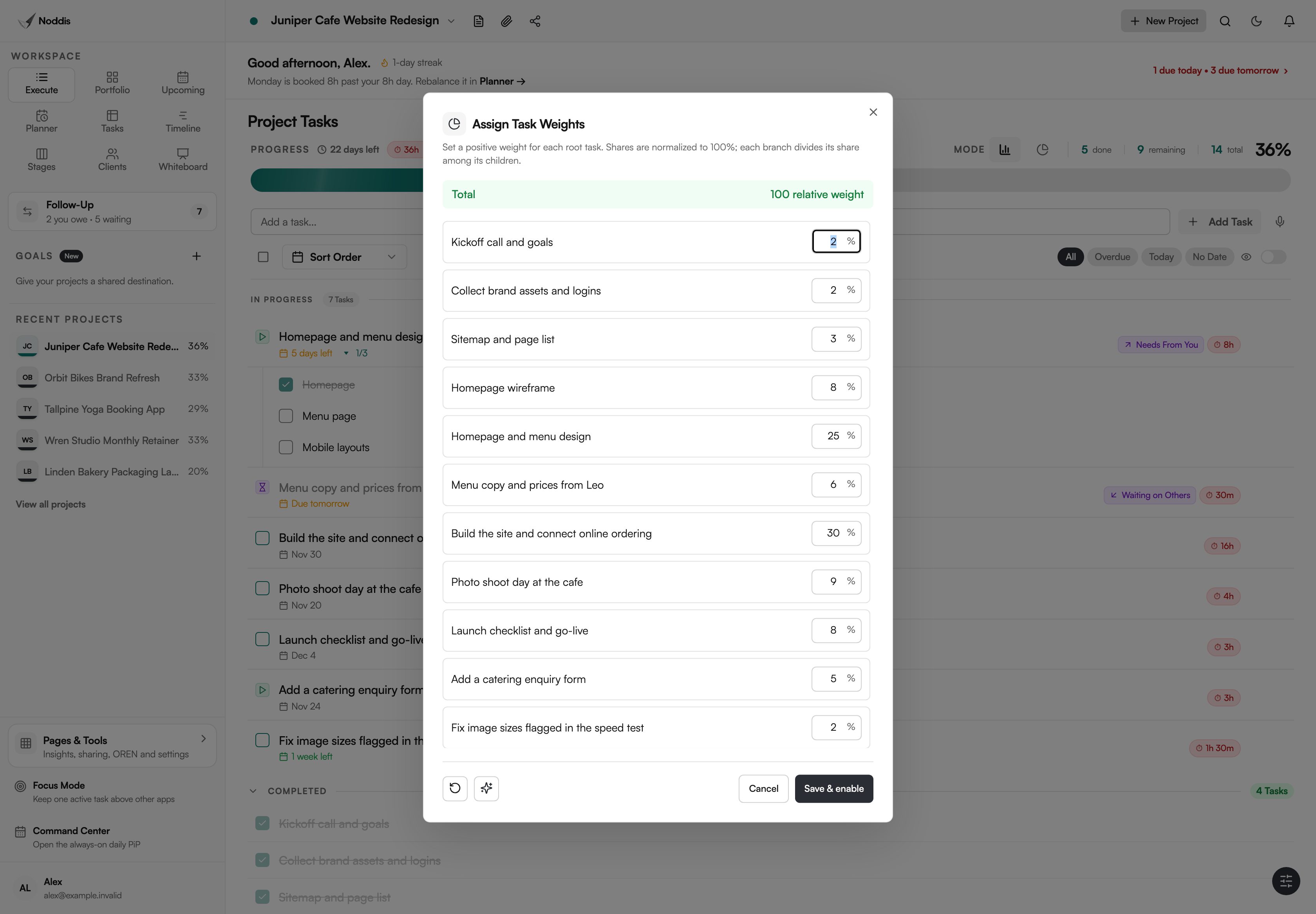
SAME WORK, TWO COUNTS
Linear: 36%. Weighted: 23%. The four finished tasks are small ones, so Weighted gives the truer number.
For help choosing a mode, read linear vs weighted project progress.
Which kinds of work suit a project task list with subtasks?
Execute suits work that breaks into steps someone has to finish: proposals, builds, campaigns.
AEC proposal teams
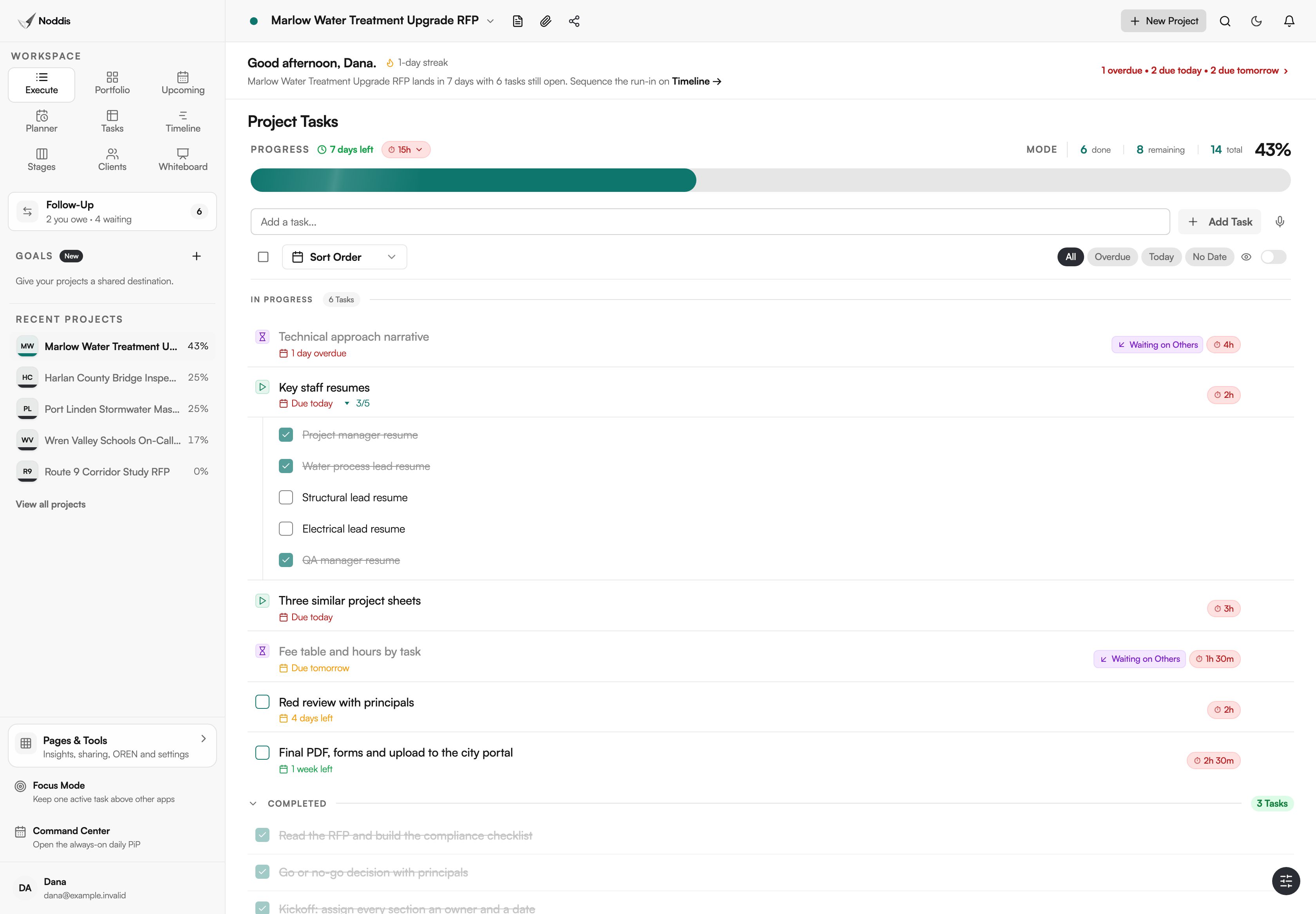
A proposal is a checklist with a hard date. A task such as key staff resumes holds one subtask per person, so a missing resume is visible by name.
Remodeling contractors
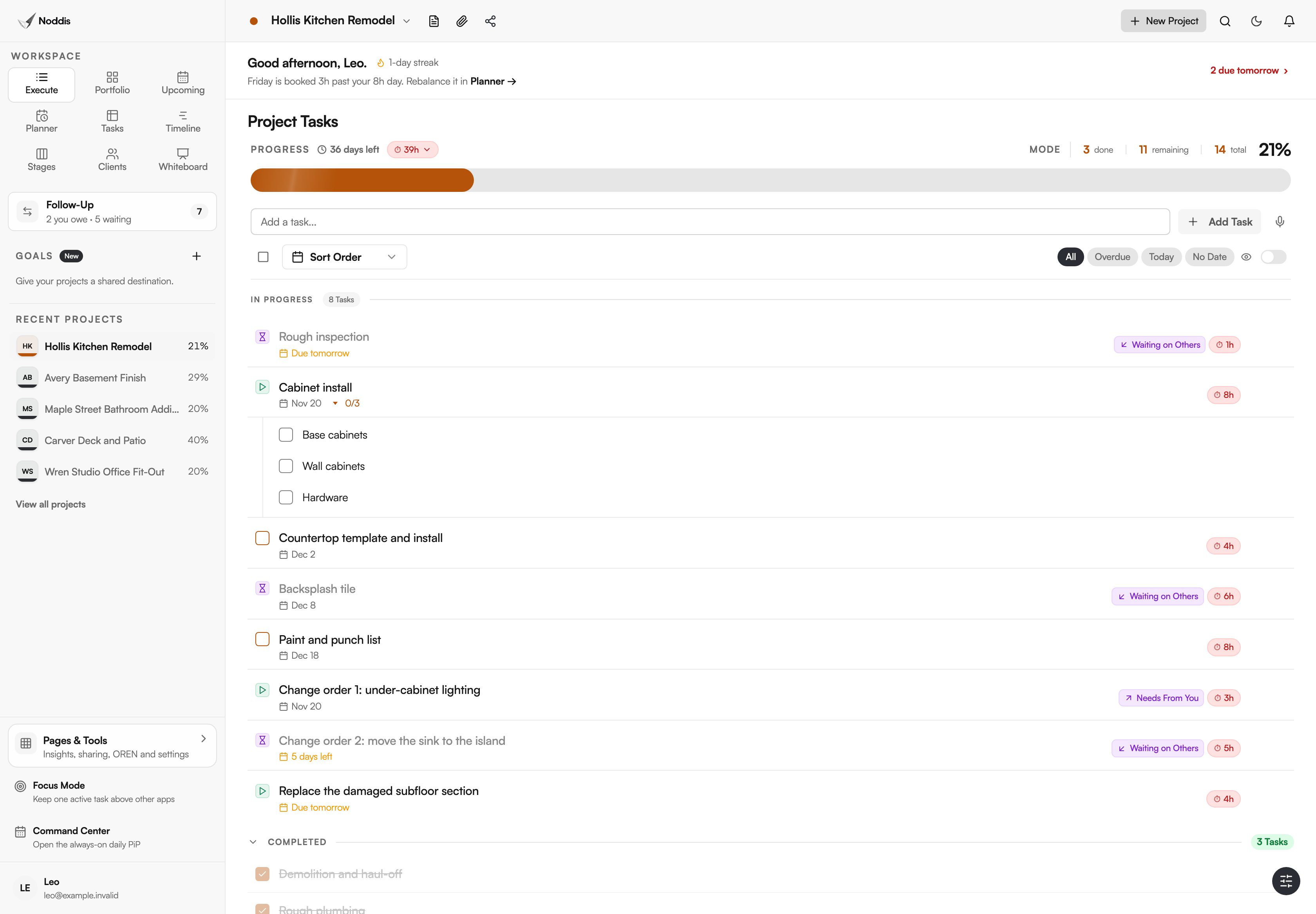
Picture a remodeler partway through a kitchen. The phases are tasks, the parts of a phase are subtasks, and a change order is one more task in the list.
In-house marketing
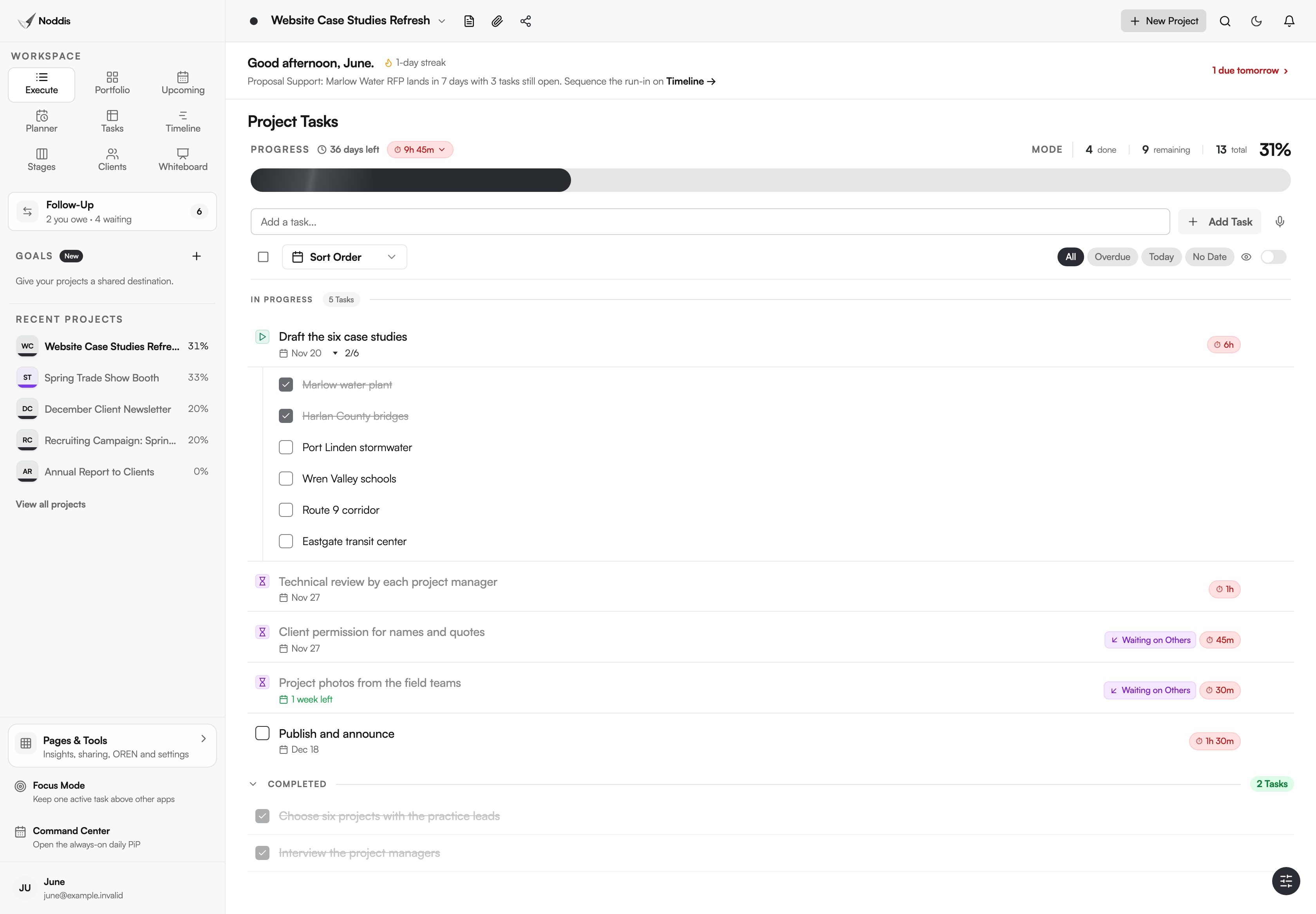
A content project is many small pieces under a few big ones. Six case studies sit as six subtasks under one drafting task, so the team sees which stories are written.
What Execute does not do
Execute is a list for one project with fixed statuses. It does not rank work, estimate it or show several projects at once.
- One project at a time. For deadlines across projects, use Upcoming.
- No priority field and no custom fields. You order the list by dragging.
- No statuses of your own. Done, Blocked, Pending, Paused and In Progress are fixed.
- No effort estimates made for you. Weighted shares are yours to set or approve.
If your process depends on custom fields, custom statuses or automation rules, a configurable tool will fit better.
What it costs
Execute is on the Free plan, with subtasks and both progress modes. The Free plan includes three active projects. Pro is $15 a month and adds unlimited projects, deeper nesting and the client portal. To try it with your own project, open the live demo. No account is needed. Check the current plans before you decide.
Frequently asked questions
Does a project task list with subtasks count the subtasks toward progress?
Yes. In Linear mode every task and subtask is one item, so a project with eleven tasks and three subtasks has fourteen items. In Weighted mode a task's share is split equally among its subtasks. Either way, ticking a subtask moves the percent.
Do I ever type a percentage?
No. Noddis calculates progress from finished work. You tick tasks and, in Weighted mode, choose each top-level task's share. The percent, the counts and the Portfolio card all follow from those ticks, so the number cannot fall out of step with the list.
What do I do with a task that is stuck, not finished?
Leave it unticked and set its status from the checkbox menu: Blocked, Pending or Paused. It stays in the list and does not count as done. On Pro, Stages gathers them under Pending. The guide on tracking blocked project tasks covers what to record.
How many levels of subtasks can I have?
On the Free plan a task can have subtasks, and a subtask can have one more level beneath it. Deeper nesting is on Pro. To nest a task, choose "Add Subtask" from its menu, or drag it to the right onto another task.
Does ticking a task in another workspace update Execute?
Yes. Every workspace reads the same saved work. Tick a task in Upcoming or in the Tasks table and it is finished in Execute as well, with the percent recounted. Switching workspaces never makes a copy, so there is no second list.
Tick the task. That is the update.
Add one real project and its tasks, then finish one. The percent, the Portfolio card and every other workspace will already agree.