
Key takeaways
- Noddis has nine ready-made workspaces, and a project appears in all of them as soon as it has tasks.
- Every workspace reads the same saved work, so a task ticked in one is finished in all of them.
- Portfolio, Execute, Upcoming, Planner and Tasks are on the Free plan, which includes three active projects.
- Timeline, Stages, Clients and the Whiteboard are on Pro, which is $15 a month.
Why does Noddis have ready-made project management workspaces?
Noddis has nine project management workspaces because the same questions come up in every project: how is everything doing, what do I do next, what is due, and who is waiting. Each workspace answers one of them from the same saved work, so you add a task once and never rebuild a view to see it another way.
Noddis is a project management app that keeps tasks, follow-ups, and related project details connected. When we built Portfolio in Noddis, we put every active project and its progress in one view, so a weekly review can start from one screen instead of one tab per client.
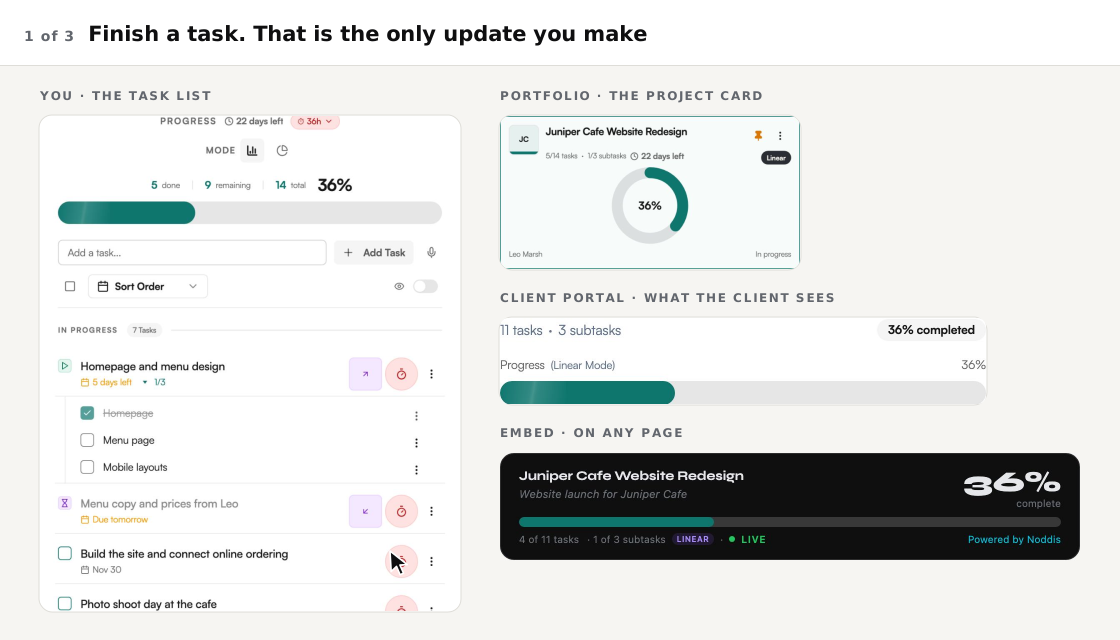
That is the idea behind every workspace. You do the work. The picture of the work keeps itself current.
The nine workspaces at a glance
The table below lists the nine workspaces with the question each one answers, whether it shows one project or all of them, and the plan it belongs to. Each name opens a page that walks through that workspace on real screens.
| Workspace | The question it answers | Shows | Plan |
|---|---|---|---|
| Portfolio | How is every project doing? | Every project | Free |
| Execute | What do I do next on this project? | One project | Free |
| Upcoming | What is due, and what got done? | Every project | Free |
| Planner | Which day does each task belong to? | Every project | Free |
| Tasks | Where is every task, in one table? | Every project | Free |
| Timeline | How does the work fall by date? | One project or all | Pro |
| Stages | What is moving, and what is waiting? | One project | Pro |
| Clients | How is each client's work doing? | Every client | Pro |
| Whiteboard | Where do we think it through? | Any canvas | Pro |
The five workspaces on the Free plan
The Free plan includes five of the nine workspaces: Portfolio, Execute, Upcoming, Planner and Tasks. Together they cover every project at once, one project in detail, every deadline, your week and every task in a single table, for up to three active projects.
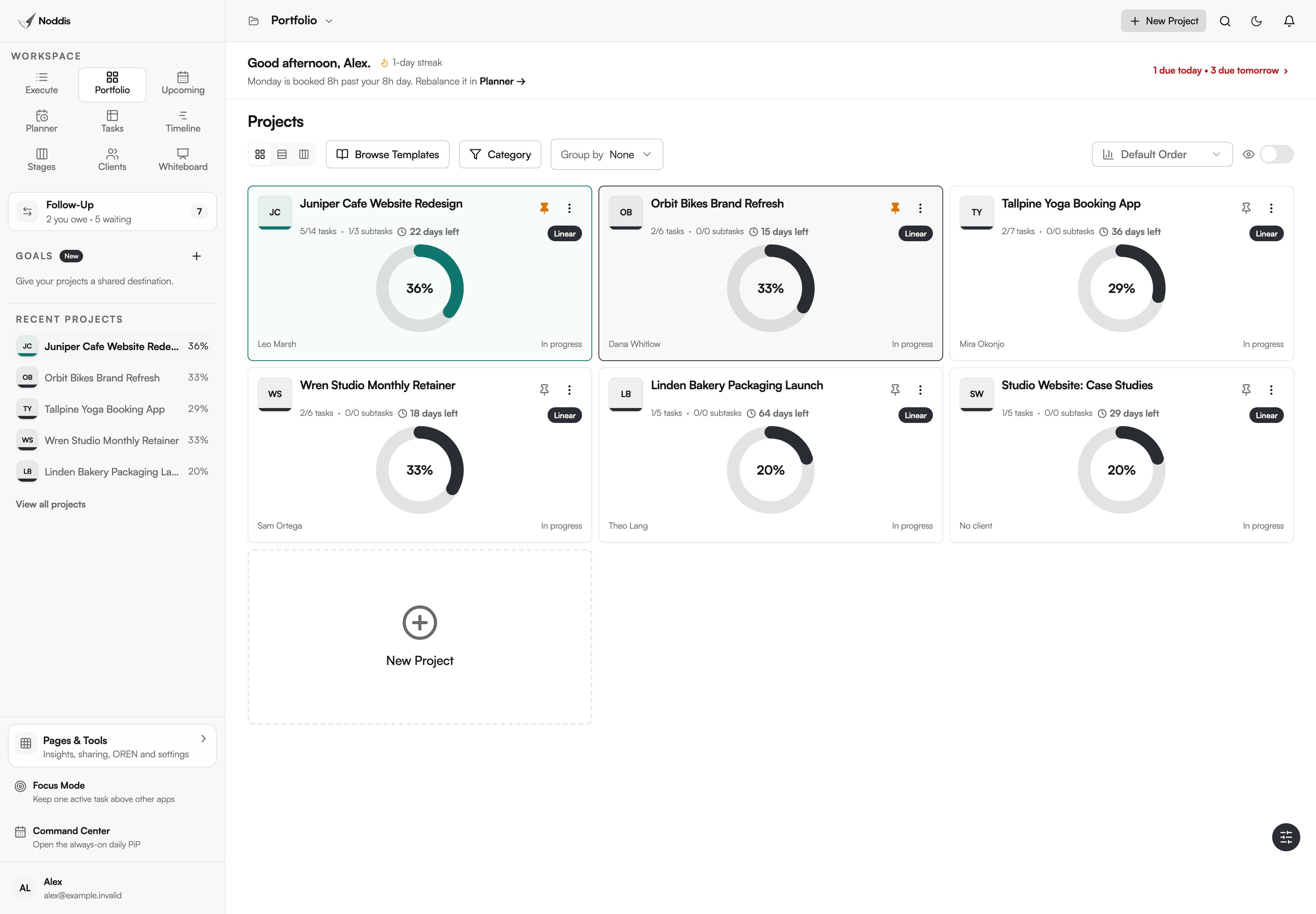
Portfolio: every project at once
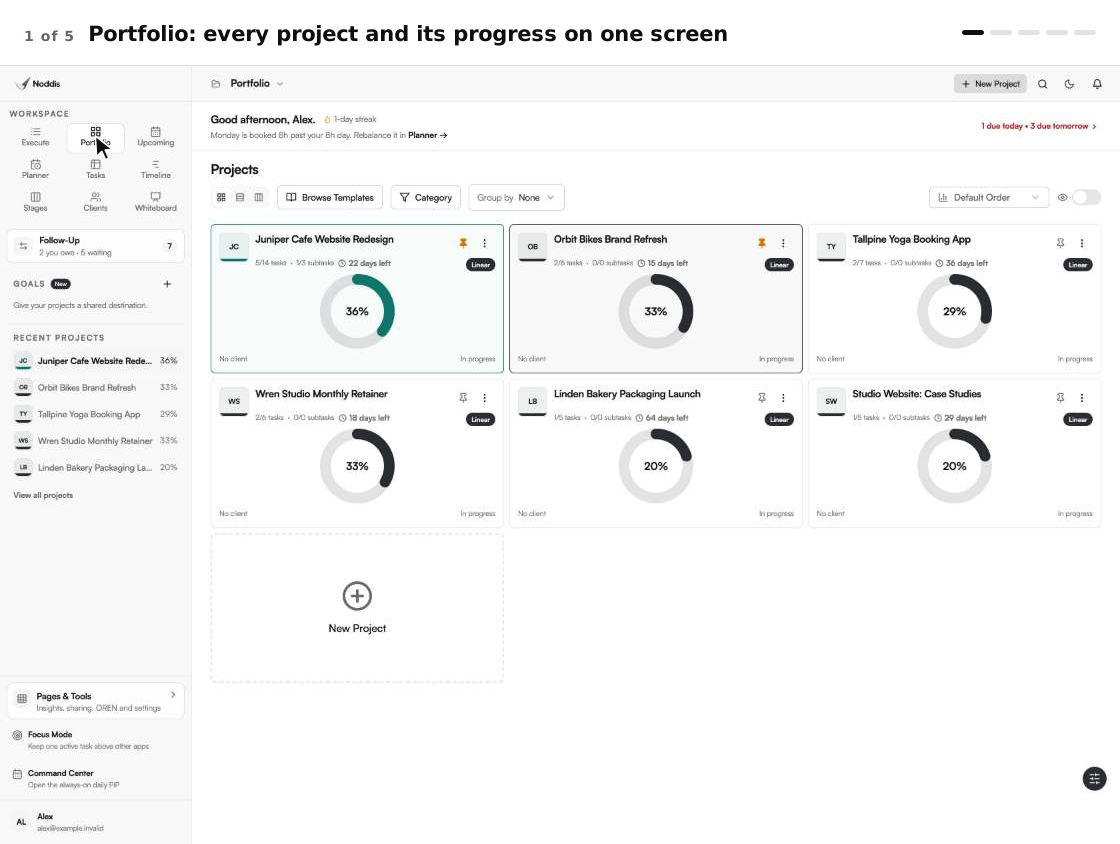
Open it and every project is there with its progress, days left and next task. Switch between Cards, Snapshot and Board without setting anything up. See how Portfolio works.
Execute: one project, one list
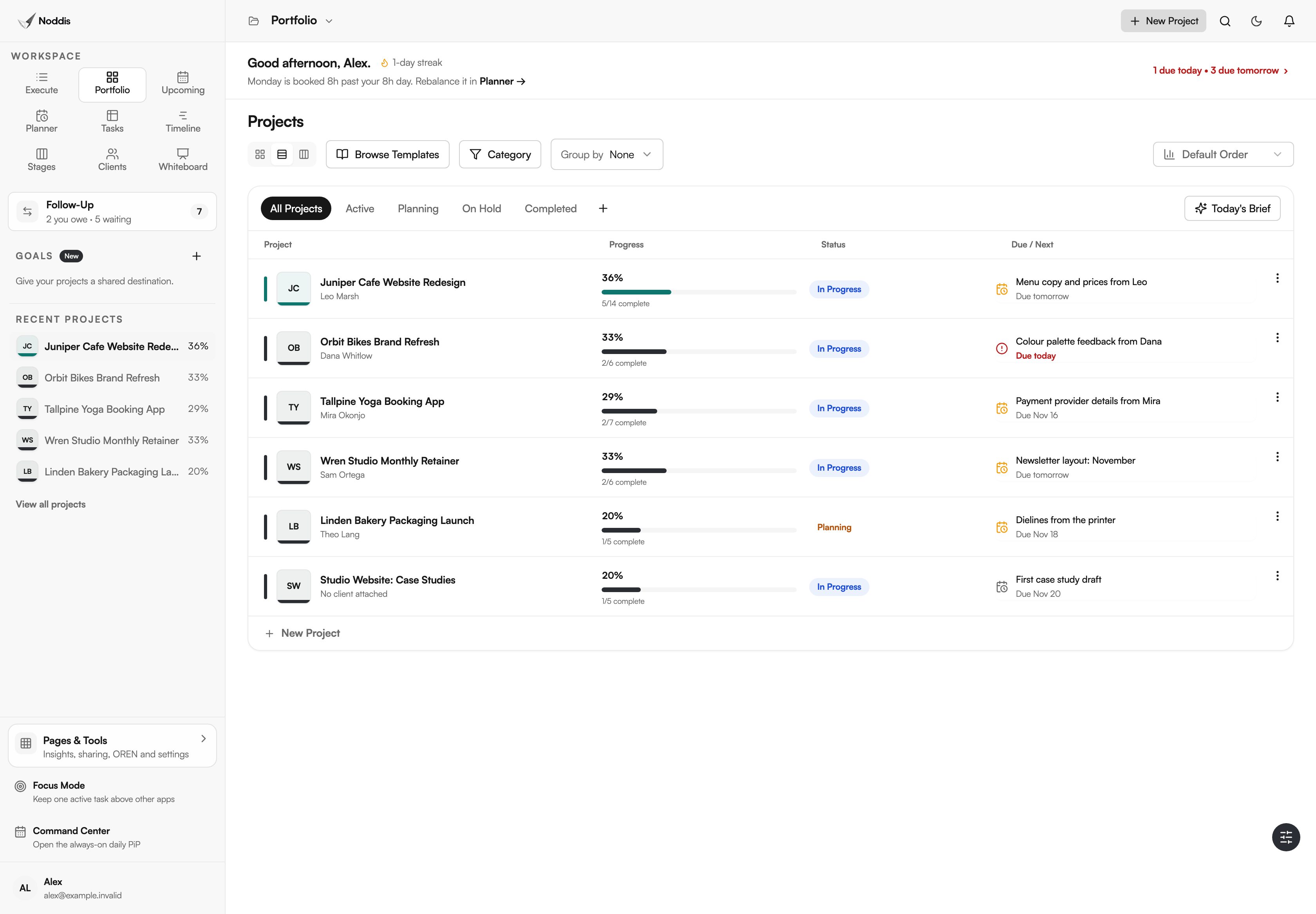
The task list for a single project, with subtasks and progress worked out for you. Tick a task and the percent moves. See how Execute works.
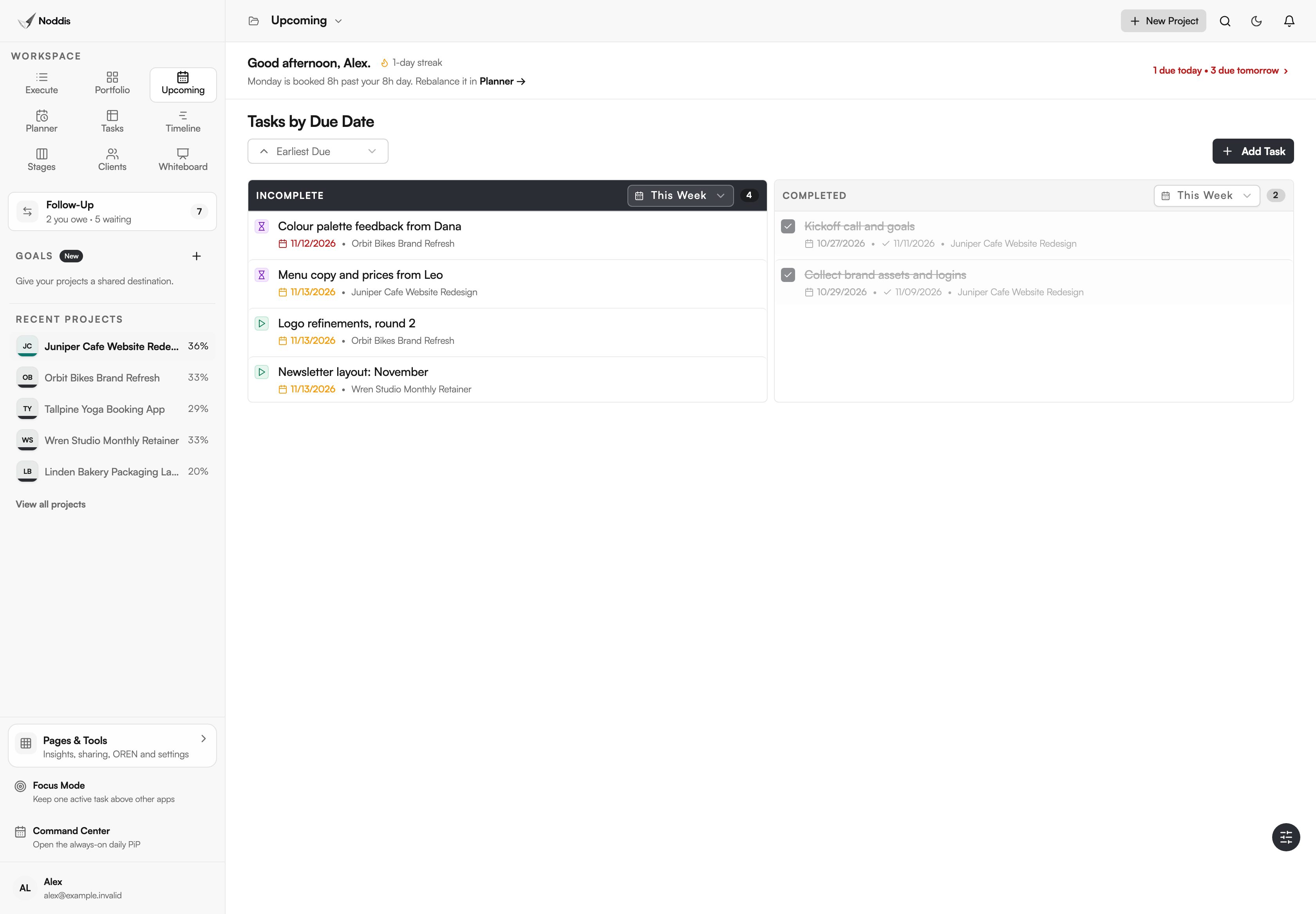
Upcoming: every deadline, by range
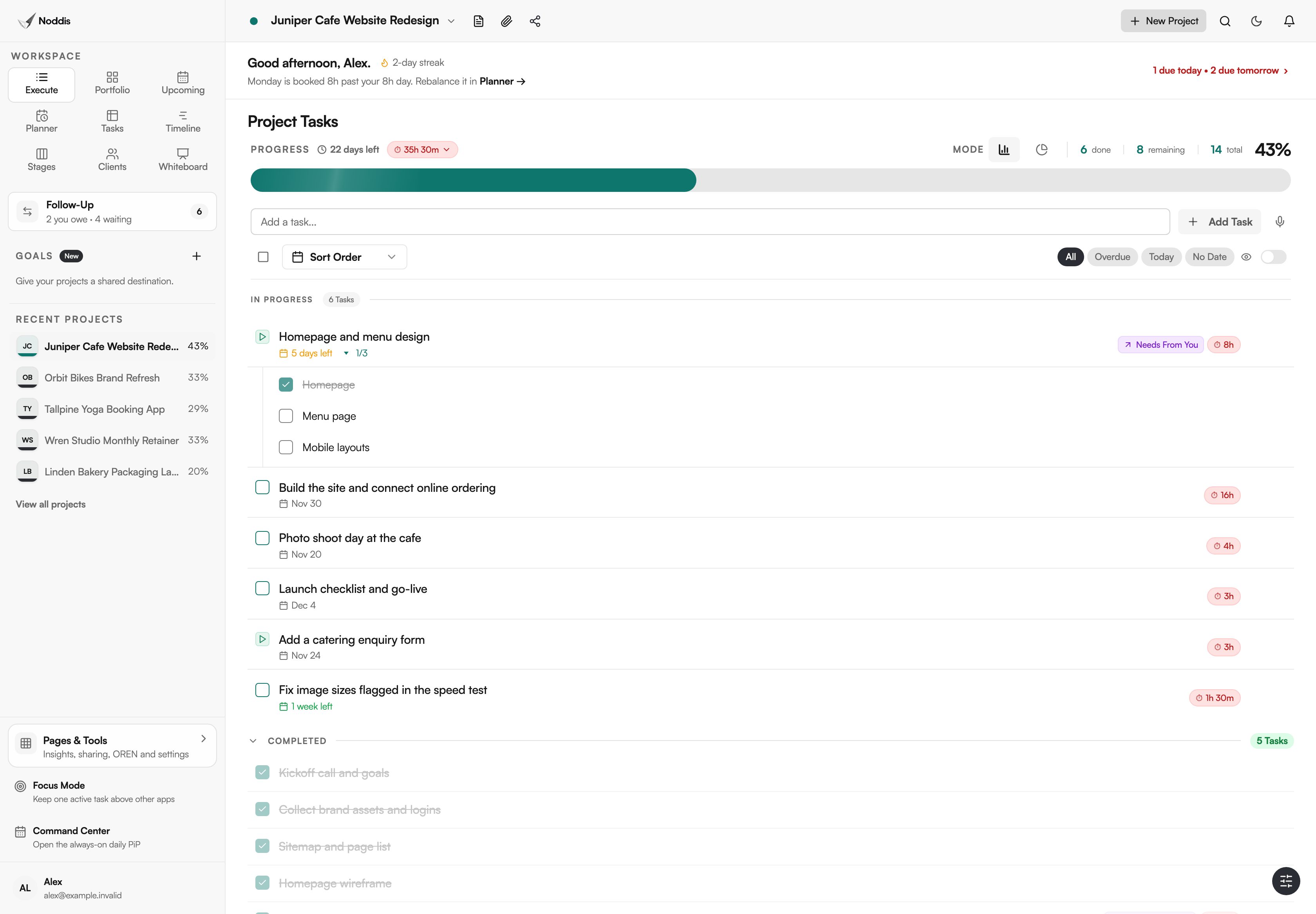
Deadlines from every project in one list, for this week, the next 30 days or the year, beside what was finished in the same range. See how Upcoming works.
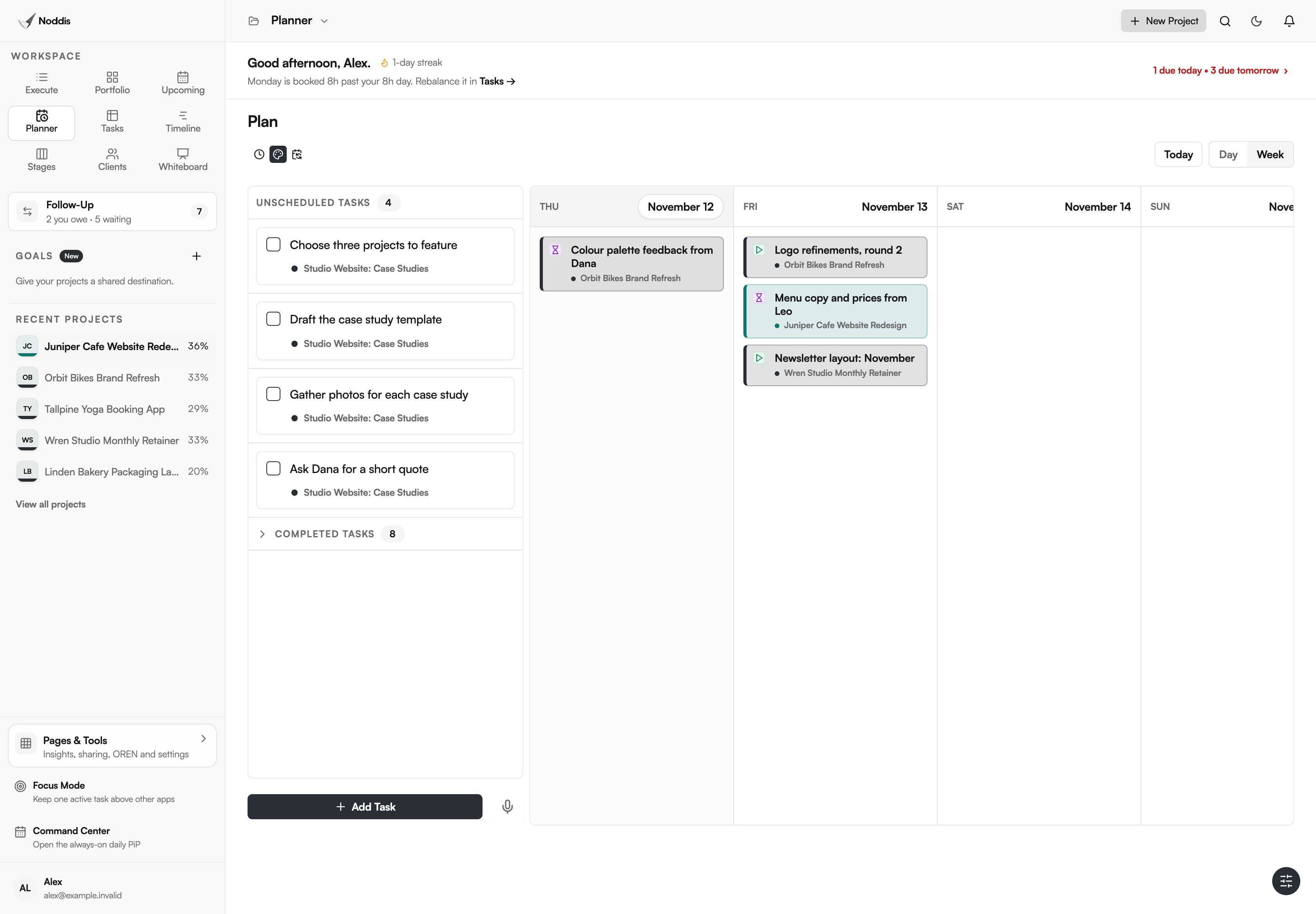
Planner: give each task a day
Tasks from every project wait in one panel. Drag one onto a day or an hour to schedule it. See how Planner works.
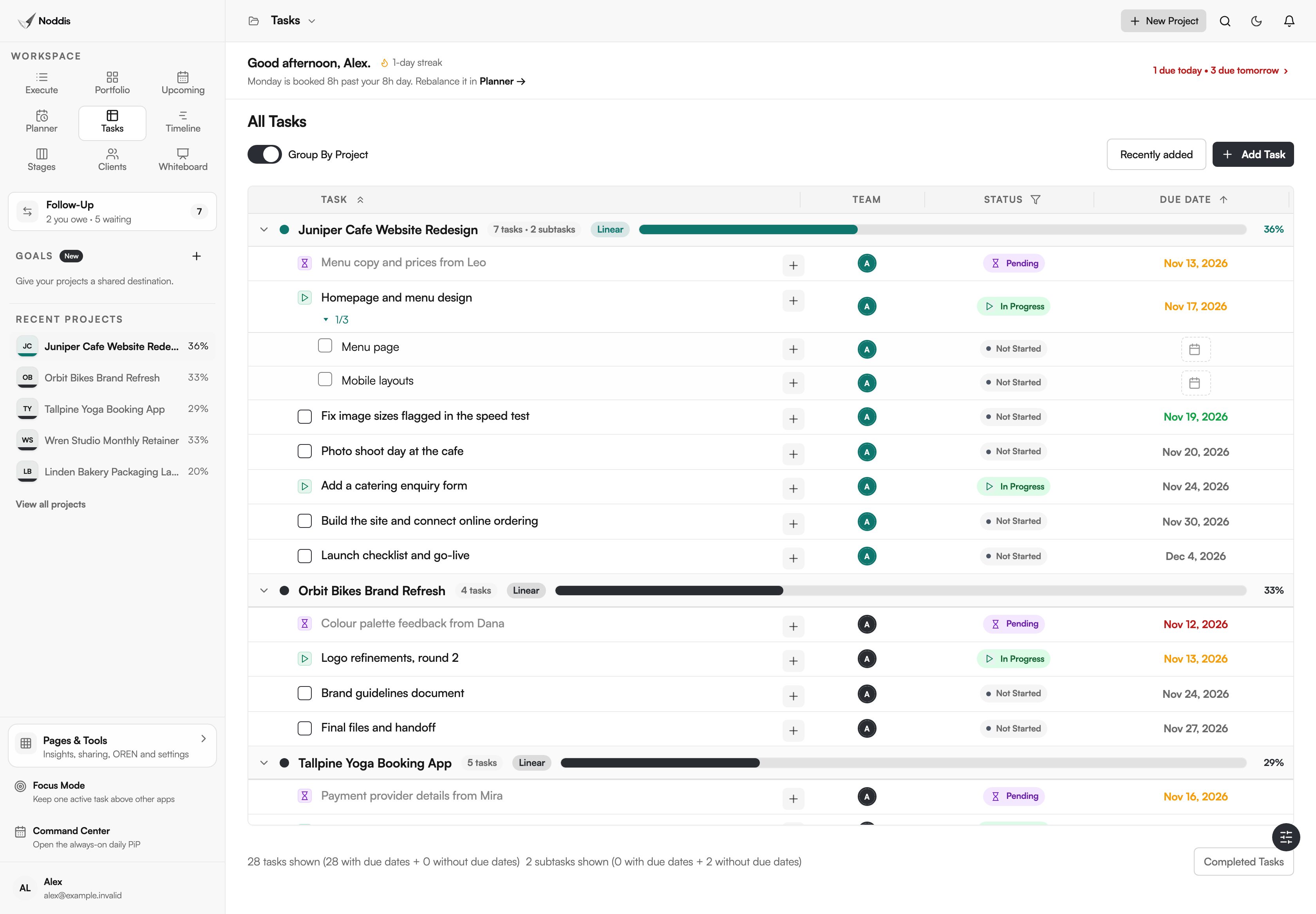
Tasks: one table for everything
Every task from every project in one table. Turn on "Group By Project" and each group shows its own progress. See how Tasks works.
The four workspaces on Pro
Pro adds the other four workspaces: Timeline, Stages, Clients and the Whiteboard. They show the same saved work by date, by stage, by client and on a planning canvas, and Pro also removes the limit of three active projects.
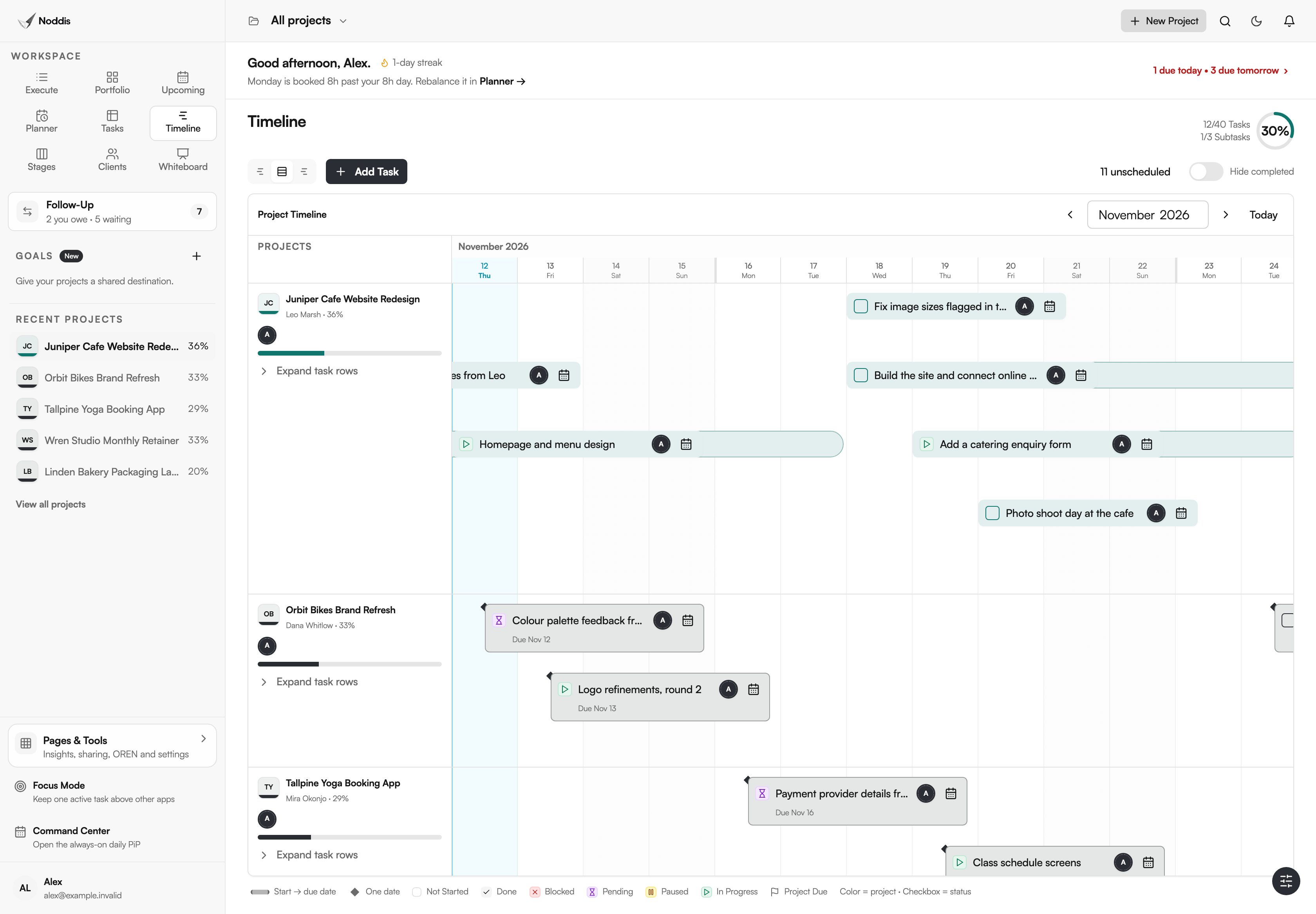
Timeline: the work by date
Tasks as bars by date, in three views: Gantt for one project, Horizon for one lane per project and All Tasks for everything on one calendar. The Association for Project Management says: "A Gantt chart is defined as a graphical representation of activity against time; it helps project professionals monitor progress." See how Timeline works.
Stages: a board with nothing to design
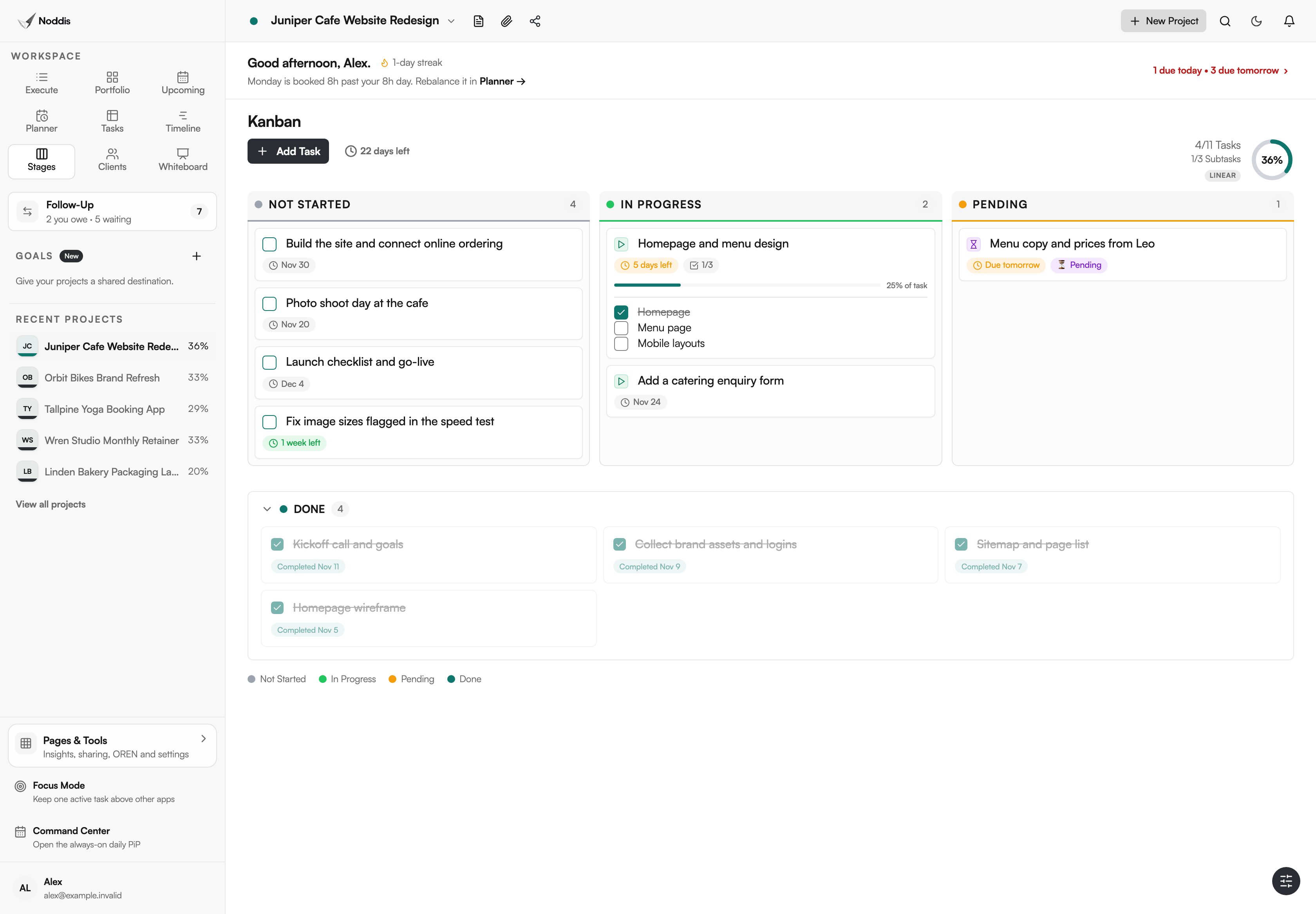
One project as a kanban board with three fixed columns, Not Started, In Progress and Pending, and finished work below. The Kanban Guide says: "Kanban is a strategy for optimizing the flow of value through a process." See how Stages works.
Clients: each client's work on one screen
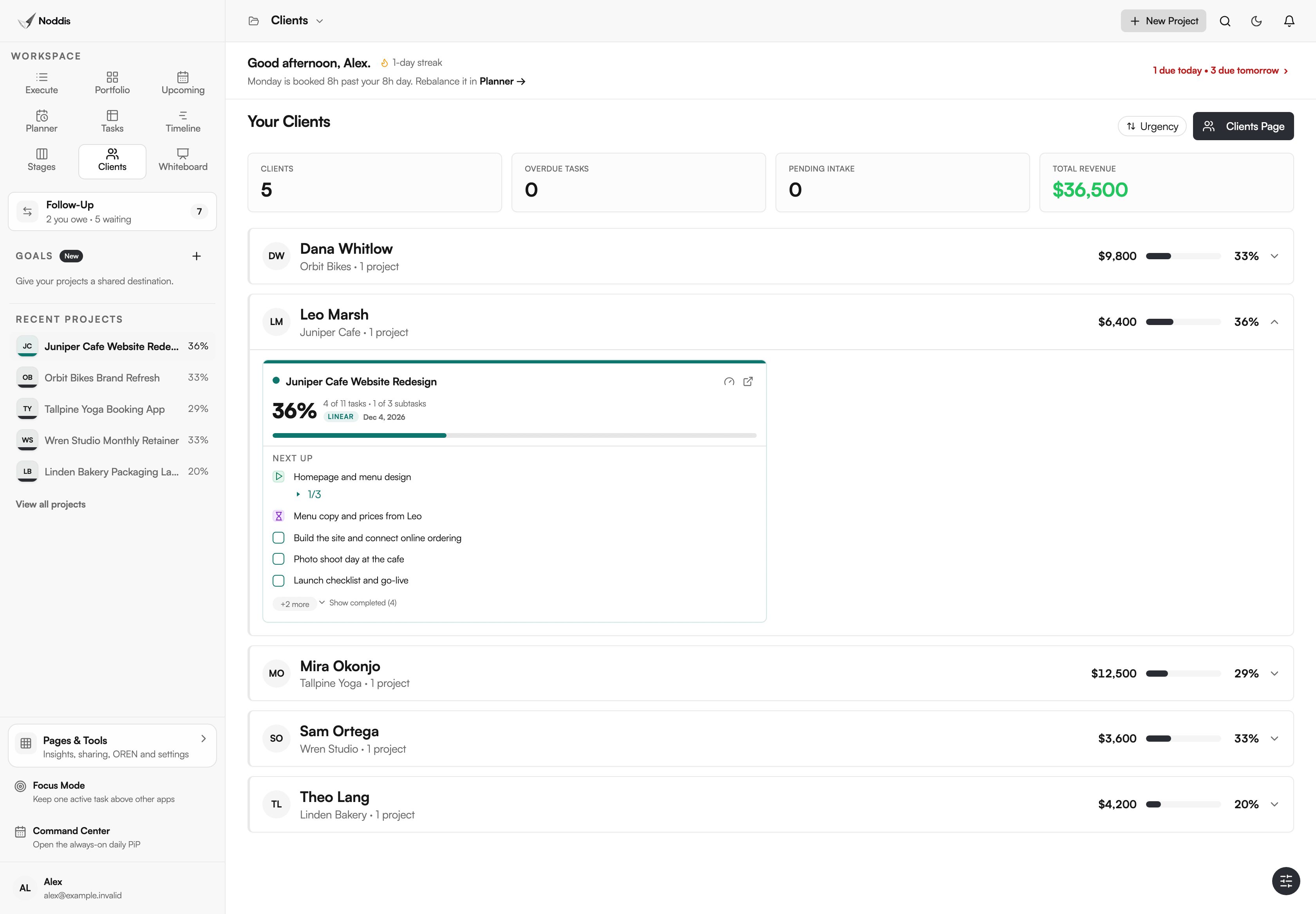
One row per client with their projects, overdue work and progress. Open a row for a live card of each project. See how Clients works.
Whiteboard: the plan beside the real project
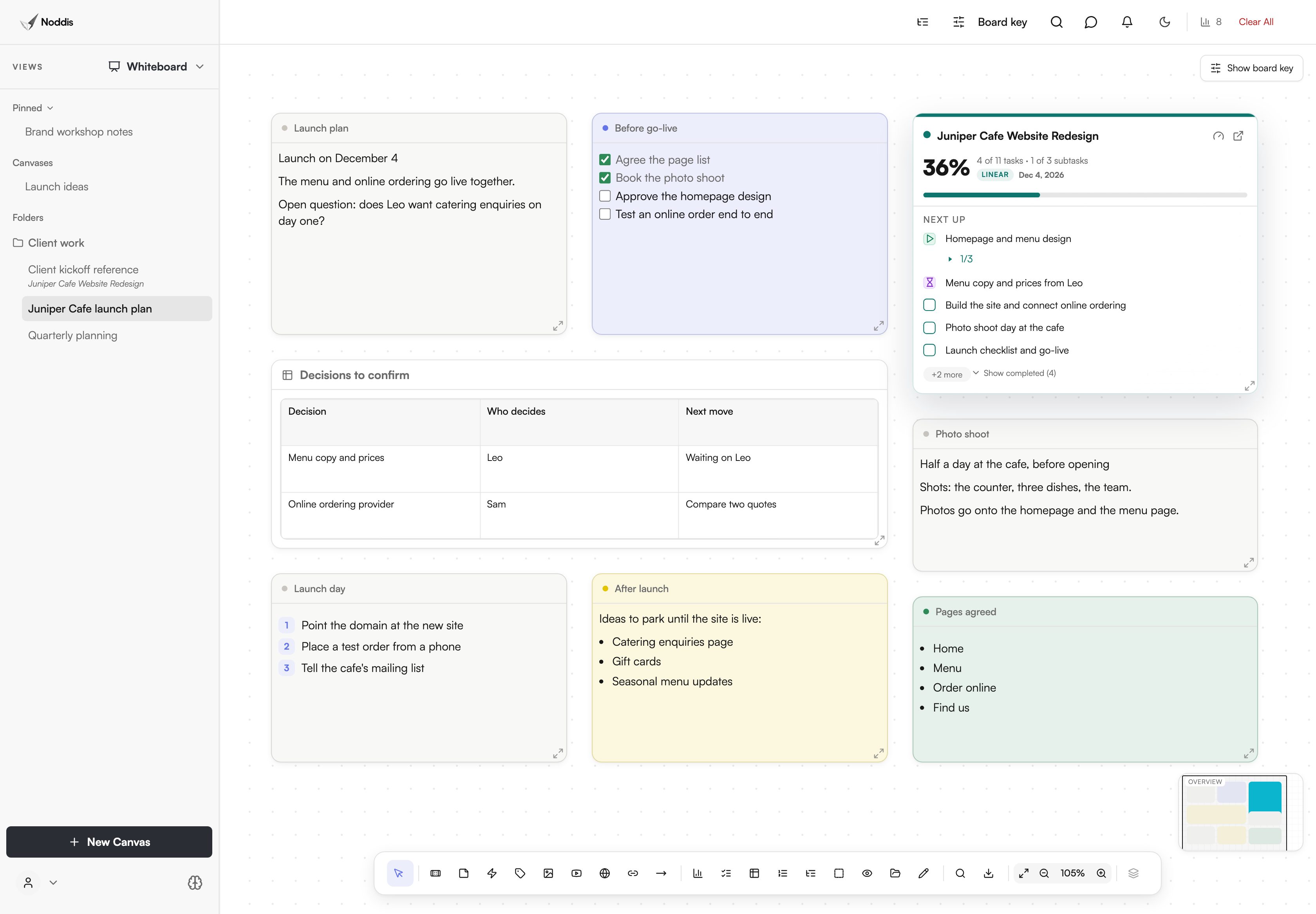
A canvas for notes, checklists and tables, with a live card for the real project on it. See how the Whiteboard works.
How do the workspaces fit together?
The nine workspaces fit together because they all read the same saved work. Add a task in any one of them and it appears in the rest. Switching workspaces shows that work in another shape, and it never makes a copy.
Around the nine workspaces sit a few more pieces. Follow-Up counts the days since you asked someone for something. Drift keeps additions apart from what was agreed. The client portal is a read-only page for one project. And the live progress embed puts a project's progress bar on a Notion page or a website, where it moves by itself. The page on project management without the management shows those on real screens.
What the workspaces do not do
The workspaces do not let you redesign them, and that is on purpose. There are no custom fields, no status designer, no formula columns and no dashboard builder. The task statuses are the same in every project.
If your team needs its own fields on every task, budget columns or automation rules, a configurable tool will suit you better. Noddis is for people who would rather open a view that already works than build one.
What it costs
The Free plan includes three active projects with Portfolio, Execute, Upcoming, Planner and Tasks. Pro is $15 a month and adds unlimited projects, Timeline, Stages, Clients and the Whiteboard. Check the current plans before you decide.
Frequently asked questions
What are project management workspaces in Noddis?
Project management workspaces in Noddis are nine ready-made views of the same saved work: Portfolio, Execute, Upcoming, Planner, Tasks, Timeline, Stages, Clients and Whiteboard. Each answers one question, such as what is due this week. None of them has to be built or configured before you use it.
Do I have to set up each workspace?
No. A project appears in every workspace as soon as it has tasks. You still add the work, set the dates and tick tasks as you finish them. What you skip is designing boards, columns, dashboards and formulas.
Which workspaces are on the Free plan?
Portfolio, Execute, Upcoming, Planner and Tasks are on the Free plan, with three active projects. Timeline, Stages, Clients and the Whiteboard are on Pro, which is $15 a month and removes the project limit.
Can I change the columns or add my own fields?
No. The workspaces are fixed, and there are no custom fields. That is the trade: you give up designing the tool and get views that work on the first day. Teams that need their own fields are better served by a configurable tool.
Does switching workspaces copy my tasks?
No. Every workspace reads the same saved work. A task you tick in Upcoming is finished in Execute, on the Portfolio card and in the client portal at the same moment.
Nine workspaces. One set of work.
Start with one real project and open each workspace in turn. To try it with your own project, open the live demo. No account is needed.