
Key takeaways
- The Whiteboard is a canvas for notes, checklists, tables and links, with live cards for real projects on it.
- A live project card shows the project's progress and next tasks, and its checkboxes tick the real tasks.
- A note does not become a task on its own, and a shared canvas is view-only.
- The Whiteboard is on Pro, which is $15 a month.
Why does Noddis have Whiteboard?
Noddis has a project management whiteboard so thinking and doing share one place. A plan drawn in a separate app goes stale, because somebody has to redraw the status. On a Noddis canvas the project card is the real project: tick a task on the card and it is done in Execute, and the percent moves on both.
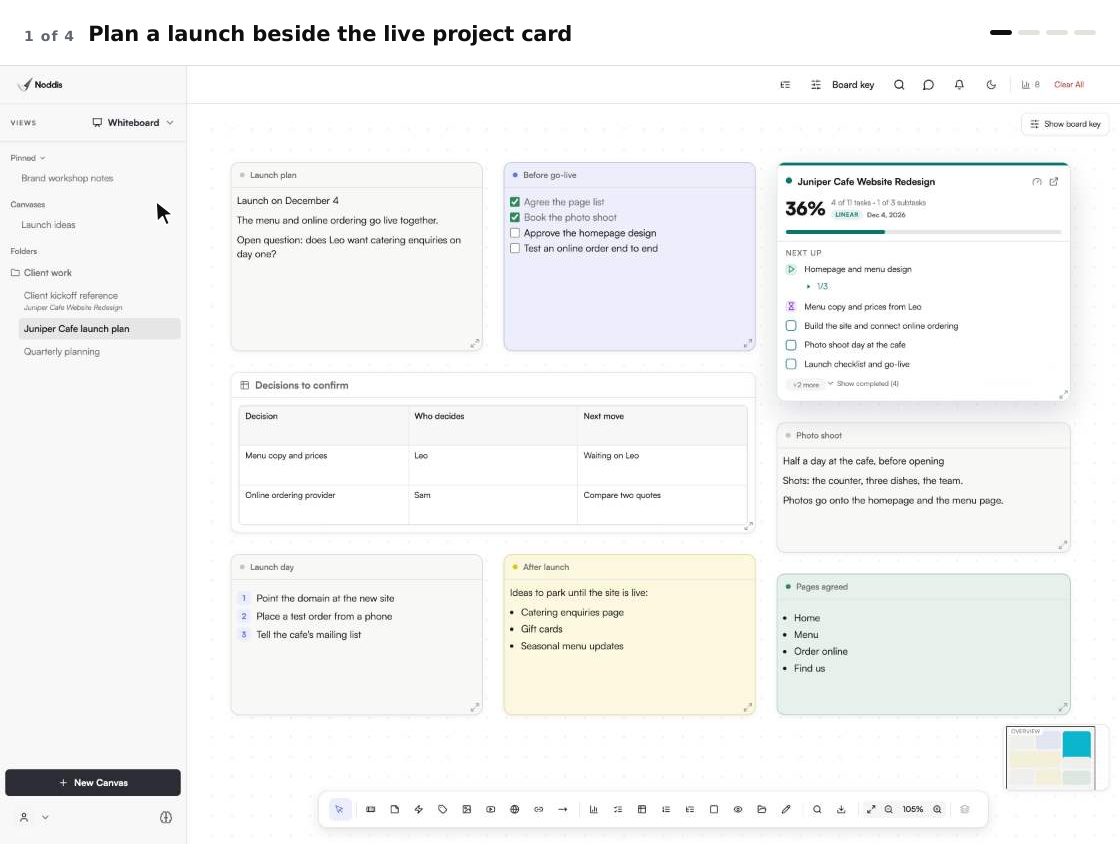
When we built the Whiteboard in Noddis, we made the project card live, so the plan on the canvas shows the same progress as the task list. Noddis is a project management app that keeps tasks, follow-ups, and related project details connected. The canvas is one more place where those details meet.
The Lean Enterprise Institute defines visual management as: "The placement in plain view of all tools, parts, production activities, and indicators of production system performance, so the status of the system can be understood at a glance by everyone involved." A whiteboard does that for project work, but only while the status on it is true. A live card keeps it true.
How Whiteboard works, step by step
A canvas starts blank and fills with whatever helps you think. These steps build a plan like the launch canvas at the top of this page.
- Open Whiteboard and press "New Canvas". Use "Rename" in the canvas menu to name it after the work.
- Add what you know with the toolbar: Note, Checklist, Table, Step, Image or PDF, Link and Arrow.
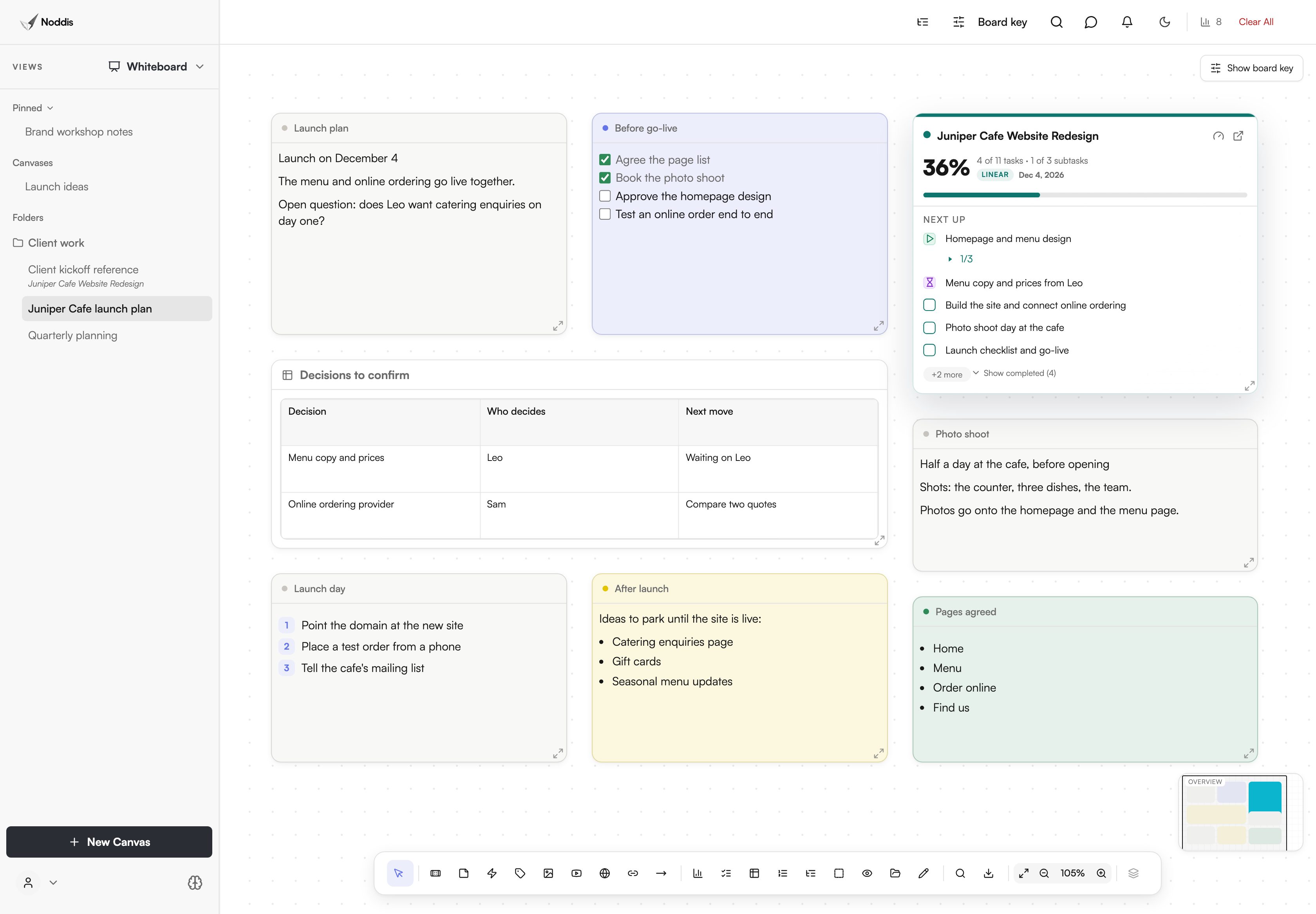
- Choose the Project tool and pick a project. A live card appears with its percent, due date, task counts and a "Next Up" list.
- In the canvas menu choose "Connect to Project" to link the canvas to the work it plans.
- Tick a task on the card when it is finished. The same task is now done in Execute.
- When a meeting agrees a new step, add it to the project as a task. The card shows it straight away.
- To show someone the thinking, choose "Share Canvas" and send the link.
What you stop doing
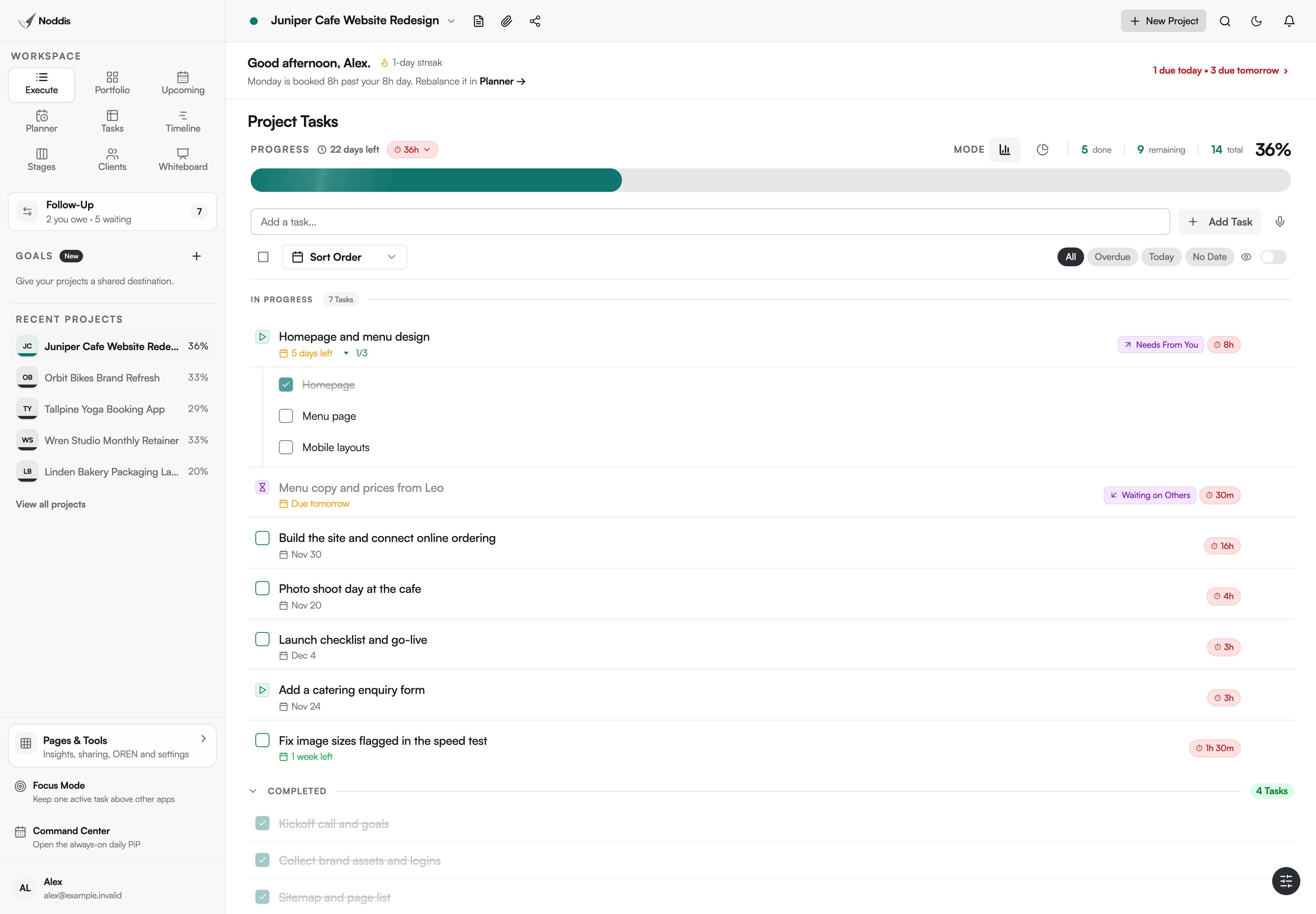
Whiteboard removes the second update. Count it on the screen: one tick on the card, and the plan and the task list both change.
| The chore | The usual way | In Whiteboard |
|---|---|---|
| Updating the plan after a meeting | Redraw the status on the board, then update the task tool | Tick the task on the card: one tick, both updated |
| Checking the plan is still true | Open the task tool beside the board and compare | The card shows the live percent, due date and next tasks |
| Showing a client the thinking | Export a picture and email it | "Share Canvas" gives a view-only link |
Which parts of the canvas carry the benefit?
Two parts carry the benefit: the live project card, which keeps the plan true, and the Embed tool, which adds a progress bar. Notes, checklists and tables hold the thinking.
The live project card
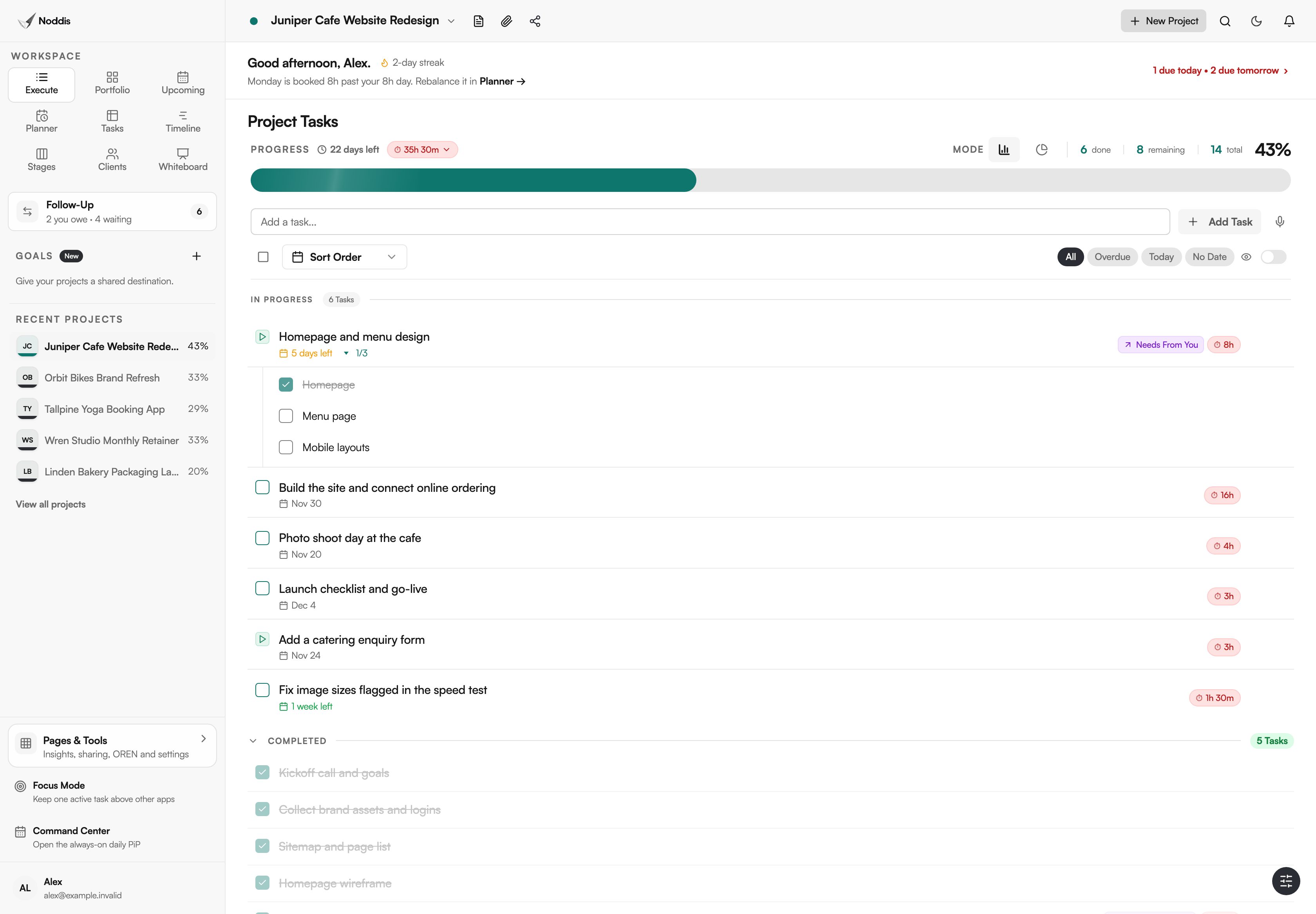
The card is the real project. It shows the percent, the due date, the task and subtask counts and a "Next Up" list with checkboxes that tick the real tasks. On the launch canvas the card reads 36%. Finish one more task and it reads 43%, on the card and in Execute alike.
Notes, checklists and tables
These hold the plan itself: a "Before go-live" checklist, a table of decisions and who makes them. A checklist on the canvas is a note with tick boxes. It tracks the plan, and it does not change project progress. The board key gives each colour a meaning, such as Mint for Approved and Rose for Needs attention.
The Embed tool
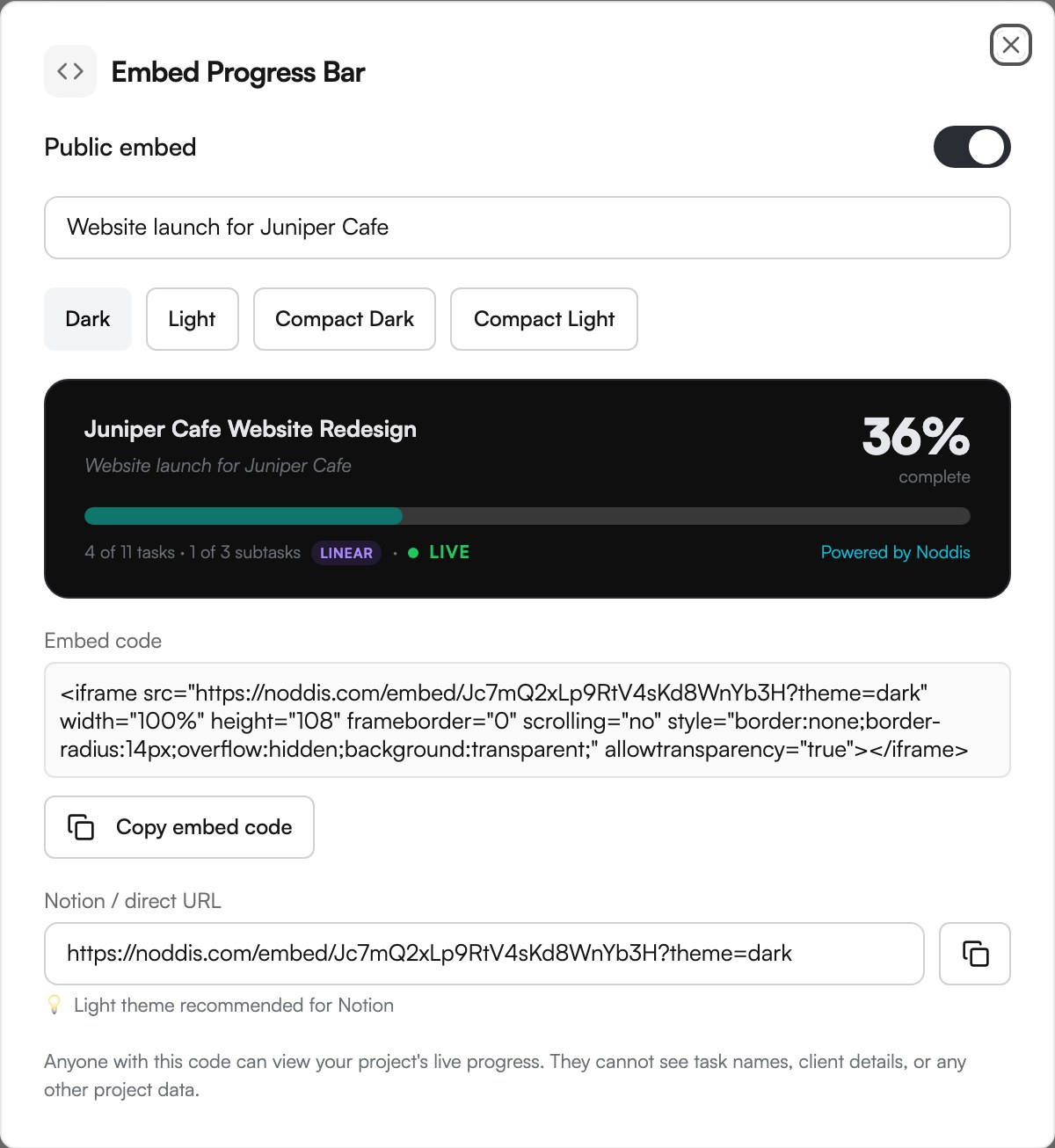
The Embed tool places an outside page on the canvas, and that includes a Noddis progress bar. Copy a project's link from "Embed Progress Bar", and the bar on the canvas updates as tasks are finished. The live progress embed page shows where else the bar can go.
Which kinds of work suit a project management whiteboard?
Whiteboard suits work that is planned in a room before it is done from a list: a bid, a building job, a launch.
AEC proposal teams
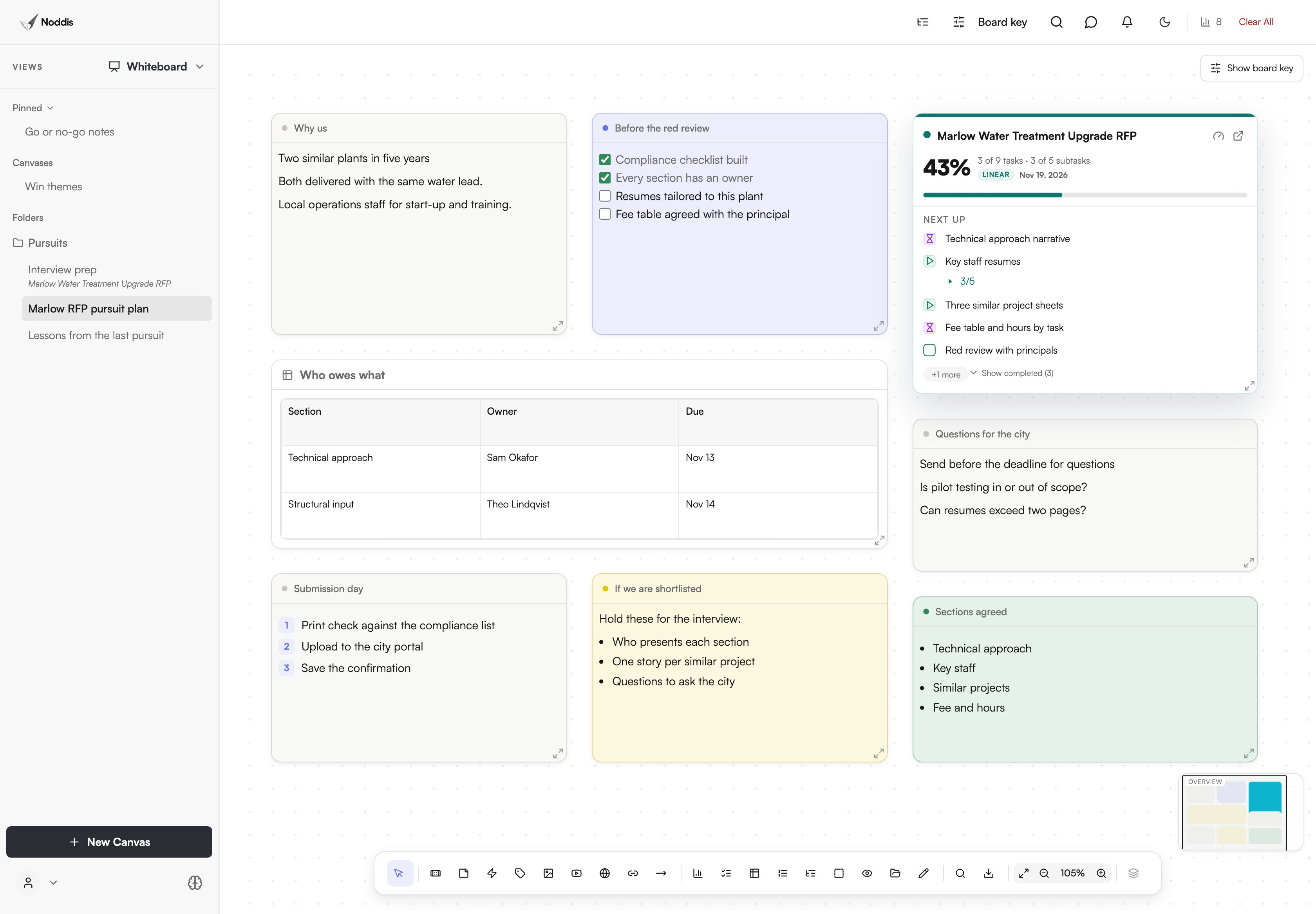
A pursuit needs its strategy and its deadline in one view. The canvas holds the reasoning, the questions for the city and who owes which section. The card shows how much of the proposal is finished before it is due on November 19.
Remodeling contractors
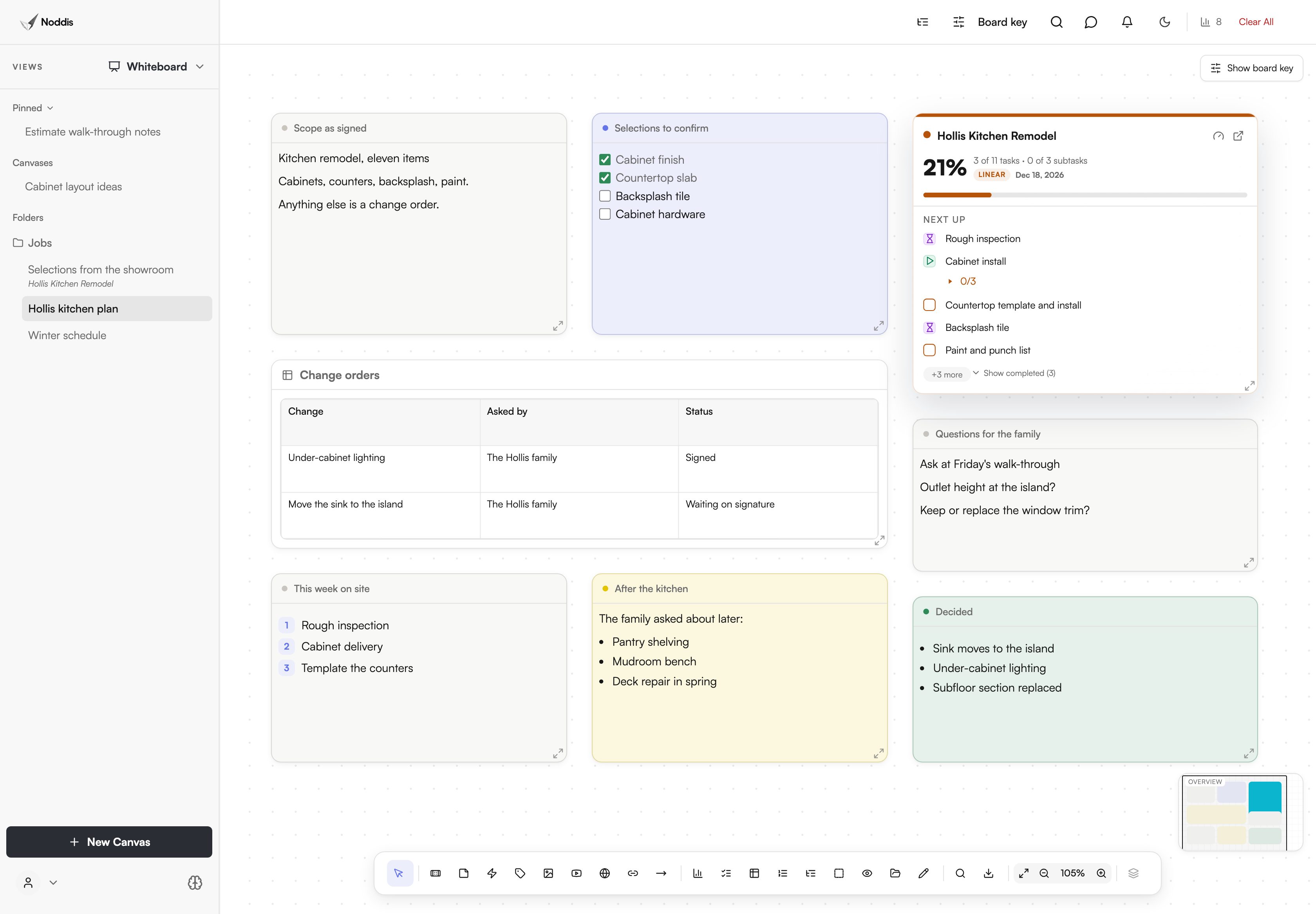
A remodel collects decisions while the work is under way: finishes, change orders, questions for the family. The canvas keeps them on one page for the next walk-through, and the card beside them shows what is next on site.
Agencies and studios
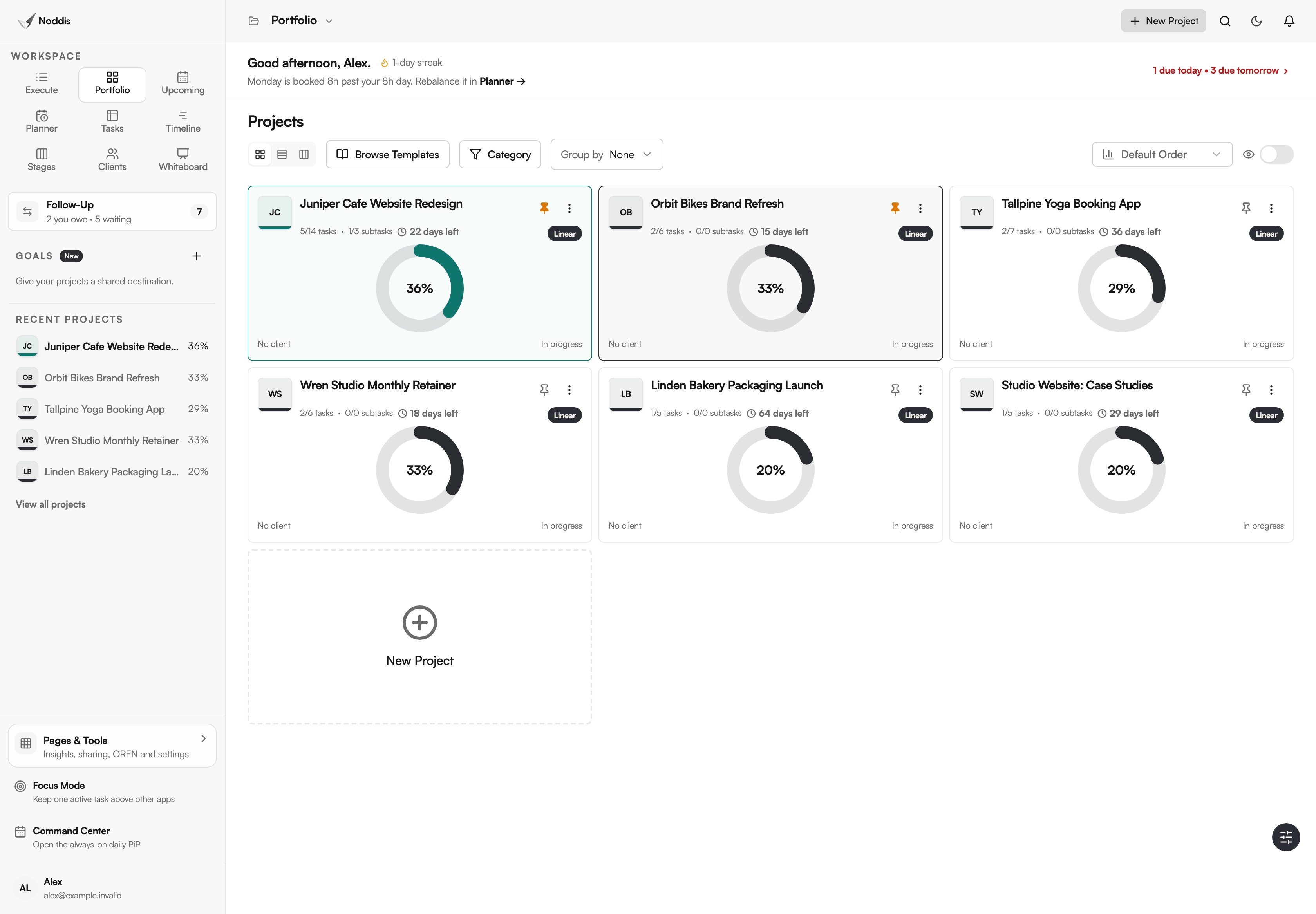
A studio plans a launch on a canvas and watches six projects in Portfolio. The two cards read the same tasks, so the number a client hears in the planning session is the number on every other screen. For a full routine, read plan a client project on a whiteboard.
What Whiteboard does not do
Whiteboard is a planning canvas tied to real projects. It is not a shared drawing room, and it does not turn notes into work for you.
- A note does not become a task. There is no convert action. You add the agreed steps to the project yourself.
- A shared canvas is view-only. The app's own words: "Anyone with this link can view this canvas. They cannot edit or move its contents."
- No multi-user cursors. You will not see other people moving around the canvas. If your team needs to draw together at the same moment, a dedicated whiteboard app will fit better.
- No custom fields. Notes, tables and cards have fixed parts.
What it costs
Whiteboard is a Pro workspace. Pro is $15 a month. The Free plan includes three active projects with Portfolio, Execute, Upcoming, Planner and Tasks. To try it with your own project, open the live demo. No account is needed. See the current plans, or compare all nine workspaces.
Frequently asked questions
What is a project management whiteboard?
A project management whiteboard is a canvas for planning work that stays tied to the tasks themselves. In Noddis that means notes, checklists and tables on a canvas, with a live card for the real project beside them. The card shows its percent, due date and next tasks.
What can I put on a canvas?
Notes, quick notes, labels, checklists, tables, steps, arrows, links, zones and drawings. You can also add an image or a PDF, a video from YouTube, Vimeo or Loom, an embedded page and a live project card. A table of contents and an overview map help on a large canvas.
Does the live card change when a task is finished somewhere else?
Yes. The card reads the same saved tasks as Execute and every other workspace. Finish a task in Execute, Upcoming or Tasks, and the card's percent and "Next Up" list change to match. You do not redraw anything on the canvas.
How do I keep canvases organised?
The sidebar lists canvases under Pinned, Canvases and folders. From a canvas menu you can choose "Pin Canvas", "Move to Folder", "Rename" or "Duplicate", and "Connect to Project" links a canvas to the work it plans. Start a new one with "New Canvas".
Can I save a canvas as a picture?
Yes. "Export as PNG" in the toolbar saves the canvas as a picture you can put in a document or a slide. The picture is fixed at that moment. For a link that shows the canvas as it stands today, use "Share Canvas" instead.
Plan it where the work lives.
Start a canvas for one real project and add its live card. The plan and the progress will be on the same screen the next time you open it.