
Key takeaways
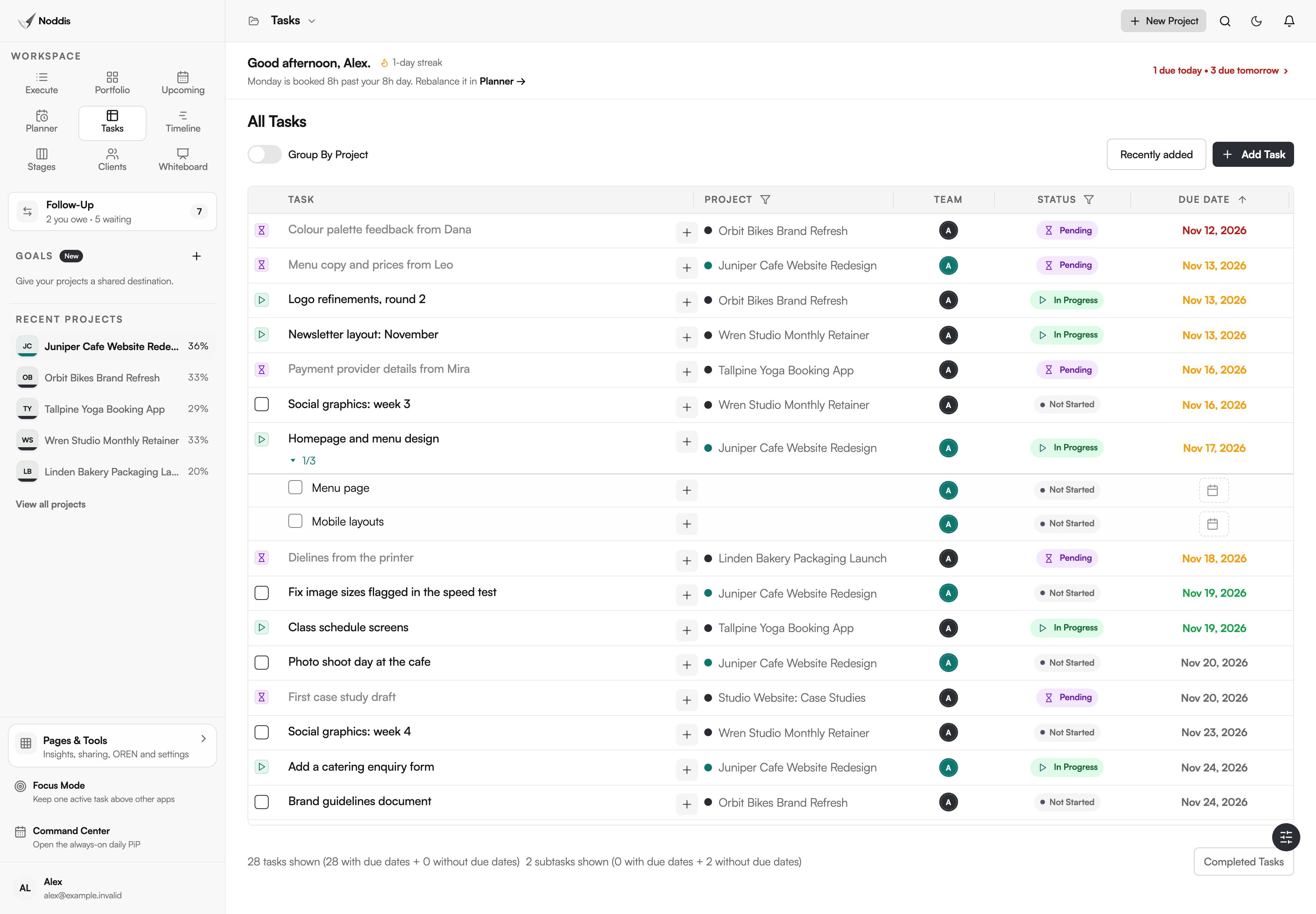
- Tasks is one table of every task from every active project, with Task, Project, Team, Status and Due Date columns.
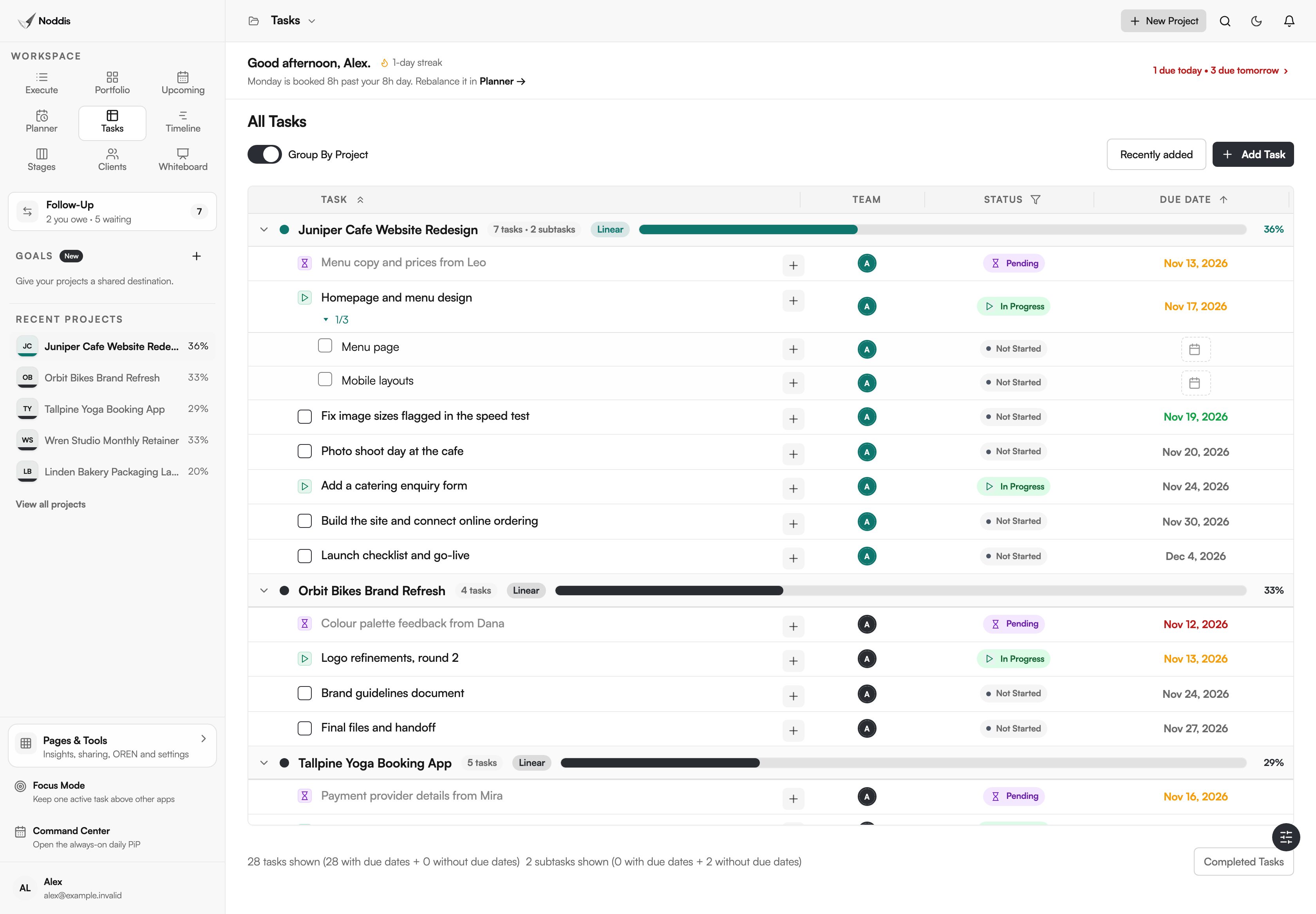
- "Group By Project" gathers the rows under each project and shows that project's progress.
- Rows can be filtered by status and by project, and sorted by due date.
- Tasks is on the Free plan, which includes three active projects.
Why does Noddis have Tasks?
Noddis has Tasks because a master task list across projects is usually built by hand: copied into a spreadsheet, then kept in step with the real work. Tasks is that list, kept by the app. Every task from every active project sits in one table with its project, owner, status and due date.
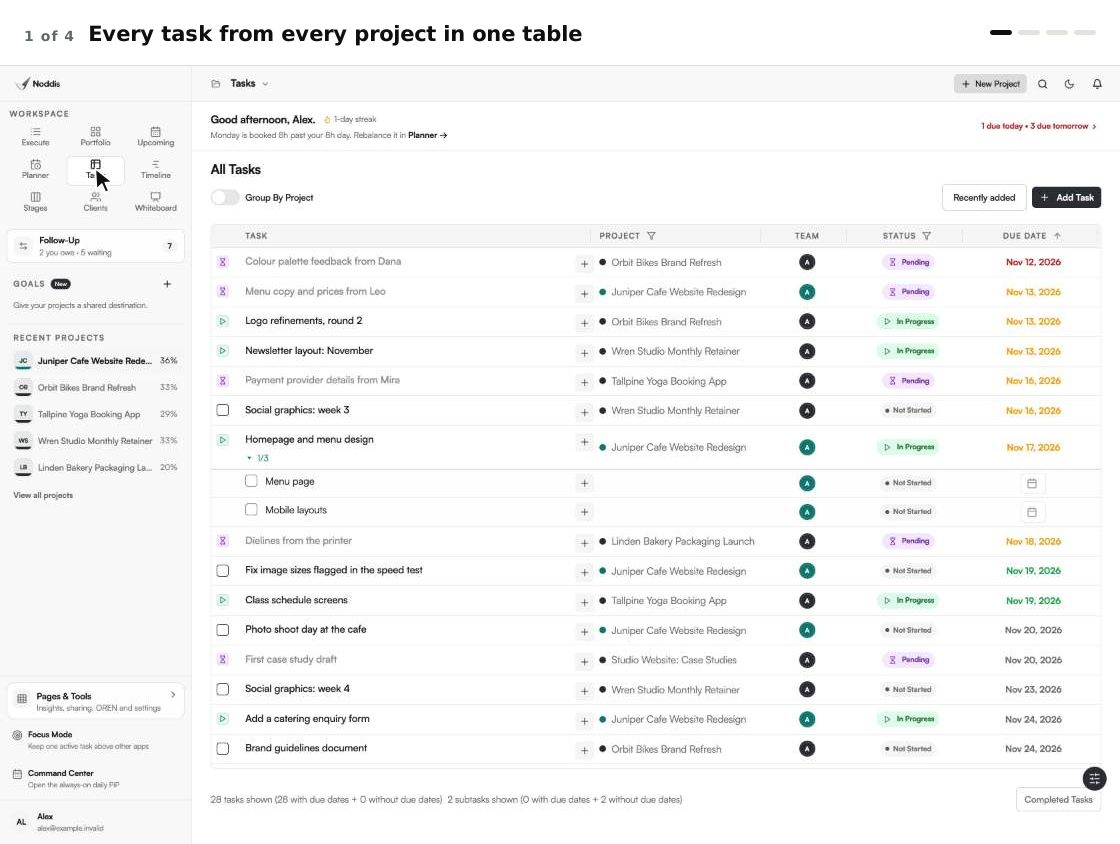
When we built Tasks in Noddis, we put every task from every project in one table, so a question about one task never starts with finding its project.
The David Allen Company, which publishes the Getting Things Done method, says: "Write, record, or gather any and everything that has your attention into a collection tool." A master list only earns trust when everything is in it.
Noddis is a project management app that keeps tasks, follow-ups, and related project details connected. Tasks is one of its ready-made workspaces. It reads the same saved work as the others, so nothing is copied.
How Tasks works, step by step
There is nothing to build first.
- Add your projects and their tasks in Execute, or import them from a spreadsheet or another tool.
- Open Tasks in the sidebar. The page is headed "All Tasks" and lists the open tasks from every active project.
- Click the Due Date heading to sort by date, soonest first or latest first. Tasks with no date sit under "No Due Date".
- Turn on "Group By Project". Each project gets a header with its task count, "Linear" or "Weighted", and its progress percent.
- Narrow the table with "Filter By Status" or "Filter By Project". Both allow more than one choice.
- Work in the row. Tick a task to finish it, double-click its name to rename it, or change its due date.
What you stop doing
Tasks removes the copying that a master list normally needs.
| The chore | The usual way | In Tasks |
|---|---|---|
| Finding one task | Recall its project, open it, scroll the list | One table. Sort by Due Date or filter by project |
| Keeping a master list | Copy tasks from six projects into a spreadsheet, then update both | Six projects, one table, nothing copied |
| Checking progress on every project | Open each project in turn | "Group By Project": one header per project, with its percent |
| Seeing what is waiting | Read every list for stalled work | "Filter By Status", then choose Pending |
What is on the Tasks screen?
Three parts of the Tasks screen carry the benefit: the table, the "Group By Project" switch and the two filters.
The table: one row per task
Each row shows the Task, its Project, the Team member on it, its Status and its Due Date. For the studio at the top of this page, that is 28 open tasks from six projects. The footer counts the tasks shown. Finished tasks stay out of the way until you press Completed Tasks.
"Group By Project": progress in every header
Turn the switch on and the table folds into one block per project. Each header carries the project's task count, its progress mode and its percent, worked out by Noddis from finished work. "Collapse All Projects" shrinks the table to the headers alone: every project's progress in a few lines.
The filters: status and project
"Filter By Status" offers Not Started, Pending, Paused, In Progress and Blocked. Choose Pending and Blocked together and the table lists everything stuck, in every project. "Filter By Project" keeps only the projects you pick, and "Recently added" puts the newest tasks first. To choose among the rows that remain, read what should I work on next.
Tasks or Upcoming?
Both cross every project. Upcoming is a date list, with open work beside finished work. Tasks is a table you can group, filter and edit.
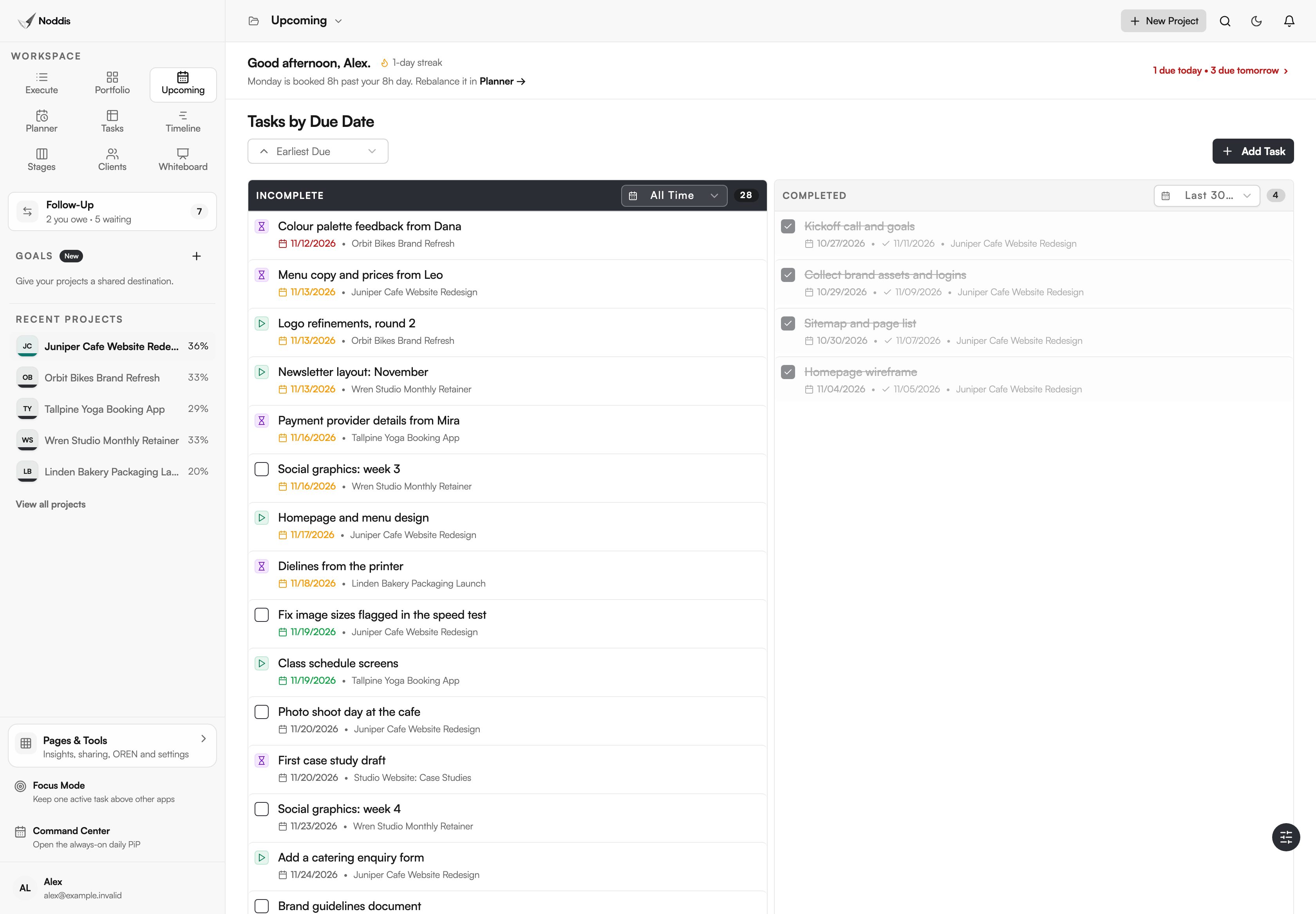
Which kinds of work suit a master task list across projects?
Tasks suits work where one person answers for many small items spread over several projects.
Remodeling contractors
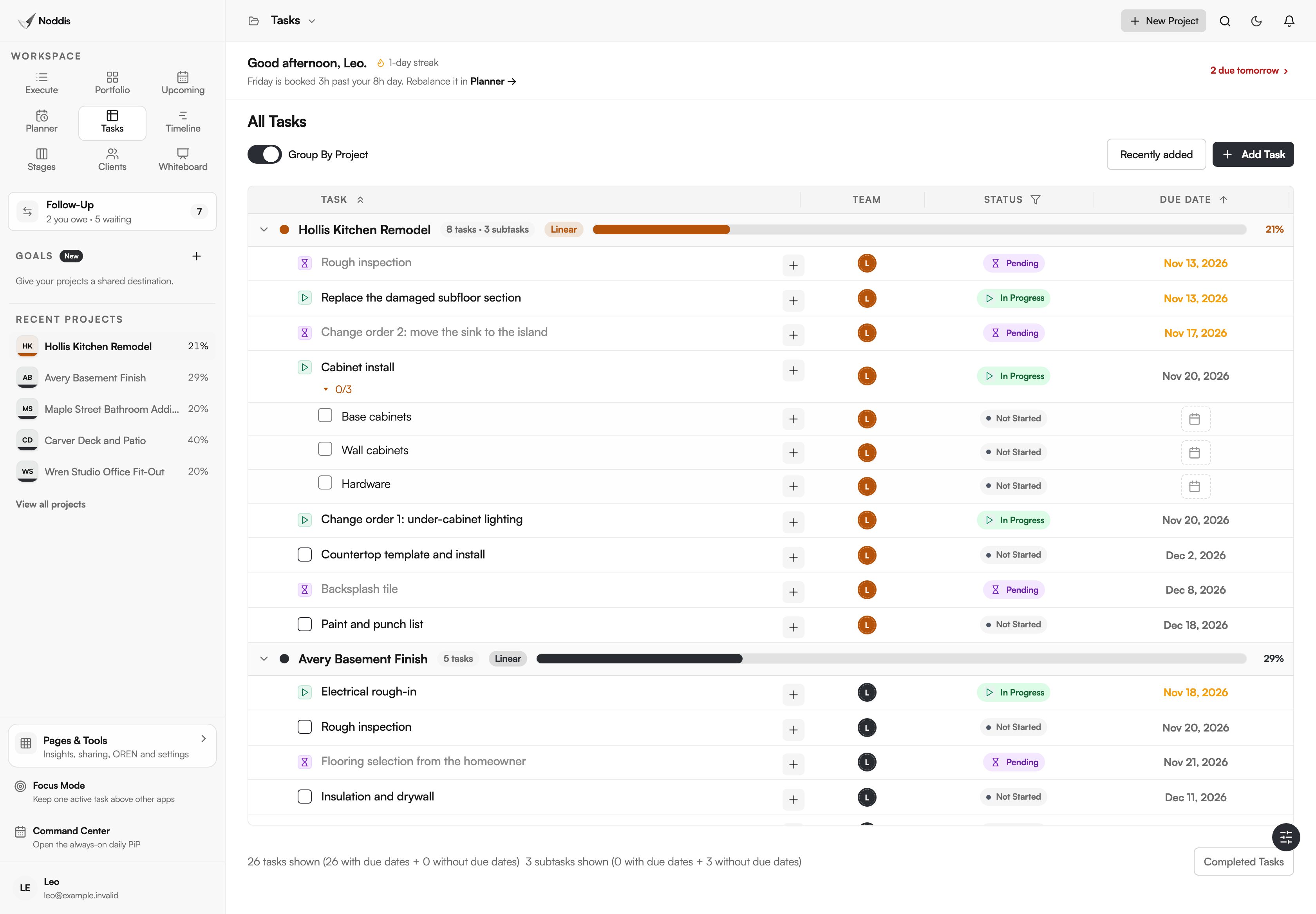
Picture a remodeler with six jobs open. Grouped by project, Tasks shows each job's inspections, installs and homeowner decisions under one header, with the job's percent beside its name. A change order waiting on a signature reads Pending in the same table as the cabinet install.
AEC proposal teams
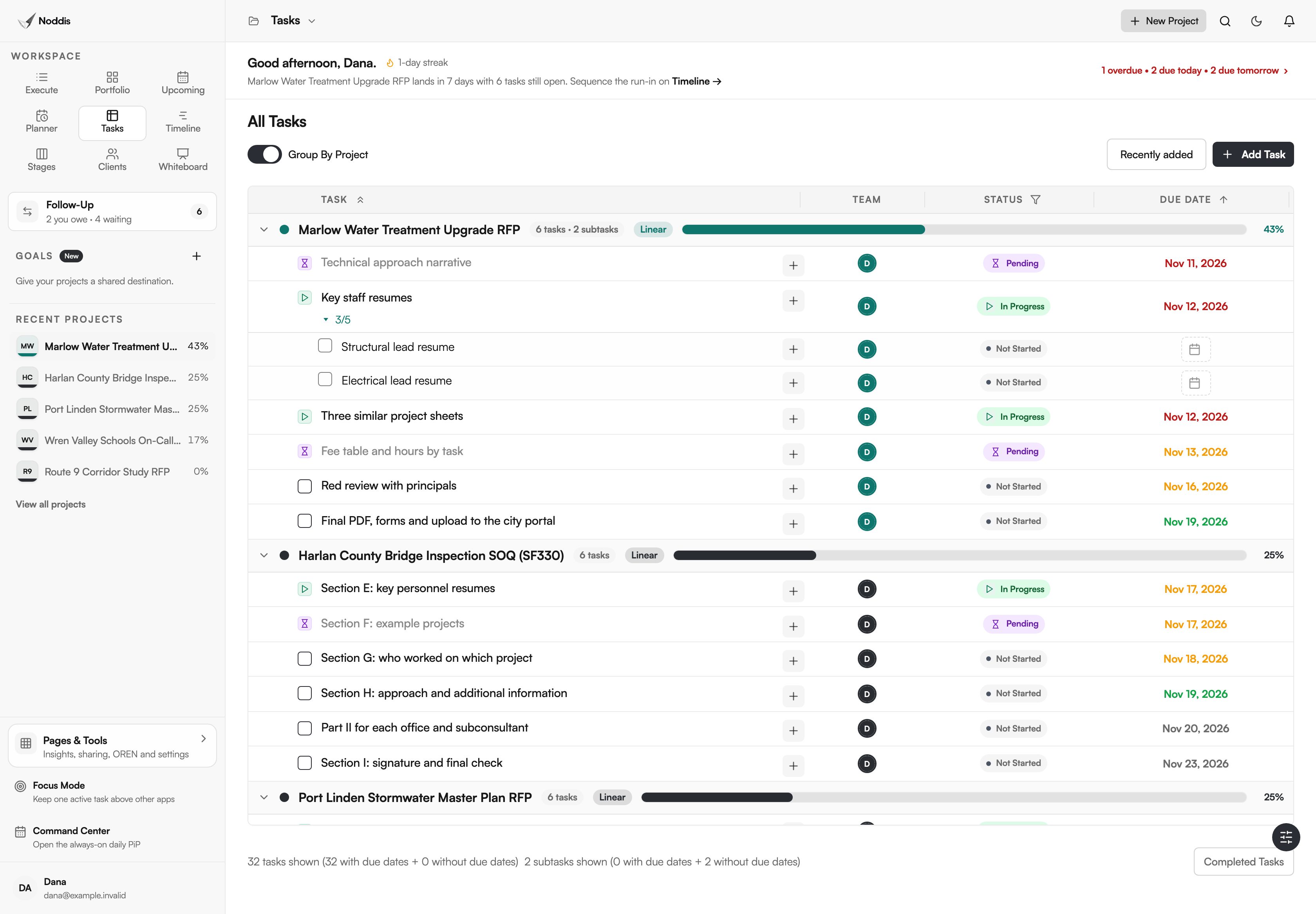
Take a proposal team with six pursuits. Resumes, project sheets, fee tables and reviews repeat in each one, and most depend on someone else. A proposal manager can filter to Pending and see every late input at once.
Agencies and studios
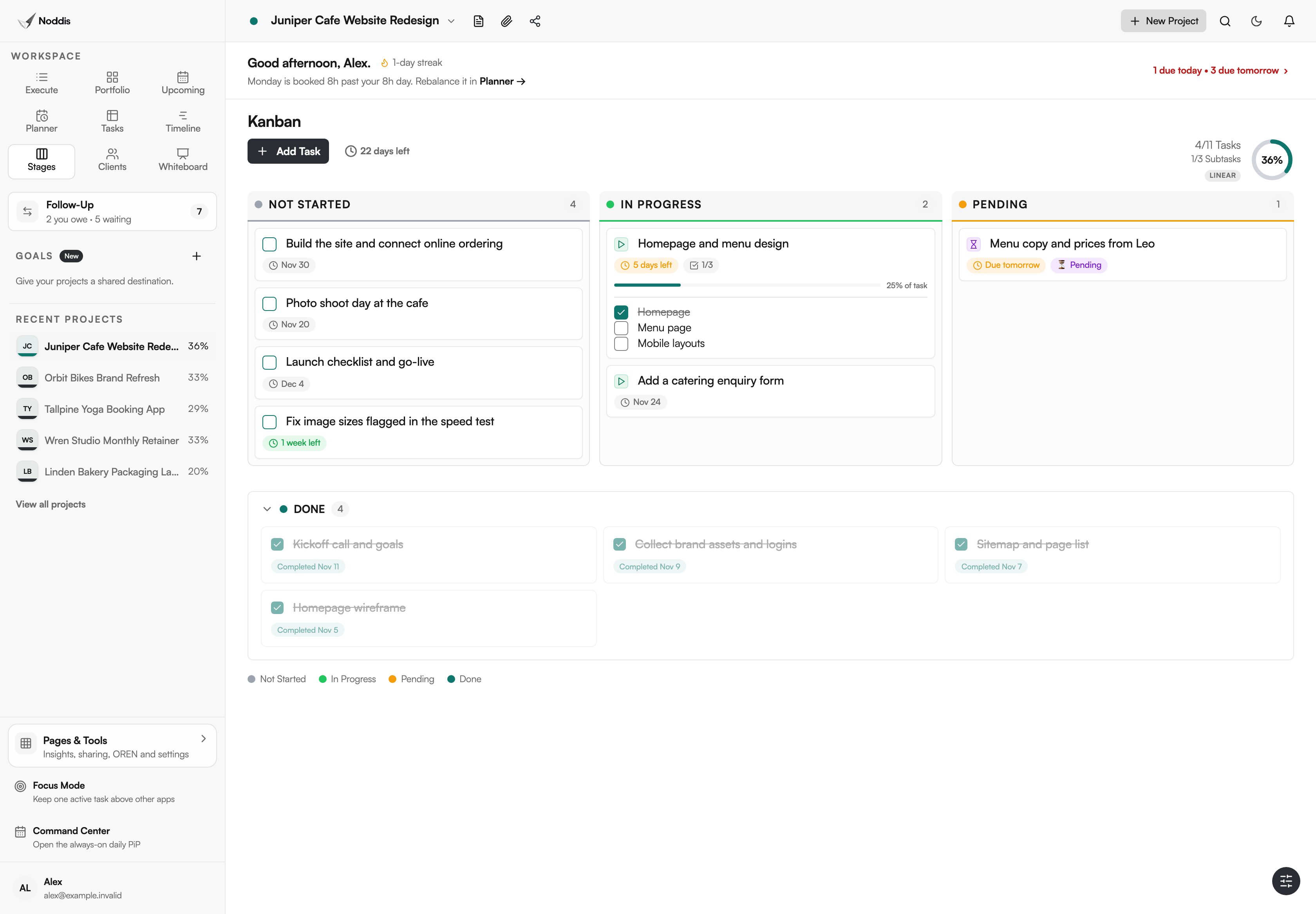
Take a studio with six projects, five for clients and one of its own. A client call can touch any task, and Tasks finds it without opening the project. When one project needs a closer look, the same tasks open as a board in Stages, which is on Pro.
What Tasks does not do
Tasks is a fixed table of your work. It is not a spreadsheet, and it is not a database you design.
- No search inside the table. You find a task by sorting, grouping and filtering.
- No bulk selection. You change one row at a time.
- No export from this table.
- One grouping only. "Group By Project" is the only way to group. You cannot group by status, person or date.
- Fixed columns. There are no custom fields and no formula columns.
If your master list needs its own columns, formulas or edits across hundreds of rows at once, a spreadsheet or a configurable tool will fit better. That trade is the point of project management without the management.
What it costs
Tasks is on the Free plan, with grouping, both filters and editing in the row. The Free plan includes three active projects. Pro is $15 a month and adds unlimited projects, along with Timeline, Stages, Clients and Whiteboard. Check the current plans before you decide.
To try it with your own project, open the live demo. No account is needed.
Frequently asked questions
What is a master task list across projects?
A master task list across projects is one list that holds every task from every project you run, so all of it can be seen and sorted in one place. In Noddis, the Tasks workspace is that list: a table that reads the same saved work as each project's own list.
Can I edit a task from the Tasks table?
Yes. Tick a task to finish it, double-click its name to rename it, or change its due date, all in the row. The change is saved to the task itself, so Execute, Upcoming, Planner and the project's progress show it straight away.
Does Tasks show finished tasks?
Not at first. The table opens on work that is still open. Press Completed Tasks at the bottom to bring finished tasks into view, and the button then reads "Hide Completed". For finished work by time frame, such as this week or the last 30 days, use Upcoming.
Do subtasks appear in Tasks?
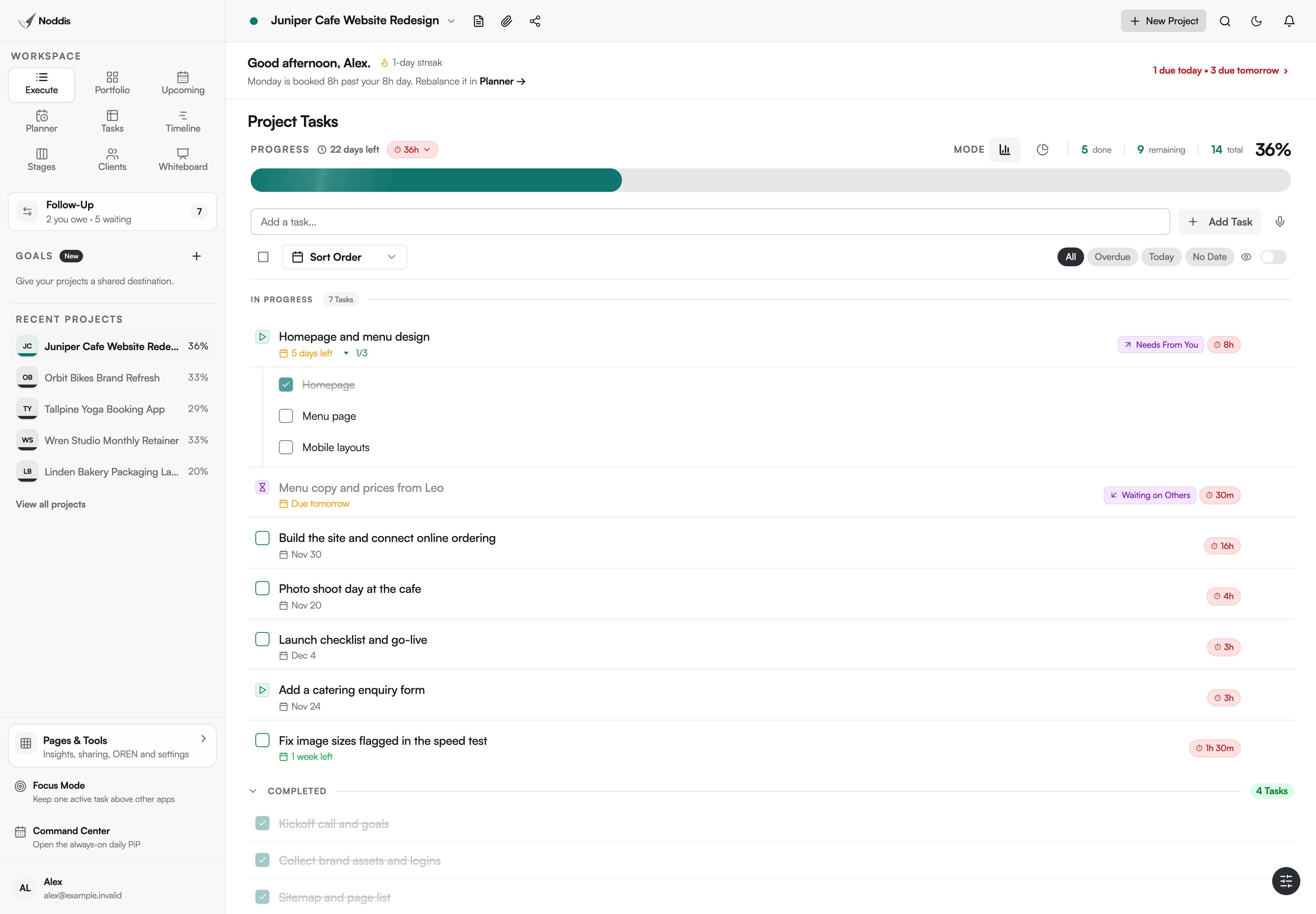
Yes. A task with subtasks shows a count such as 1/3, and its open subtasks sit under it as rows of their own. The footer counts tasks and subtasks separately. In the studio's table, that is 28 tasks and 2 subtasks shown.
Do I have to build the table or choose its columns?
No. The table is already built, with five fixed columns. Add a project and its tasks, or import them from a spreadsheet or another tool, and the rows appear in Tasks straight away. You still enter the work and set the dates.
One table for every project.
Start with the projects you already run, and open Tasks once they hold a few tasks. Every row you would have copied into a master list is already there.