
Key takeaways
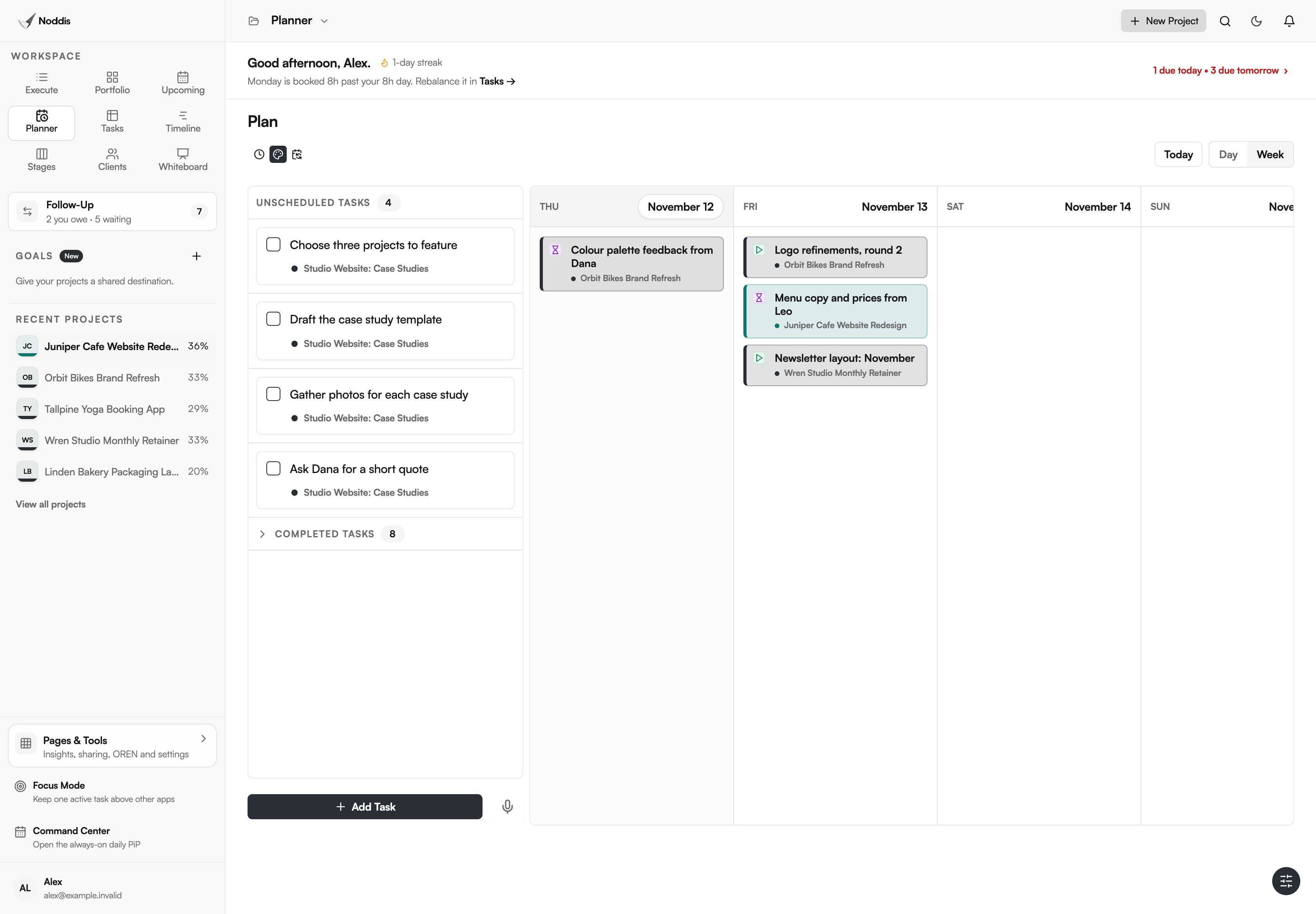
- Planner shows tasks from every active project in a Day view and a Week view.
- Tasks with no date wait in an "Unscheduled Tasks" panel, and dragging one onto a day gives it a due date.
- Busy times from Google Calendar can sit beside the tasks, read-only.
- Planner is on the Free plan, which includes three active projects.
Why does Noddis have Planner?
Noddis has Planner because tasks without dates hide inside projects, and dating them one by one means opening each. Planner is a daily planner for project tasks from every project: unscheduled work waits in one panel, a drag gives a task its day or hour, and that date shows everywhere else straight away.
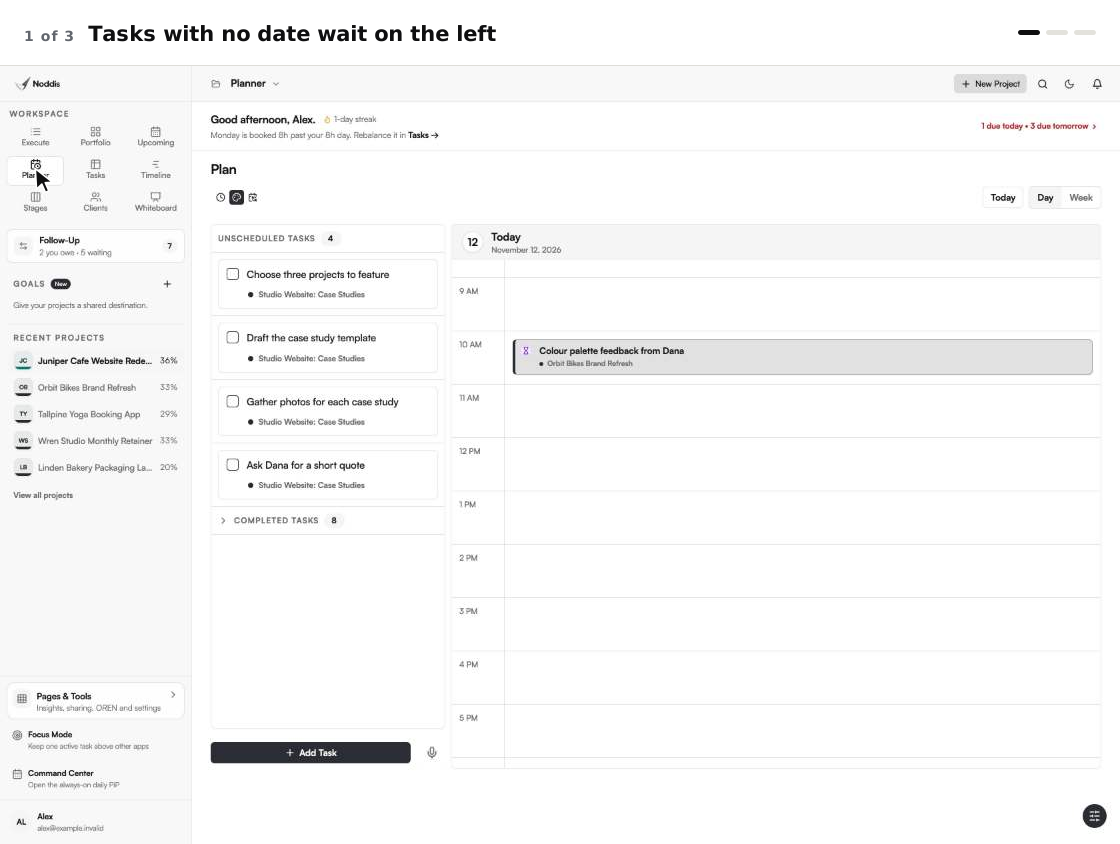
Noddis is a project management app that keeps tasks, follow-ups, and related project details connected. When we built Planner in Noddis, we put unscheduled tasks from every project in one panel, so giving a task a day is a single drag.
Cal Newport, writing on his own site about how he plans each work day, says: "During this planning process I consult my task lists and calendars, as well as my weekly and quarterly planning notes." Planner puts the first two in one view: the task lists from every project and, if you connect it, your Google Calendar. It is one of the ready-made Noddis workspaces.
How Planner works, step by step
Planner starts from the tasks you already have, so there is no schedule to set up first.
- Open Planner in the sidebar. The page is headed "Plan".
- Look at "Unscheduled Tasks" on the left: every task with no date, with a count.
- Choose "Day" for hourly slots or "Week" for day columns that start on Monday.
- Drag a task onto a day, onto the "All-Day Tasks" area or onto an hour. That sets its due date, and its time if you chose an hour.
- Drag a task back to the panel to unschedule it.
- Connect Google Calendar to see your busy times, read-only, beside the tasks.
What you stop doing
Planner removes the hunt for undated work and the retyping of dates. Take a studio with six projects, and count the steps.
| The chore | The usual way | In Planner |
|---|---|---|
| Finding tasks with no date | Open six projects and look for gaps | One panel, "Unscheduled Tasks", with a count |
| Giving a task a day | Open the task, open the date picker, save | One drag onto the day or the hour |
| Checking your calendar first | Switch to the calendar app and back | Google Calendar's busy times sit in the same view |
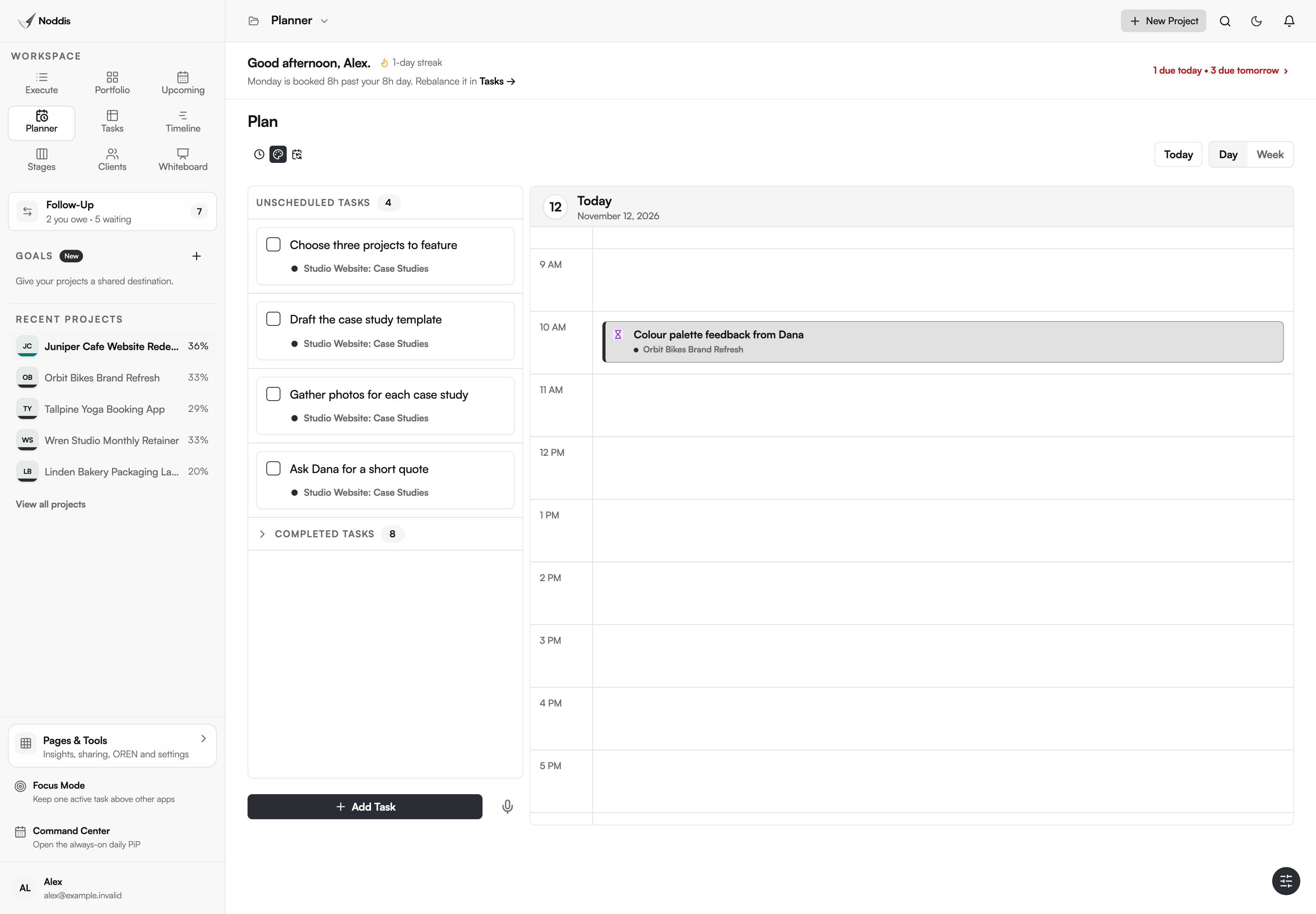
| Updating the other views | Enter the date again in a deadline list or a chart | The date shows in Upcoming, Timeline and the project |
You still choose the day. Noddis carries the date everywhere else, which is project management without the management in practice.
Which parts of Planner carry the benefit?
Three parts of Planner do the work: the "Unscheduled Tasks" panel, the date that travels to every other workspace, and the calendar beside the tasks.
The Unscheduled Tasks panel
The panel gathers every task that has no date, from every active project, and counts them. Each task shows its project's name and colour, so you know whose work you are placing.
One date, shown everywhere
A date set in Planner is the task's due date, not a copy kept in a separate calendar. The task appears in Upcoming in date order, in its project's list in Execute, and as a bar in Timeline, which is on Pro.
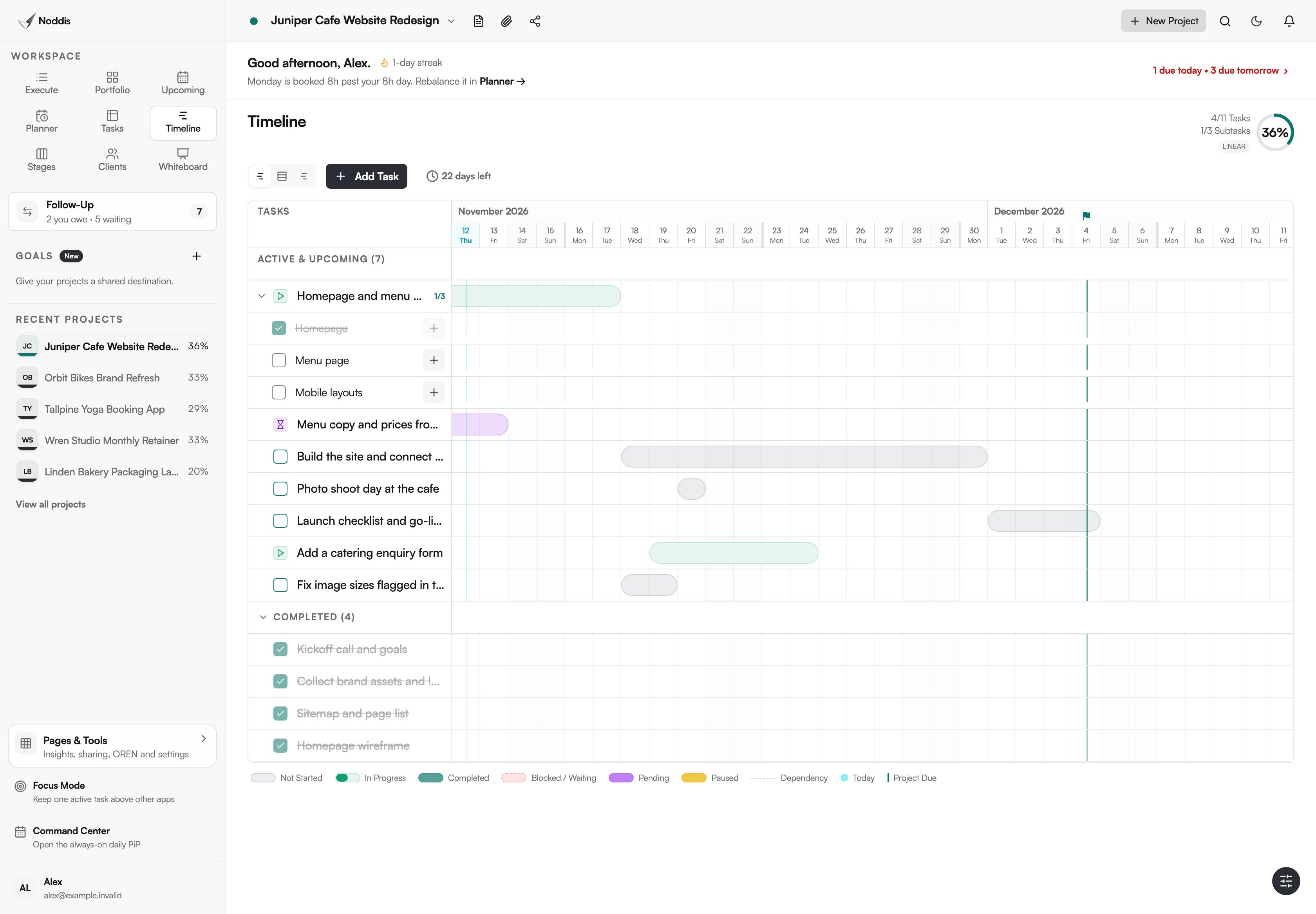
Your calendar beside the work
Connect Google Calendar and your busy events show in both views, read-only, so you can see a client call before you drop a task on top of it. "Calendar Sync" can also send project, task and subtask deadlines to Google Calendar, on Free and Pro. Tasks are coloured by project, or by due date urgency.
Which kinds of work suit a daily planner for project tasks?
Planner suits people who decide their own days across several projects. It fits one planner or a small team better than a large crew.
Agencies and studios
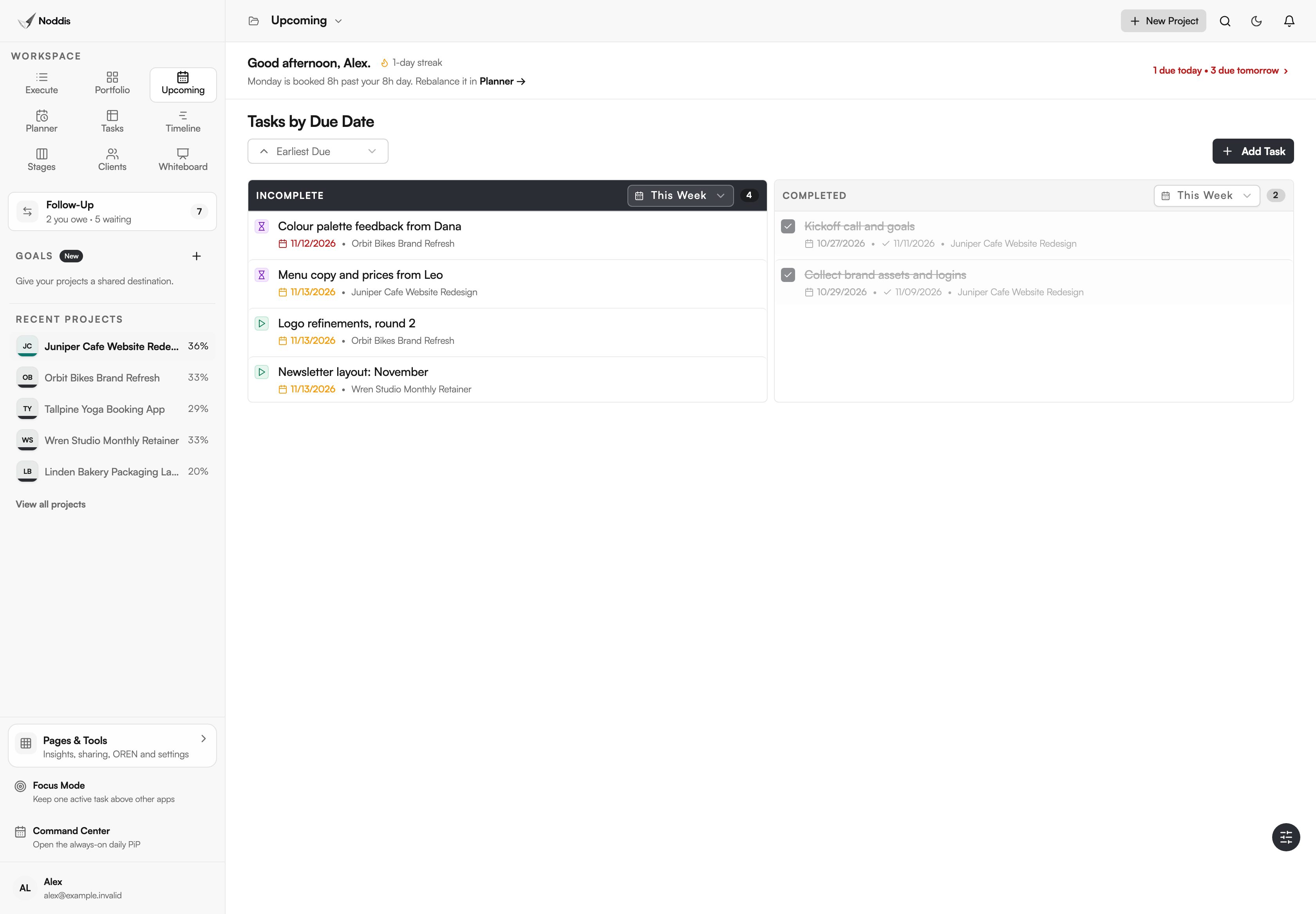
In the studio's week, Thursday has feedback due from one client and Friday has three tasks for three clients. Planner shows both days side by side, so Friday's three can be moved before they collide. For ways to cut the cost of juggling clients, read context switching between projects.
Remodeling contractors
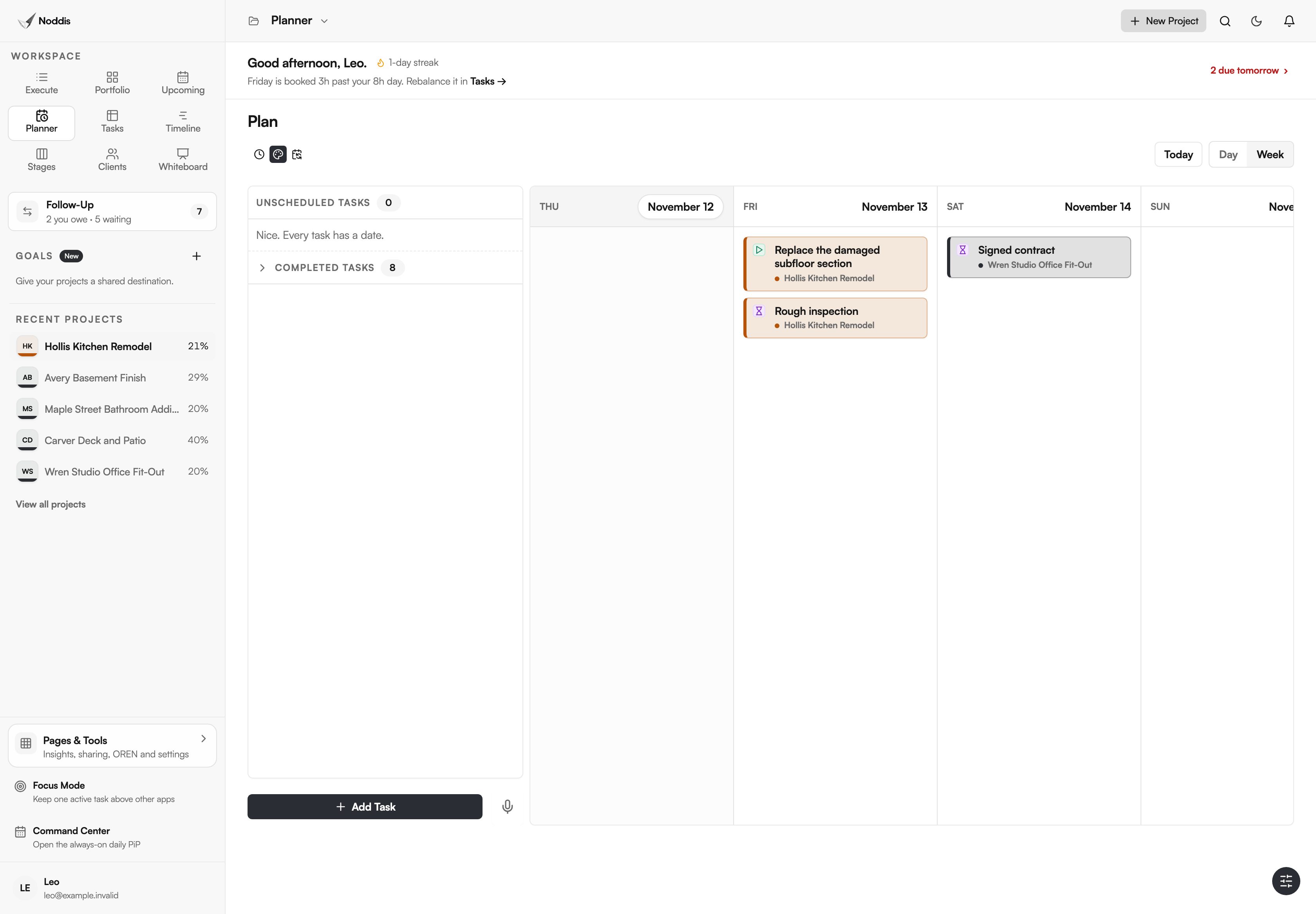
Picture a remodeler with six jobs open. An inspection on one job and a walk-through on another can land on the same morning. Planner names the job on every task, so a clash is seen while there is time to move it.
In-house marketing
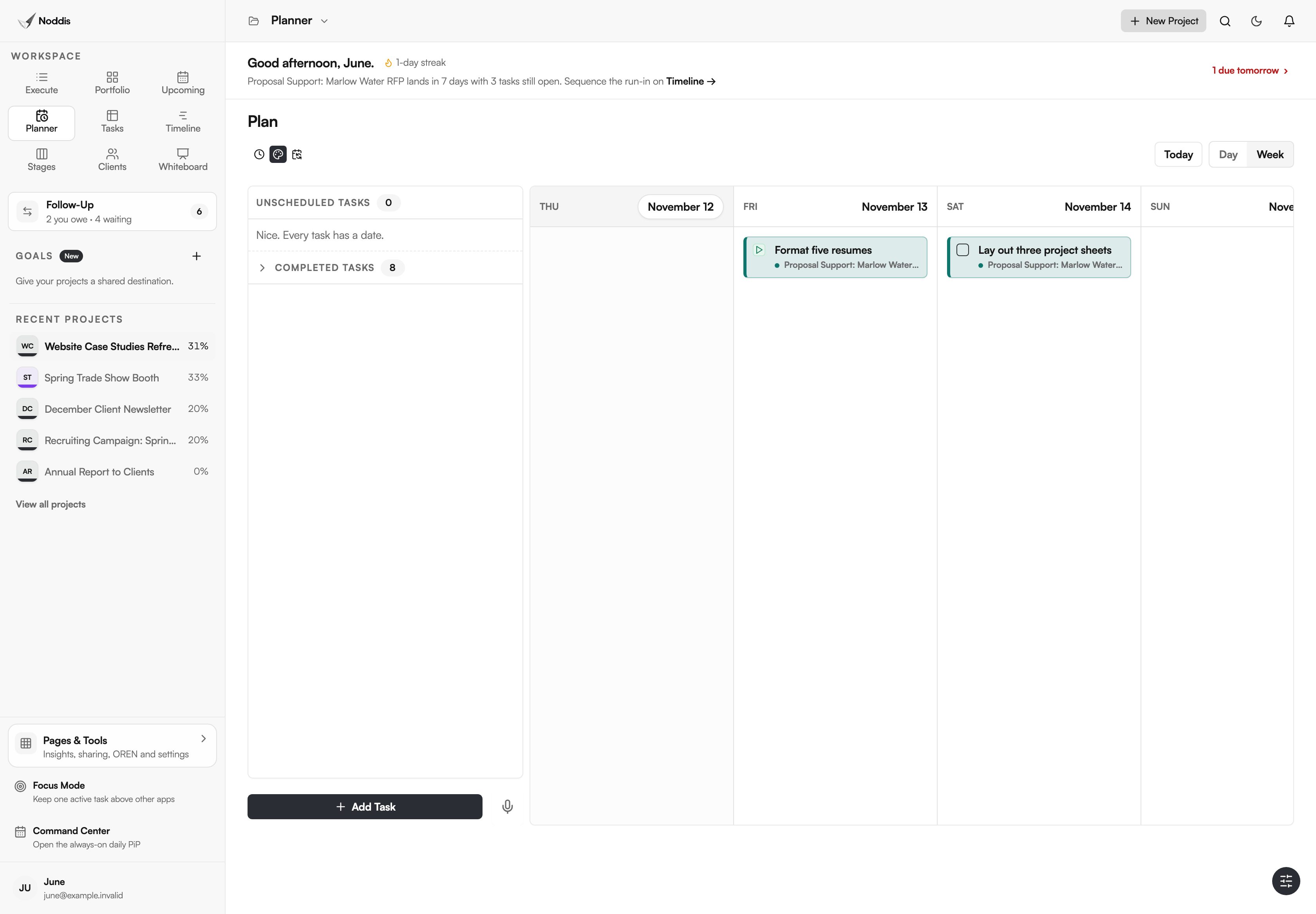
A marketing lead answers to several requesters with competing dates. Undated requests stay in the panel until someone gives them a day. For choosing between them, read what to work on next.
What Planner does not do
Planner places tasks on days and hours and shows your Google Calendar beside them. It does not schedule for you, and it connects to one calendar service.
- Google Calendar only. There is no Outlook or Apple Calendar connection.
- Calendar events are read-only. You cannot create or edit events in Planner.
- Nothing is placed for you. There is no auto-scheduling and no resource levelling.
- No custom fields. A task shows its name, its project and its date.
If you schedule a large crew by shift, or your company runs on Outlook, a dedicated scheduling tool will fit better.
What it costs
Planner is on the Free plan, with the Day and Week views. "Calendar Sync" with Google Calendar is on Free and Pro. The Free plan includes three active projects. Pro is $15 a month and adds unlimited projects and Timeline. To try it with your own project, open the live demo. No account is needed. Check the current plans before you decide.
Frequently asked questions
Who is a daily planner for project tasks meant for?
It is for someone who plans their own days across several projects: a freelancer, a studio owner, a contractor, a marketing lead. Every task shows its project, so one day can hold work for three clients. Teams that schedule many people by shift need another tool.
Does dragging a task in Planner change its due date?
Yes. Dropping a task on a day sets its due date, and dropping it on an hour sets the time as well. That is the task's real date, so Upcoming, Execute and, on Pro, Timeline show it straight away. Drag it back to the panel and the date is removed.
Does Planner work with Outlook or Apple Calendar?
No. Planner connects to Google Calendar only. Busy events from Google Calendar show read-only in the Day and Week views, and "Calendar Sync" can send your deadlines to Google Calendar on Free and Pro. If your calendar is elsewhere, Planner still plans your tasks.
Can I schedule tasks from my phone?
Yes. On a phone you tap a task to open "Schedule Task" and choose its date, in place of dragging. The date is saved to the task itself, so it shows in Upcoming and in the project's list the same way a drag would.
What happens to tasks I never schedule?
They stay in "Unscheduled Tasks", with the count, and in their own project. Nothing is hidden or removed. They do not appear in Upcoming, which lists dated tasks only. When every task has a date, the panel reads "Nice. Every task has a date."
Give every task a day.
Open Planner with two or three projects under way and drag the undated tasks onto the week. Each date you set is already in Upcoming and in the project.