
What is multi-project management software?
Multi-project management software is a tool that shows several projects together. You compare progress, see competing deadlines and decide what needs attention without opening each project in turn. A task app shows one list at a time. Enterprise portfolio software adds budgets and resource planning for whole departments. A small team needs the ground between the two.
Five questions cover most of that ground. In Noddis each one has a workspace that already exists.
| The question | Where Noddis answers it | Plan |
|---|---|---|
| How is every project doing? | Portfolio | Free |
| What is due across all of them? | Upcoming | Free |
| Where is every task? | Tasks | Free |
| What do I do next on this one? | Execute | Free |
| Who owes what, and for how long? | Follow-Up | One project on Free, all on Pro |
Every project on one screen
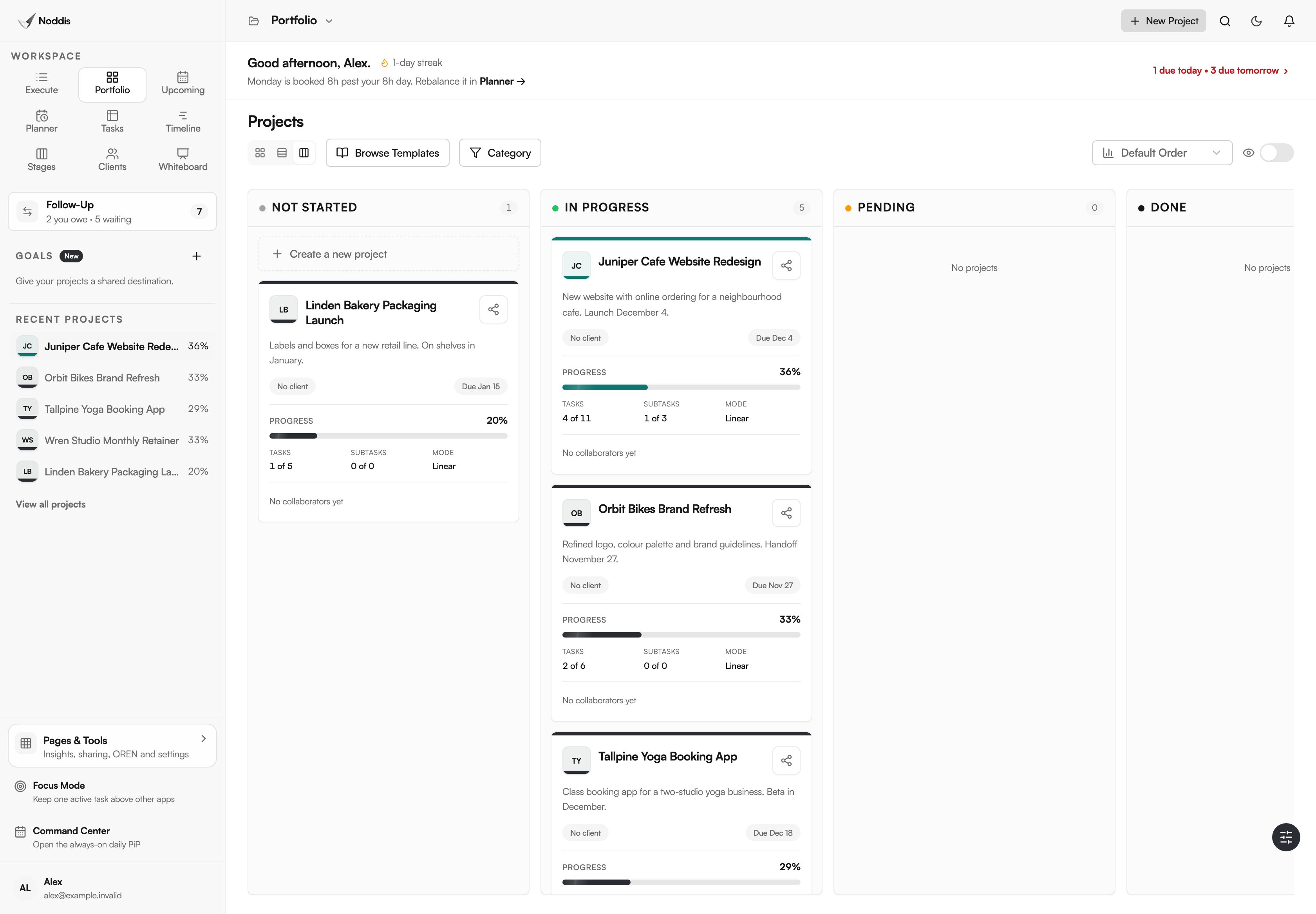
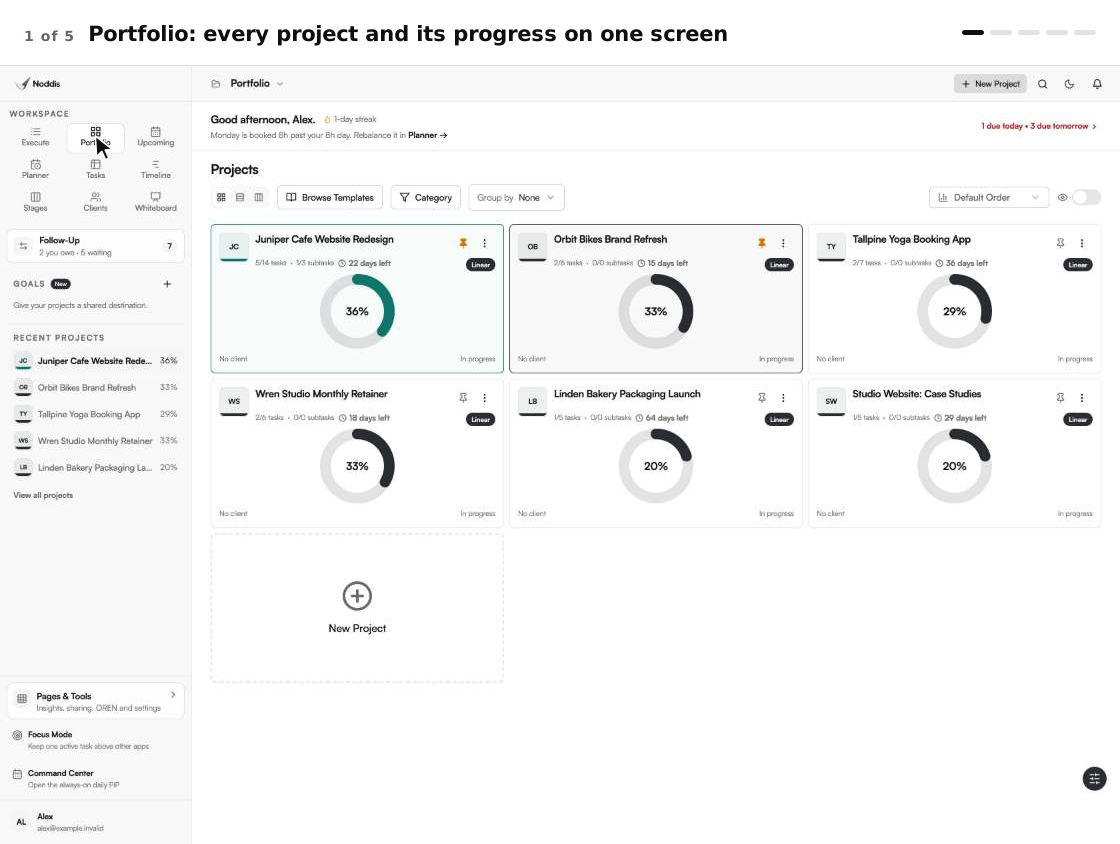
Portfolio is where a week starts. Each project is a card with a progress ring, the tasks finished out of the total, and the days left before its due date. Noddis works the progress out from finished work, so the screen is current without anyone preparing it.
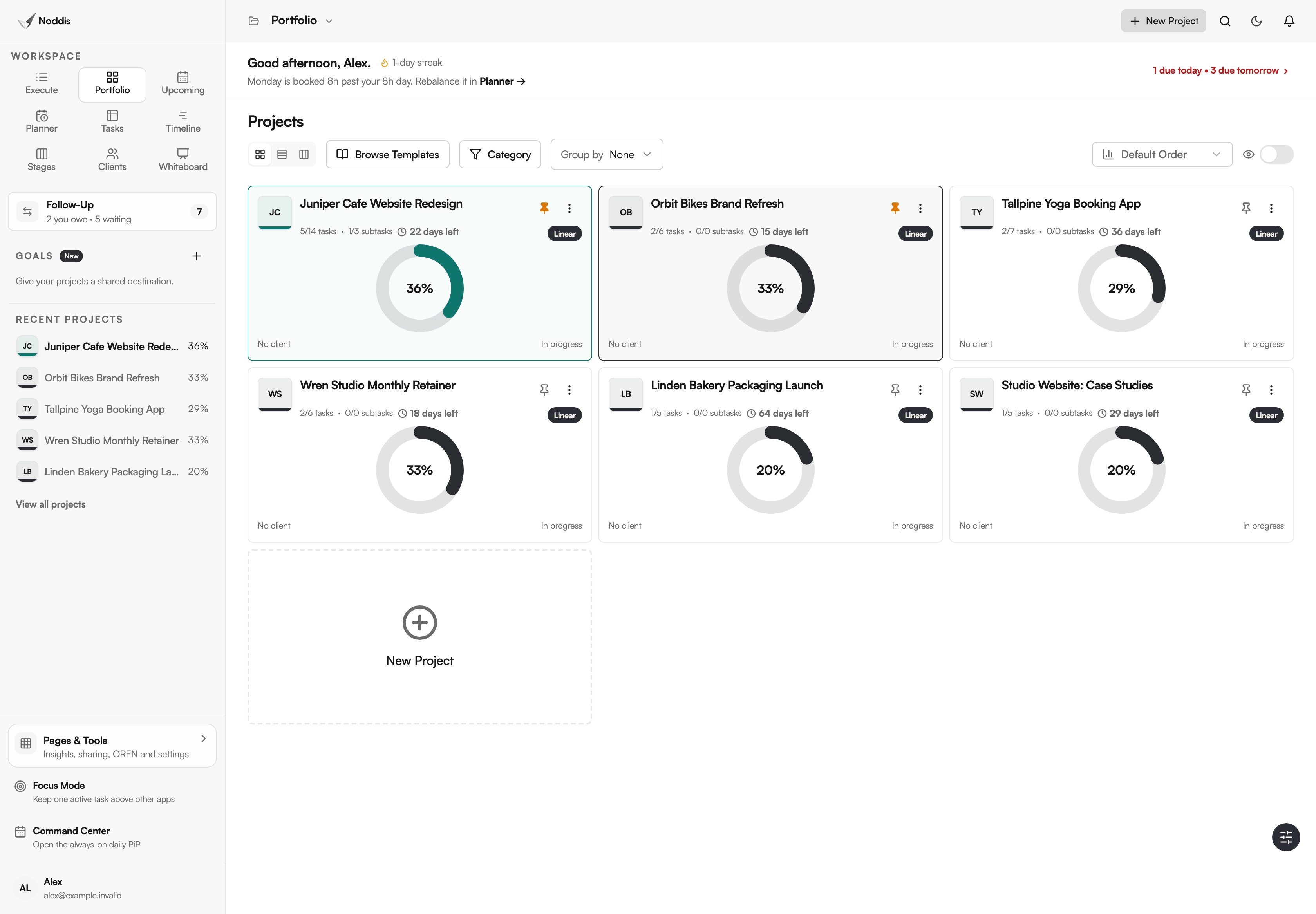
You can pin the projects that matter this week, filter by category, and switch between cards, a list and a board. The board sorts projects into Not Started, In Progress, Pending and Done. Portfolio is on the Free plan.
Every deadline in one list
Three projects each have something due on Friday. In separate boards you find that out on Friday. Upcoming puts the dated tasks from every project in one list, earliest first, with the project named on each line. Dates that are due today or overdue turn red. Finished work moves to its own column.
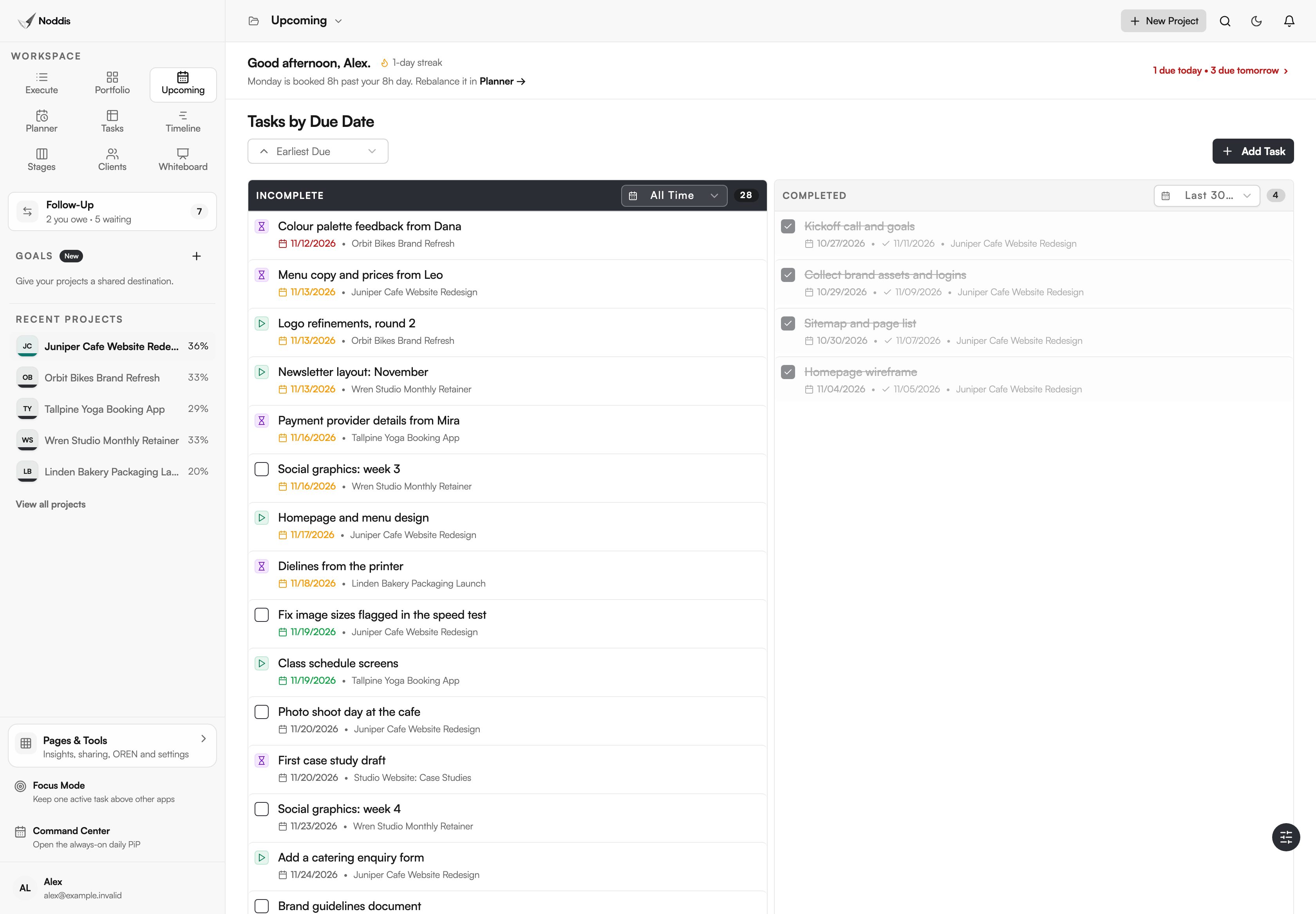
You can narrow the list to this week, the next 30 days or this year. Upcoming is on the Free plan.
Every task in one table
Sometimes you need the whole workload, not the next deadline. Tasks is one table of every task from every project, with its project, status and due date. Filter by project or status, sort by date, or group the table by project.
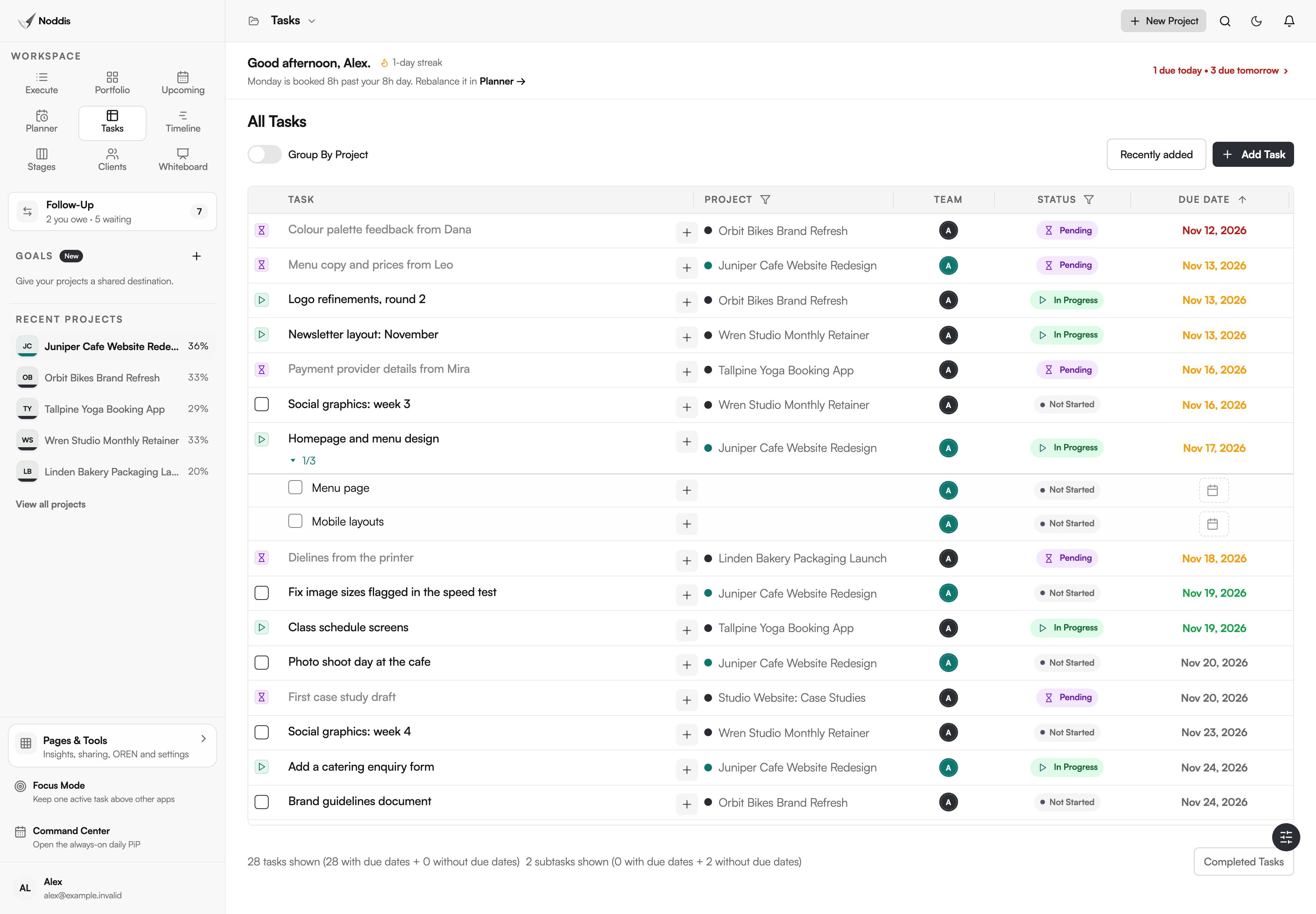
This is the view for the question "what is everyone waiting on?": filter to Pending and the stuck work from every project is on one screen. Tasks is on the Free plan.
One project at a time, when it is time to work
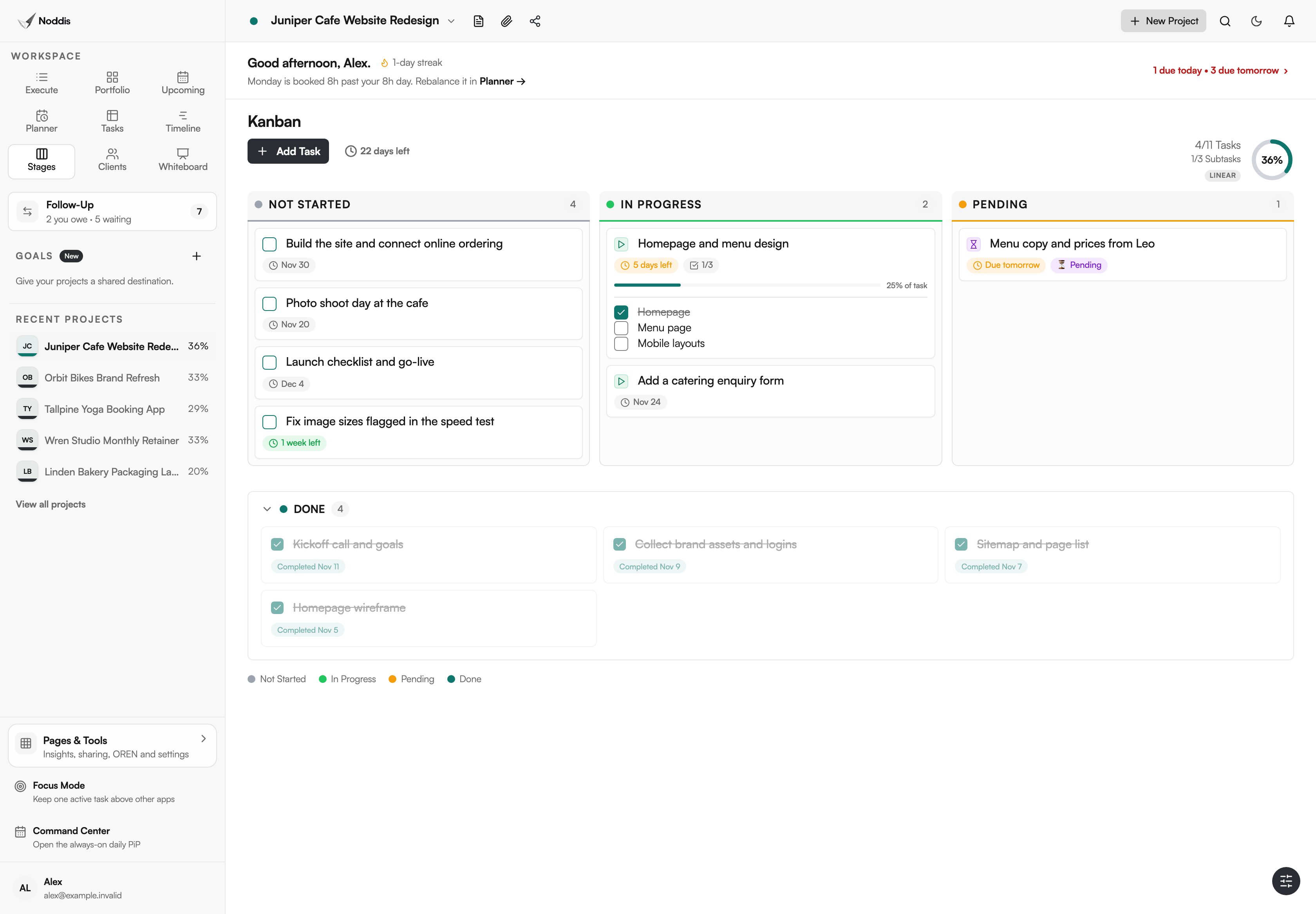
Seeing everything is for deciding. Doing happens in one project. Execute shows the selected project's tasks and subtasks with live progress. On Pro, Stages shows the same tasks as columns and Timeline shows them as bars by date. All three read the same saved work, so ticking a task in one updates the others, the Portfolio card and the Upcoming list.
Planner, on Free, is where you place tasks into the day and week and compare the time they need with the hours you have.
The replies you are waiting on, across every project
In multi-project work, the thing that slips is rarely a task. It is the answer someone owes you. Follow-Up lists those in two columns, Needs From You and Waiting on Others, with the project named on each item and the days it has been open.
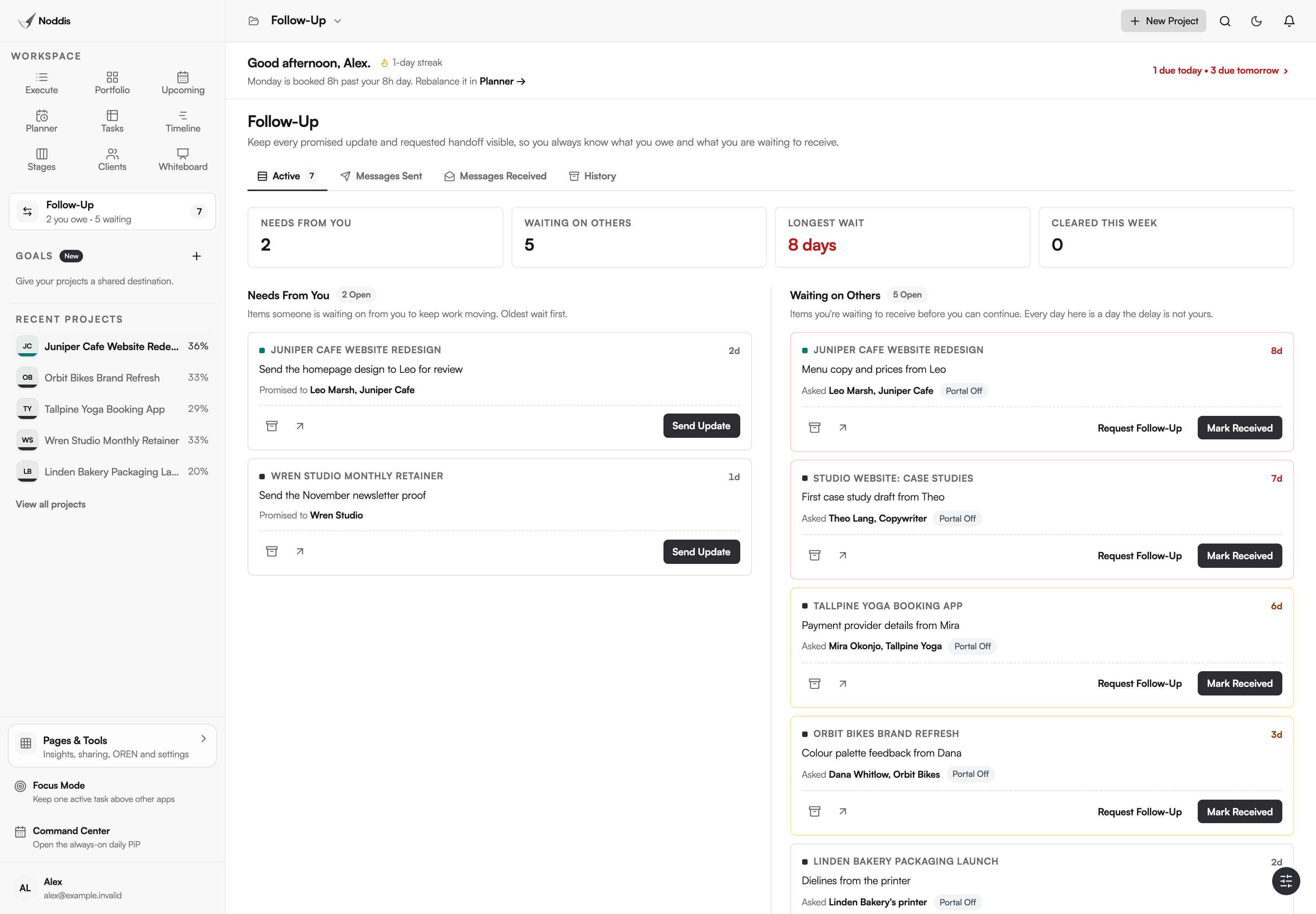
Follow-Up covers one project on Free and every project on Pro. For everything else Noddis takes off your plate, from progress maths to client updates, see project management without the management.
A place to plan, beside the real work
Some weeks need thinking before doing: a launch, a quarter, a new client. The Whiteboard is a canvas inside the same workspace. Put notes, checklists and tables on it, then add a live card for each project you are planning. Every card shows that project's real progress and next tasks, so the plan on the wall never goes stale.
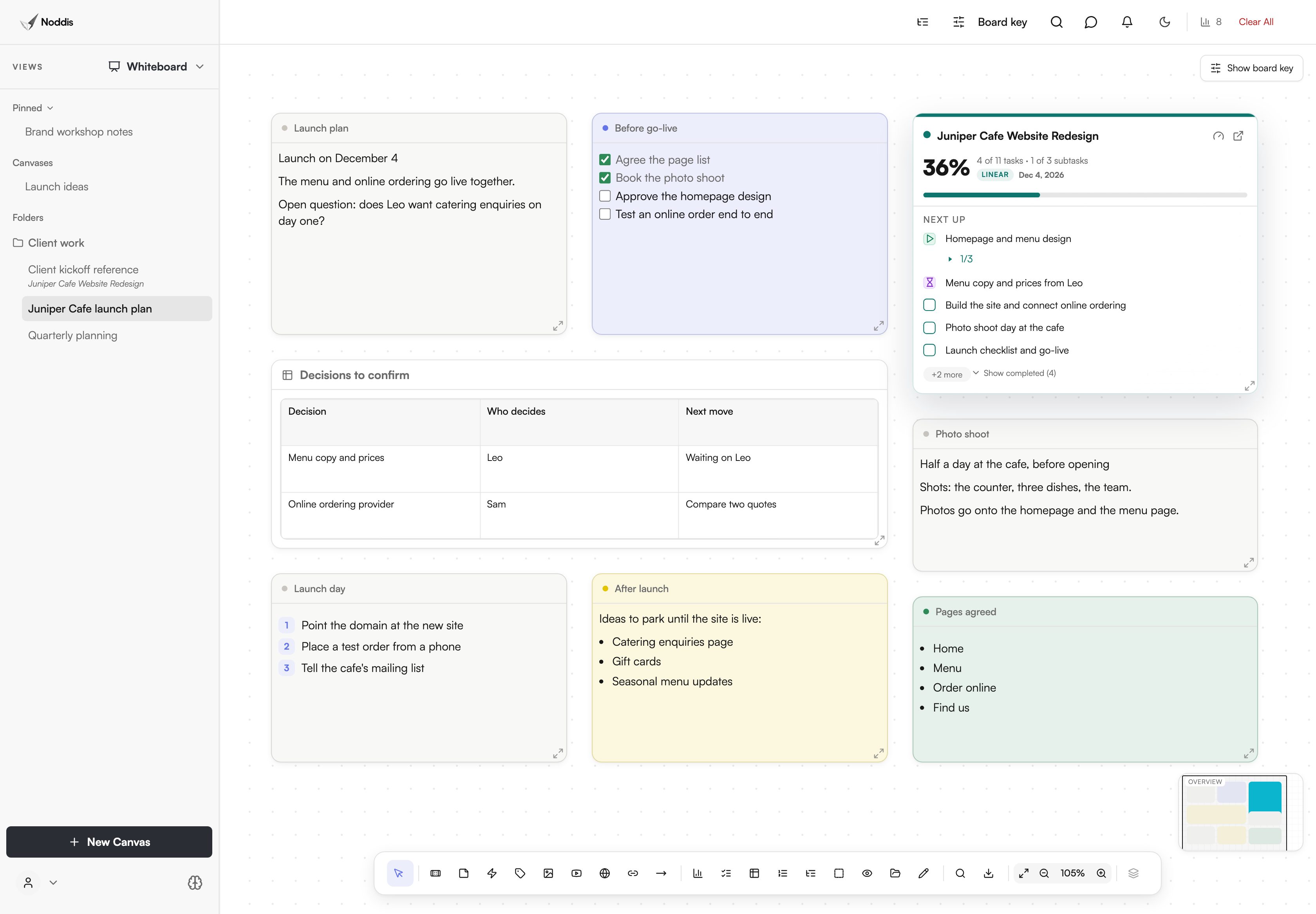
Whiteboard is on Pro. For a planning routine built on it, read plan a client project on a whiteboard. Every workspace has its own walk-through on the workspaces overview.
For client work and for in-house teams
The same five workspaces serve both. What changes is who is on the other end.
- Client-facing businesses. Freelancers, studios and agencies add client portals and Drift to keep each client informed and each scope visible. See multi-client project management and project management for small agencies.
- In-house teams. Marketing, proposal and purchasing teams run several internal projects that wait on colleagues. See the workflows for marketing teams, proposal teams and purchasing teams.
- Project-based trades. Contractors run several jobs with subcontractors and client decisions on each. See project management for contractors.
Where a different tool fits better
Noddis is built for small teams running several projects. It is not the right multi-project management tool for everyone.
- You need enterprise portfolio management. Noddis has no portfolio budgets, no resource planning across departments and no approval gates.
- You want to design the system yourself. There are no custom fields, custom statuses or automation rules. A configurable platform will suit you better.
- You need the money in the same place. Noddis has no time sheets or job costing.
To compare options fairly, read the best tools for managing multiple projects, which sets eight tools side by side.
What it costs
The Free plan includes three active projects with Portfolio, Upcoming, Tasks, Execute, Planner and importing. Follow-Up, Drift and Nodes work on one project. Pro is $15 a month, flat, and adds unlimited projects, Timeline, Stages, Whiteboard, Follow-Up across every project, client portals and Analytics across your projects. Check the current plans before you decide.
Frequently asked questions
What is the best multi-project management software for a small team?
The best fit is the one that answers your weekly questions without extra upkeep. Noddis suits small teams that want ready-made views of every project, deadline and open reply. If you want to design your own fields and workflows, compare a configurable platform. If you need budgets and resource planning, look at portfolio software.
Is multi-project management the same as project portfolio management?
Not quite. Project portfolio management is about choosing and funding the right projects for an organization. Multi-project management is about running several projects at the same time, day to day. Noddis is built for the second.
How many projects can I manage on the Free plan?
Three active projects, with as many tasks as they need. You can archive a finished project to make room for a new one. Pro removes the limit.
Can I bring in the projects I already have?
Yes. The Import dialog reads CSV and Excel files and exports from Asana, Basecamp, ClickUp, Notion, Todoist, Monday, Trello, Airtable and TickTick. Noddis shows the tasks it found before it creates anything. Custom fields are kept as notes on each task.
Is Noddis a multi-project management tool or a system?
Both. The tool is the app. The system is the routine it supports: Portfolio to see where things stand, Upcoming for the dates, Execute to do the work and Follow-Up for what you are waiting on. The routine comes built in, so there is nothing to design. The guide to the six parts of a multi-project management system explains the routine on its own.
See every project at once.
Start with the three projects that worry you most. Add their tasks and open Portfolio.