
Short answer
Use Execute for tasks in one selected project, Portfolio to compare projects, and Upcoming, Planner, or All Tasks to plan across them. Pages & Tools contains tools such as Capture Inbox, Follow-Up, Drift, Nodes, and OREN. Client Portals share selected project information; Whiteboard supports visual planning. Each view has a specific job and some require Pro.
Why does Noddis use workspaces instead of one big board?
Different questions need different views. A task list helps you finish one project; a portfolio helps you compare several; a calendar helps you plan dates. Noddis keeps the underlying project records connected while giving each job its own surface.
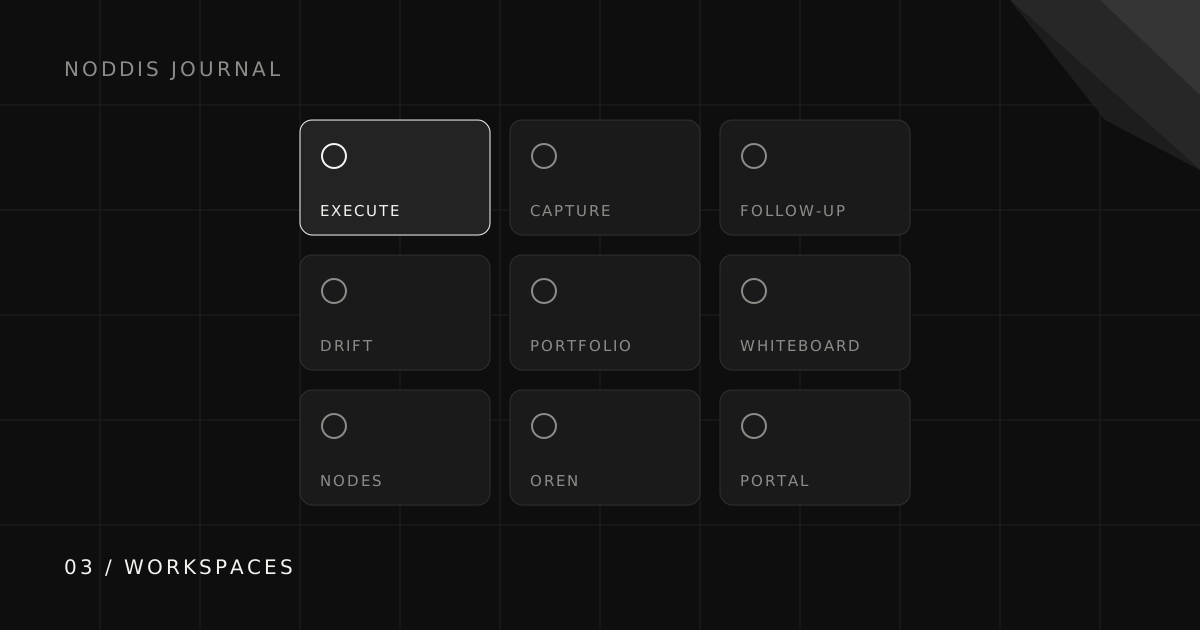
The sidebar has nine main workspace entries. Other tools live in Pages & Tools, and Goals groups projects around a shared destination. Availability varies by plan.
What are the Noddis workspaces at a glance?
The main workspace entries are:
Pages & Tools adds the connected tools described below. Goals is a separate project rollup in the sidebar.
Execute: what is it for?
Execute shows tasks for the project you select. Add, edit, complete, and organize that work here. To choose across projects first, use Portfolio, Upcoming, Planner, or All Tasks. Then return to Execute with a specific next action.
Capture Inbox: what is it for?
Capture Inbox receives text messages sent to your capture number, emails forwarded to your capture address, and messages from a connected Slack integration. Review the extracted work, destination project, dates, and wording before applying it. Direct text shortcuts are a separate, explicit routing option.
Voice brain dumps and meeting notes use Voice Notes, not the Capture Inbox. A successful brain dump can save routed projects and tasks automatically, so inspect the saved transcript, routing, tasks, and dates immediately. Meeting Notes saves proposed actions for review; those are not automatically project tasks. Email and Slack Capture are Pro features; Free includes five received text captures. Check pricing for the current allowances.
Follow-Up: what is it for?
In Follow-Up, record a task-linked commitment, choose whether you owe the next move or are waiting on someone else, and set a date. The workspace brings those recorded commitments together across projects you can access. An ordinary task does not become a follow-up just because it exists.
Resolve a commitment when the exchange is finished. Resolving it and completing the underlying task are separate decisions: receiving an approval does not automatically mean the deliverable is done.
Drift: what is it for?
Noddis Drift measures scope growth against a baseline. Establish the agreed scope, then review additions as client-requested, internal, or unclassified. This gives you a concrete record for a scope conversation. It does not decide that a project is late merely because nothing changed for a few days.
Read the scope-creep guide for the conversation this evidence supports.
Portfolio Board: what is it for?
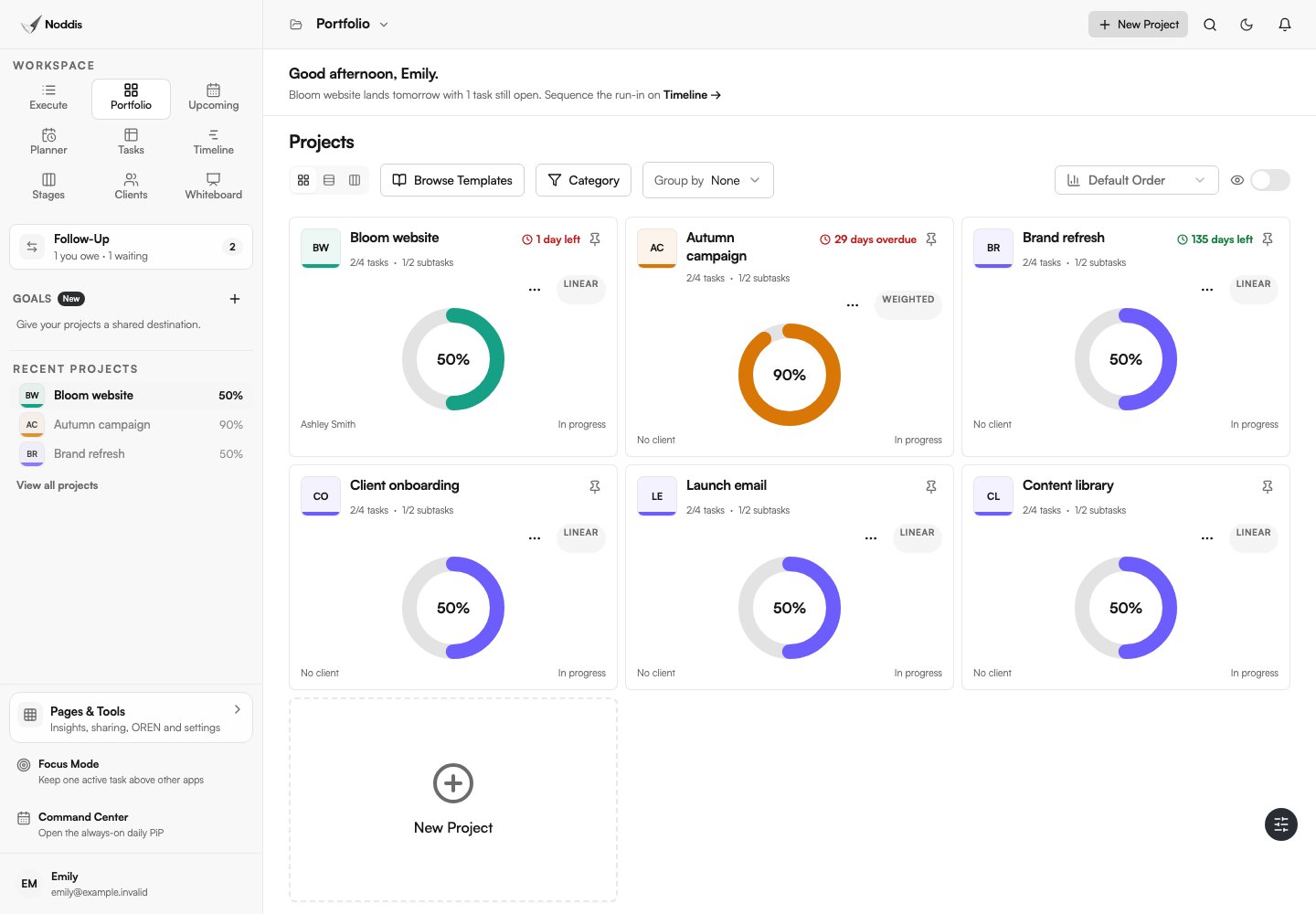
Portfolio shows the projects available to your account in grid, list, and Board views. Use it to compare progress and status, then open a project for detail. Board is a Portfolio view, not a separate ninth tool. Projects can be personal or client work; a client link is optional.
Whiteboard: what is it for?
Noddis Whiteboard is a Pro canvas for notes, images, links, shapes, and visual planning. Add a live project card to keep project context visible beside your thinking. A canvas can also stand on its own; it does not have to belong to a client project.
Grouping a note or drawing an arrow does not automatically create tasks or completion dependencies. Turn the agreed next actions into project tasks deliberately, and keep the supporting canvas available as context.
Nodes: what is it for?
Nodes displays the records and relationships available for a connected project, including tasks, notes, files, and people. It uses stored relationships, and you can add explicit connections where useful. Read the relationship label: an association is not necessarily a task dependency, and the graph cannot know about an approval you have never recorded.
Free includes Connected Intelligence for one selected project; Pro extends it across your authorized projects. Use the map to investigate a blocker, then confirm the next action in the task itself.
OREN: what is it for?
OREN uses available Noddis project context to answer questions and propose next steps. The name stands for Observational Reasoning and Evidence-based Navigation. Ask a specific question, inspect the supporting work, and review any proposed action before applying it: an AI answer is not a guarantee that the project data is complete.
The full OREN workspace is a Pro feature. Free users can ask questions in Nodes for their selected Connected Intelligence project.
Client Portal: what is it for?
Client Portals are a Noddis Pro feature. Enable sharing for the project, choose the tasks and sections clients should see, and preview the result before sending the link. The portal reads the selected project data as it changes. Files must be marked client-visible and downloads enabled; attention items and comments have their own controls.
Clients can open an enabled portal without a Noddis account. Anyone who receives an unrestricted link can open it, so use the available password/access controls when needed and keep sensitive internal material out of the shared view. A portal gives visibility, not permission to edit the underlying project.
How do the workspaces fit into a typical day?
- Compare projects in Portfolio and review dated commitments in Follow-Up.
- Choose a project and do its tasks in Execute.
- Review incoming text, email, or Slack work in Capture Inbox; use Voice Notes for spoken notes.
- Use Nodes for recorded connections and Whiteboard for thinking through a plan.
- Review scope additions in Drift, then send clients an update linked to a configured portal.
Common questions
Do I have to use every Noddis workspace?
No. You will probably spend most of your time in Execute and Portfolio Board and visit the others when a situation calls for them. Because they share the same data, a workspace you never open costs you nothing.
Do workspaces duplicate my data?
Project workspaces use shared project and task records, so you do not maintain a separate task copy for each view. Specialized tools such as Whiteboard and Voice Notes also keep their own records. A change appears in the views that use that record.
What does OREN stand for?
OREN stands for Observational Reasoning and Evidence-based Navigation. It uses available Noddis context to answer questions and propose next steps; review its answers against the underlying work.
Can clients see my workspaces?
Clients see the portal content you deliberately share. A collaborator invitation is different and grants project access according to its permissions. Preview the portal and check task, file, comment, and access controls before sending a link.

Katleen is the founder of Noddis. She runs client projects through her app studio, 693 Labs, and builds Noddis around the problems that work creates.
Last reviewed . Feature details reflect Noddis at the time of review.